Specifying Type Properties for Push Buttons or Links
Access the Push Button/Hyperlink Properties dialog box.
This example illustrates the fields and controls on the Push Button/Hyperlink Properties dialog box: Type tab. You can find definitions for the fields and controls later on this page.
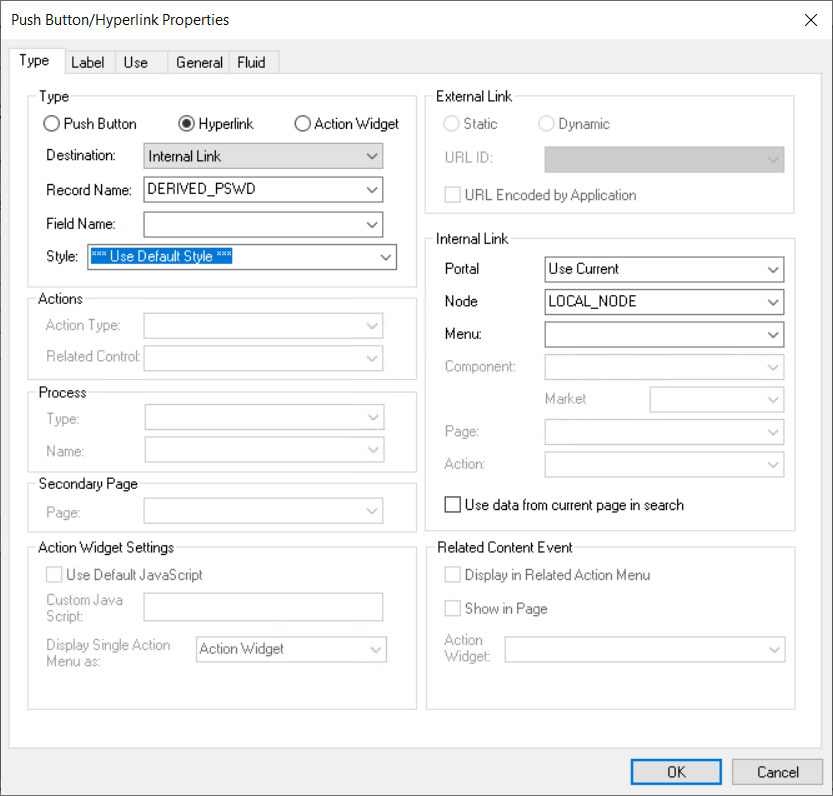
Type Tab
Each destination type that you select enables a different region on the Type tab, enabling you to further define your push button or link. Select one of these values from the Destination drop-down list box:
| Field or Control | Description |
|---|---|
|
Type |
Select a type of push button or hyperlink. Options are:
|
|
External Link |
Accesses a uniform resource locator (URL). You can select a value from the URL table or use the value of a record field to define the destination. Selecting this option enables the External Link group box. You can choose to have the URL encoded or not by selecting the Encoded by Application check box. Selecting this option applies an external link to your page in the form of a push button or link that accesses a new page, taking the user to the external web site that you designate. To return to the primary page, the user closes the new page. When setting the record and field name, consider these points:
|
|
Internal Link |
Accesses a PeopleSoft page. Parameters include the menu path to the page and a check box to specify whether data from the current page should be used in the search dialog box. Selecting this option enables the Internal Link group box. Selecting this option adds an internal link in the form of a push button or link that you can use to access another component or page from within the system or another PeopleSoft database or node. You can even specify the type of action mode to open in for that page. To control the push button or link in PeopleCode, enter the record and names. Like the external link, if you associate a record and field name with this link, the tool tip that appears at runtime draws from the RFT long label for the record field. However, the RFT long label only appears if it is different from the assigned display value of the link. |
|
Instant Messaging Action |
Important: Do not select this option. MCF instant messaging has been desupported in PeopleTools 8.59. This option will be removed in a future release. |
|
Page Anchor |
Enables the user to jump to the anchor tag that you designate for a page field on the General tab of the properties dialog box for that field. Selecting this option enables the user to jump from one destination (the link that you assign as the page anchor) to another (the field that you enable as the page anchor) in your page. When you select this option, the page fields that you previously set as page anchors on the General tab of the properties dialog box appear in the Related Control drop-down list box in the Actions group box. You can place as many page anchor buttons or links on the page as necessary. |
|
PeopleCode Command |
Associates a record field, so when the user clicks the push button or link, the system runs any FieldChange PeopleCode that is associated with that field. Enter the record and field names. The field must have PeopleCode in the FieldChange event. Important: The combination of record and field names associated with the action widget must be 28 characters or less. |
|
Process |
Runs processes that you set up previously with PeopleSoft Process Scheduler. Associate process push buttons with a specific process definition; the process is run each time that a user clicks the button. Selecting this value enables the Process group box, where you can specify the type and name of the process that you want to run. |
|
Prompt Action |
Displays a prompt dialog box for a specific control field. Adds a custom prompt button or link next to a field on the page in place of the standard prompt that is associated with that field. For example, you might want the prompt to read Find an Airport Code. Selecting this value enables the Actions group box. In the Related Control drop-down list box, select the field that you want to associate with the prompt. The systems sets the action type, Prompt, automatically. Set the text label properties for the link on the Label tab. |
|
Scroll Action |
Represents certain actions that a user can perform on a grid, scroll area, and scroll bar, such as bottom, top, insert row, and so on. Use to provide action buttons for the grid, scroll area, or scroll bar in areas outside of that control, such as at the bottom of the page or outside the borders of the control. Selecting this value enables the Actions group box, where you can specify the action type and related control. The Action Type field enables you to select the action to be performed in the specific level. The level is specified in the Related Control field. Specify one of the following scroll actions: Bottom, Next, Previous, Row Delete, Row Insert, and Top. For example, if you want a user to be able to move through a page at runtime, set the action type to Next or Previous and specify which scroll area you want those actions to control. |
|
Secondary Page |
Access an existing secondary page. After you design a secondary page, you must associate it with a control on the primary page. The secondary page push button or link is the starting point for the user of that secondary page. Selecting this option enables the Secondary Page group box, where you can select the name of the secondary page that you want to associate with the push button or link. |
|
Toolbar Action |
Represents the various toolbar actions available to the user. A user can perform several actions on a page, such as save, display the next page in a group, correction mode, and so on. These normally reside on the toolbar at the bottom of each PeopleSoft Pure Internet Architecture page. Use this type of push button or link for placing save, next in list, or other toolbar functions on the page. Selecting this value enables the Actions group box, where you can specify the action type: Add, Correction, Next in list, Next in Worklist, Next Page, Notify, Previous in List, Previous in Worklist, Previous Page, Refresh, Return to List, Save, Update/Display, Update/Display All, or View Worklist. The following action types are supported on fluid pages only: Back, Clear Prompt, Help Link, Home, IN Prompt, Logout, Nav Bar, New Window, Search, Search Cancel, and SUOW Save. |
External Link Group Box
In this group box, select Dynamic or Static and enter the URL ID, if necessary. Select a value from the URL Maintenance table of a record field to define the destination. For example, a derived record field might be used to set the destination value dynamically at runtime. The value of the derived record field is placed in the <href> tag of the HTML.
Internal Link
| Field or Control | Description |
|---|---|
|
Portal |
Select the portal to which you want the internal link to point. Use Current is the default. Valid values include all of the values in the PORTAL_NAME column of the PSPRDMDEFN table. |
|
Node |
Select the PeopleSoft database to which you want the internal link to point. Local stands for the node that is marked as the default only. If the content reference you need is registered with a non-default local node, make sure you choose the exact same value from this drop-down list box. Valid values include all of the values in the MSGNODENAME column of the PSMSGNODEDEFN table. If you select a node other than Local, the Use data from current page in search check box is deselected. The node that you select should match the node for the destination component in the Registration Wizard or on the Content Ref Administration page. Select . Click the Edit link to access the Content Ref Administration page. |
|
Menu |
Select the menu name in which the destination page is contained. |
|
Component |
Select the component in which the destination page is contained. These values depend on the menu that you select. |
|
Market |
Select the market of the destination component. |
|
Page |
Select the page that should be active. These values depend on the component that you select. |
|
Action |
Select the action mode in which you want the page to begin. |
|
Use data from current page in search |
Select if you want data from the current page to be used in the search dialog box. This option ensures that the new page inherits the proper keys from the context of the current page. The process is almost identical to the Transfer( ) PeopleCode function, and it performs a similar function. If this check box is selected, the system discards the existing key list; builds a new key list from the current component buffer using the context of the field (when a choice exists between rows in a scroll area); and uses this key list to start the new component. If this option is deselected, the system uses the existing key list in the normal manner. |
Action Widget Settings Group Box
The default usage for the action widget is to add a control to a page that when clicked displays a drop-down menu containing the related actions associated with that widget. However, this widget can also be used to trigger custom JavaScript.
| Field or Control | Description |
|---|---|
|
Use Default JavaScript |
Select to make the Custom JavaScript edit box read-only and populate the edit box with the with the default JavaScript, RelatedActionJS. If you want to revert the field to the default, just select this check box and the system repopulates the field with the default value. |
|
Custom JavaScript |
When enabled, enter the name of the custom JavaScript to execute. |
See Portal Technology: Understanding the PeopleSoft Related Content Framework