Using the Multiple Document Interface
PeopleSoft Application Designer makes use of multiple document interface (MDI). Consequently, each window in the definition workspace of PeopleSoft Application Designer represents a view of a definition, and you can have multiple windows open at the same time. These definition windows must stay inside the borders of the definition workspace, but you can maximize, minimize, cascade, or tile them in that space.
You can have different types of definition windows open at the same time, such as menu, field, record, and page windows. As a result, you can work with different definitions simultaneously, which simplifies the process of designing a group of related definitions.
Active Windows
Although you can have multiple windows open at the same time, only one window can be active at any moment. Make a window active by selecting it in the definition workspace. The active window always appears on top with the title bar in active window title color.
In addition to clicking a window to make it active, you can also use the Window menu shown in the following example. This menu displays the windows that are currently open by displaying a check mark next to the active one. Change the window that is currently active by selecting it from the menu.
This example illustrates the fields and controls on the Example of the Window menu. You can find definitions for the fields and controls later on this page.
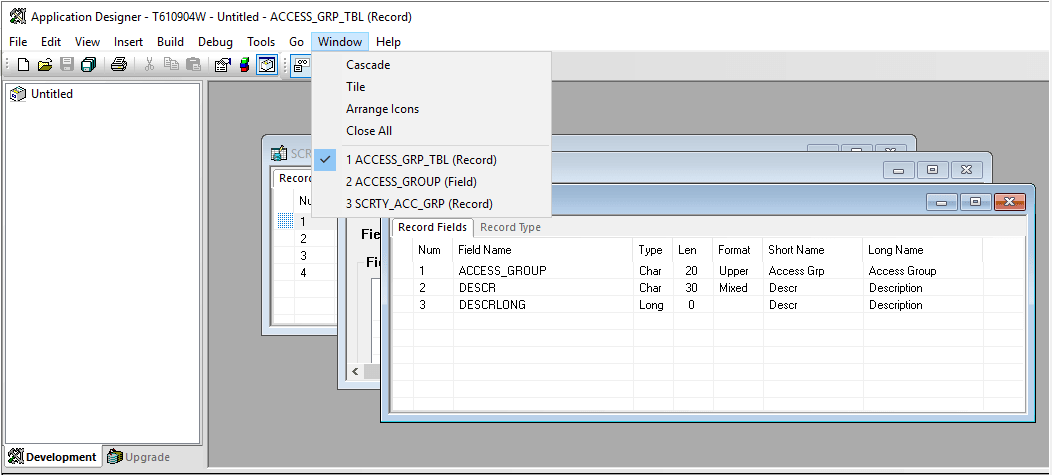
Other commands from the Window menu include Cascade, Tile, Arrange Icons, and Close All windows.