Using Physical Data Storage
You have control over the physical storage of your data. You can view and edit the DDL for creating tables, indexes, and tablespaces in the browser.
Access the DDL Model Defaults page (.)
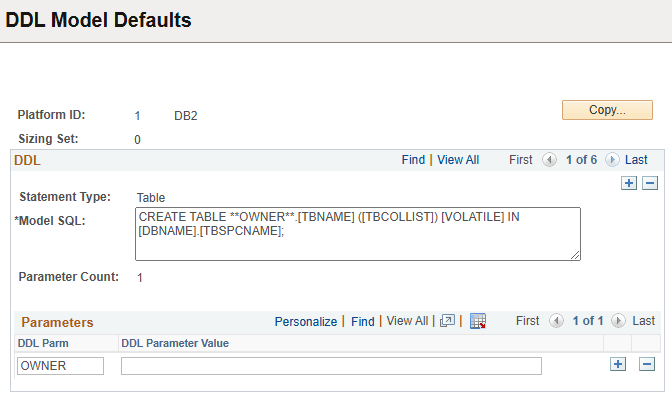
This example illustrates the fields and controls on the DDL Model Defaults page.
To view or edit the DDL parameters for creating tables, indexes, and tablespaces:
-
Open the component.
-
Press the Enter key to view platform names.
-
Select a platform name.
The DDL Model Defaults page appears.
The Model SQL edit box shows the DDL template for the specified platform and sizing set. The items in square brackets are special parameters that are populated when instances of SQL are generated. For example, the preceding example shows an index model statement for ALLBASE. In this example:
-
[TBNAME] is the name of the table.
-
[TBCOLLIST] is replaced by the columns that are specified in the index definition.
The model statements also contain parameter names enclosed in pairs of asterisks. A parameter name is replaced by a value when instances of the SQL are generated. The preceding example has one parameter, **FILESET**. When DDL is generated using this model, the FILESET parameter is replaced by FILE unless it is overridden for the specific record or tablespace. The other text in the model statement is copied to the generated SQL.