Enabling Selective Tracing
You can enable selective tracing for PeopleCode or SQL trace output.
You can select any section, step, or action of an Application Engine program for selective tracing.
To enable selective tracing in PIA, navigate to .
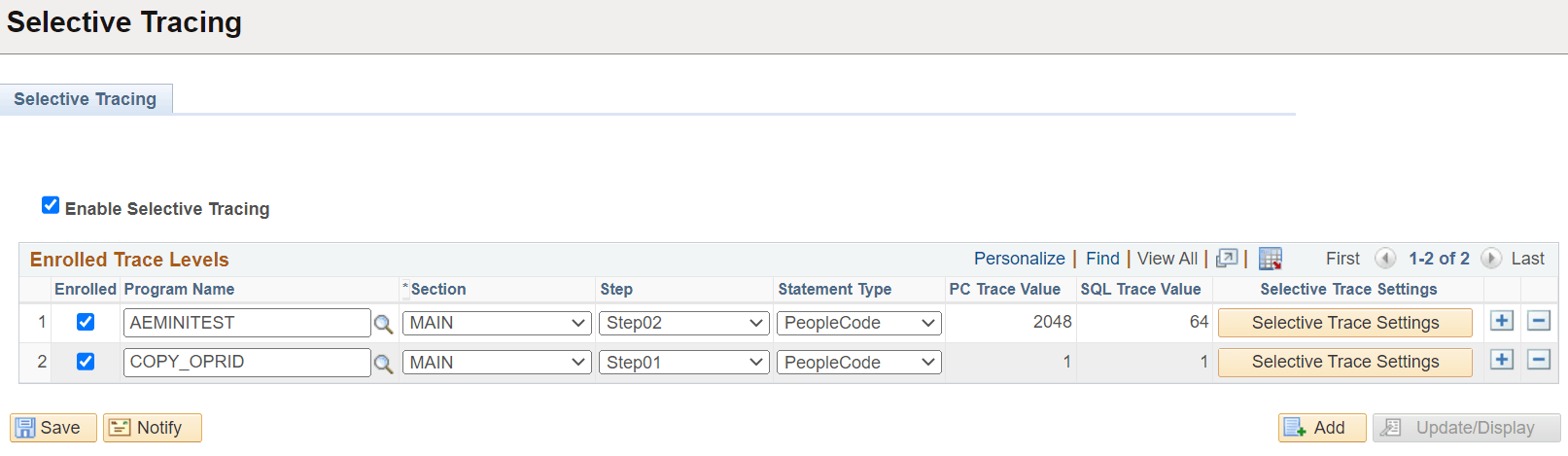
This example illustrates the fields and controls on the Selective Tracing page.
| Field | Description |
|---|---|
|
Enable Selective Tracing |
Enable or disable selective tracing. |
|
Enrolled |
Select this option to enroll an Application Engine program. Only Application Engine programs that have a MAIN section is listed. |
|
Section |
This is enabled only when an Application Engine program is selected for selective tracing. |
|
Step |
This is enabled when you select a section. The steps are displayed based on the section you select. |
|
Statement Type |
This is enabled when you select a step. The statement types can be PeopleCode or SQL. |
|
PC Trace Value |
The PeopleCode trace value is displayed, which is selected from the Selective Trace page. |
|
SQL Trace Value |
The SQL trace value is displayed, which is selected from the Selective Trace page. |
|
Selective Trace Settings |
Use this to select the different PeopleCode trace and SQL trace settings for each AE program that is enrolled to use selective tracing. Refer to the subsequent section on PeopleCode and SQL trace settings. |
PeopleCode and SQL Trace Settings
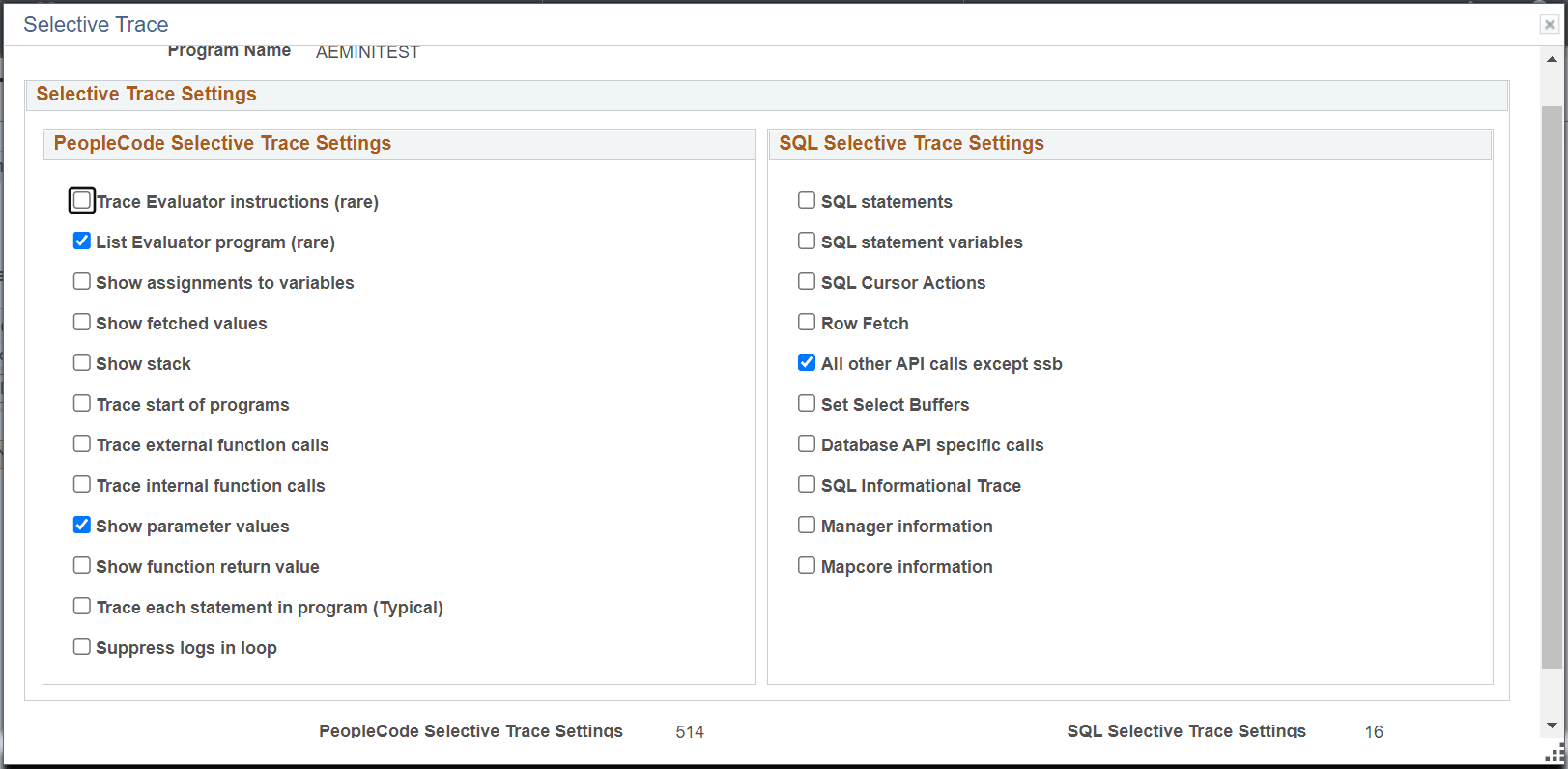
You can select the PeopleCode trace and SQL trace settings from this page. The trace value appears at the bottom of this Selective Trace page.
After the selecting the trace settings on this page, the trace values then appear on the PC Trace Value and SQL Trace Value fields on the Selective Tracing page.
The values depend on the traces that you select. The values cannot be manually edited.
This example illustrates the fields and controls on the Selective Trace page.
Administrator Enabled Selective Tracing
From Selective Tracing Admin page, an administrator can specify selective tracing configuration for an user or a set of users by using the Enrolled Users link.
Navigate to .
This example illustrates the fields and controls on the Selective Tracing Admin page.
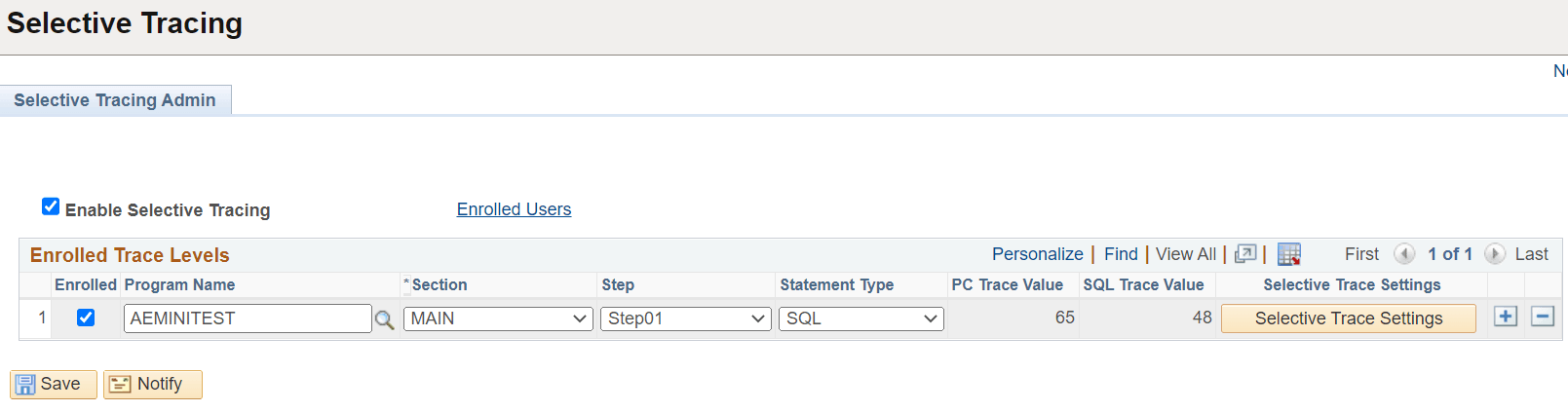
On this page, you can enroll the selected Application Engine program with the trace settings for an user or a set of users.
Select the Enrolled Users link to open the Selective Tracing page.
This example illustrates the fields and controls on the Selective Tracing Admin page.
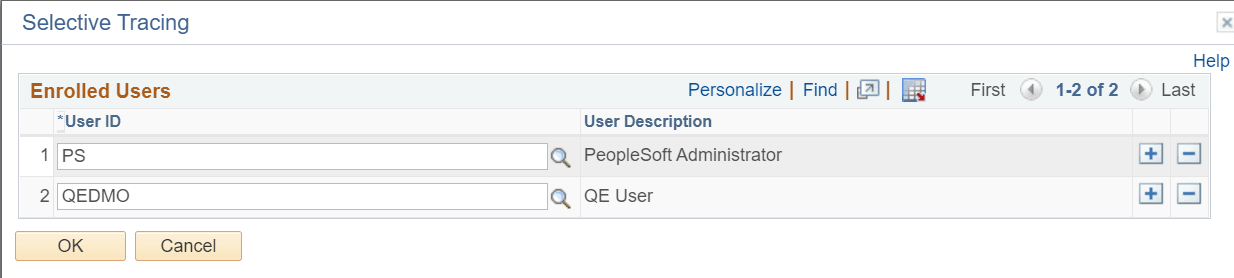
On this page, enroll an user or a set of users for whom you want to specify the selective tracing configuration.
When administrator enables selective tracing for an user from the Selective Tracing Admin page, then on the Selective Tracing page (PeopleTools, Application Engine, Selective Tracing) of that user, the administrator-enabled selective tracing settings appear in display-only mode.
Any trace setting done by the user on the Selective Tracing page will still be editable.
Note:
The administrator's trace setting may override the user trace setting and the user trace setting will not be shown.