Setting Client Options in PeopleSoft Configuration Manager
For processes running on a Microsoft Windows workstation, you can set trace options using the Trace tab in PeopleSoft Configuration Manager. This procedure is valid only if you are running Application Engine programs on a Microsoft Windows workstation in a development environment.
Here, you can also define the file size of the trace file.
This example illustrates the fields and controls on the Application Engine Trace File Settings. You can find definitions for the fields and controls later on this page.
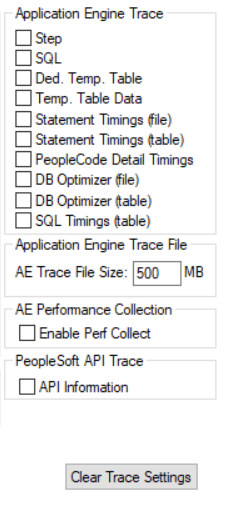
Application Engine Traces
To set Application Engine traces:
-
Start Configuration Manager, and select the Trace tab.
-
Select the appropriate trace options.
You can select any combination of options.
-
Click either the Apply or OK button to set trace options.
Temporary Table Data Trace
You can enable temporary table data tracing for diagnostics purposes. Use AE Trace Analyzer to analyze the temporary table trace file and generate diagnostic results.
To enable temporary table data tracing:
-
Select the Trace tab in PeopleSoft Configuration Manager.
-
Under Application Engine Trace, select Temp. Table Data.
-
Click either the Apply or OK button.
Note:
The temporary table data trace file size can be up to 1 GB to limit the memory usage. To support files exceeding 1 GB size, increase the JVM heap size.
Note:
To map the Application Engine steps logged in the AET file with the corresponding temporary table data output in the temporary table data, you can time stamp the Application Engine step’s start as an index. Use this time stamp to view the temporary table data of the desired Application Engine step.
The naming convention of AE trace file is AE_Program_name_Process_Instance_Date/Time_Stamp.AET, for example, AE_AP_MATCH_142879_1126204755.AET, and corresponding temporary table data trace file is AE_Program_name_Process_Instance_Date/Time_Stamp_temptable.DAT, for example, AE_AP_MATCH_142879_1126204755_temptable.DAT.
You can also enable the trace output of sections from PeopleSoft Configuration Manager. To enable the section trace output:
-
Select the Trace tab in PeopleSoft Configuration Manager.
-
Select the Enable Section Trace(g) check box.
Application Engine Trace File Size
The Application Engine Trace file size can get too large making it hard to open and read. You can define the maximum file size for the file in AE Trace File Size field. The default value of the Application Engine trace file size is 500 MB.
The file size can vary between 500 MB to 1500 MB. If the current Application Engine trace file size exceeds the user defined value, file is closed and logging is switched to a new trace file.