Using Definition View
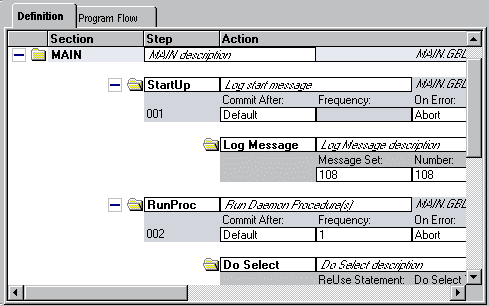
You use Definition view to create definitions within a defined hierarchical structure, in which nodes represent the definitions. A node is the visual representation of a section, step, or action that you can select, collapse, modify, and so on.
The sections that appear in Definition view do not necessarily appear in the order that they execute. To see the actual order in which the sections execute, switch to Program Flow view.
In addition to using a mouse, you can navigate in this view using the following keyboard combinations:
-
Press Ctrl+Home to scroll to the top of the program definition and select the first node.
-
Press Ctrl+End to scroll to the end of the program definition and select the last visible node.
-
Press Tab to move from the currently selected field to the next field that can be updated.
-
Press Ctrl+Down Arrow to move from the currently selected node to the next node.
-
Press Ctrl+Up Arrow to move from the currently selected node to the previous node.
This example illustrates the fields and controls on the Example of Application Designer Definition view. You can find definitions for the fields and controls later on this page.
Definition View Pop-up Menu
The following table describes each item you see when you right-click a Definition view window. Certain menu items are enabled only when a particular definition is selected.
| Menu Command | Description |
|---|---|
|
View PeopleCode |
Launches the PeopleCode Editor with the appropriate PeopleCode loaded. Enabled when a PeopleCode action is selected. |
|
View SQL |
Launches the SQL Editor with the appropriate SQL loaded. Enabled when an action containing SQL is selected. |
|
View XSLT |
Launches the SQL Editor with the related Extensible Stylesheet Language Transformations (XSLT) text loaded. Enabled only for Transform Only program types when an XSLT action is selected. |
|
Cut |
Removes the selected item and copies it to a clipboard. Here, the word clipboard refers to a PeopleTools-only repository for sharing PeopleTools objects. You cannot copy or paste into another program. |
|
Copy |
Copies the selected item. |
|
Paste |
Pastes the contents of the PeopleTools clipboard (the most recently cut or copied item) to the current location of the cursor. |
|
Delete |
Removes the currently selected node from the program definition. |
|
Refresh View |
Refreshes the current view and reorders the definition objects as necessary. |
|
Show Comment |
Reveals the comments associated with the selected definition object. |
|
Insert Section |
Inserts a new section into the current program at the place where the cursor is positioned. This option is enabled only when you have selected MAIN or another section. |
|
Insert Step/Action |
Inserts a new step and action within the currently selected section. This option is enabled only when you have selected a section or a step. |
|
Insert Action |
Inserts a new action within the currently selected step. This option is enabled only when you have selected a step or action. |
|
Jump to This Program Flow |
Switches to the Program Flow view with the first occurrence of the currently selected definition in focus. |
|
|
Displays the print dialog box for the definition view. Note: To preview any AE program, export the AE program using either File or File option. Select Microsoft Print to PDF while exporting. |
|
Insert Section Into Project |
Applies to sections. Inserts the currently selected section into the current project. |