Using Program Flow View
Program Flow view is a read-only view that shows the expected sequence of steps to execute for the program you are developing.
This example illustrates the fields and controls on the Example of Application Designer Program Flow view.
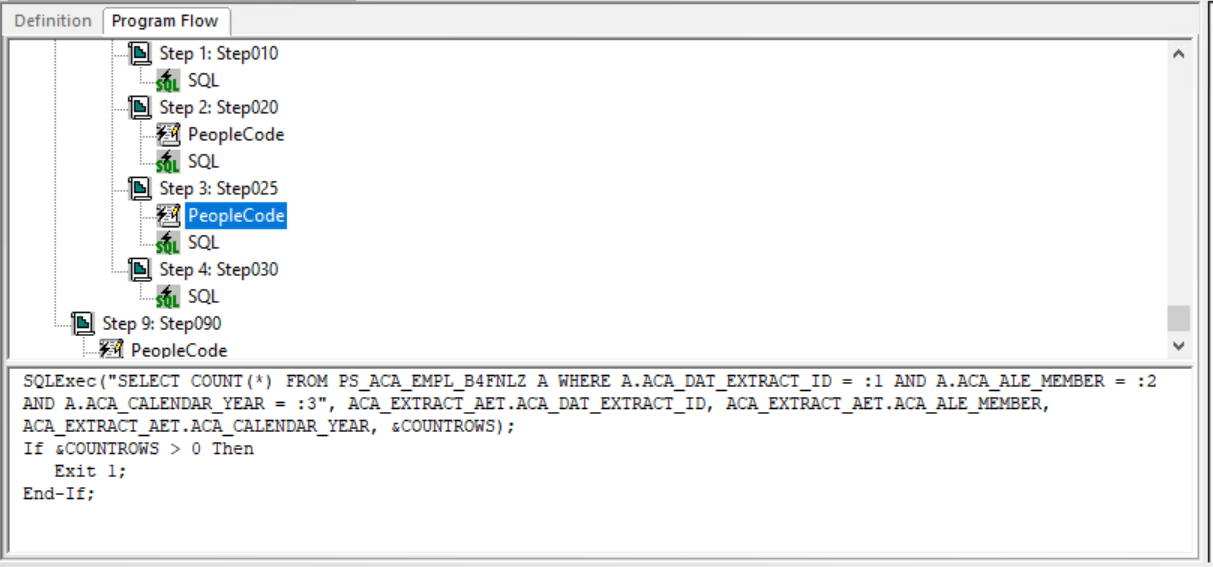
You can control the amount of detail that appears for each definition by clicking it to expand to the next level. You also can view the SQL or PeopleCode in the lower (splitter) window area by clicking the lower window.
If a primary step node (one that is not the result of a section call) is selected, the Print Options dialog box permits printing to begin either at that step node or the entire program prints. However, if a secondary step node (one that is the result of a section call), a secondary action node, a call section action node, a SQL node, or a PeopleCode node is selected in the Program Flow view, then the Print Options dialog box only permits the entire program to be printed.
To display the pop-up menu for a node, right-click the node. You do not have to select the node first.
You also can display the comments associated with definitions by selecting View, Show All Comments or, for a particular node, right-click and select Show Comment.
You can double-click SQL or PeopleCode statements to launch the editors.
Program Flow Pop-up Menu
The following table describes each pop-up menu item in the Program Flow view:
| Menu Command | Description |
|---|---|
|
View PeopleCode |
Launches the PeopleCode Editor with the appropriate PeopleCode loaded. Enabled when a PeopleCode action is selected. |
|
View SQL |
Launches the SQL Editor with the appropriate SQL loaded. Enabled when an action containing SQL is selected. |
|
Refresh View |
Refreshes the current view and reorders the definition objects as necessary. |
|
Show Comment |
Reveals the comments for a single definition object that appears in the Program Flow view. |
|
Jump to This Definition |
Switches to the Definition view with the first occurrence of the currently selected definition object in focus. |
|
|
Launches the print dialog box for the program view. Note: To preview any AE program, export the AE program using either File or File option. Select Microsoft Print to PDF while exporting. |