Accessing Pages and Components
Components typically consist of several related pages within the same window; however, some components contain only one page. Typically, significant pages, such as those containing required fields, come early in the page order. As you finish with one page, you can select the folder tab of another page to open it. You can think of this as leafing through several pages of a single form.
In addition to selecting tabs, you can click the links at the bottom of each page in the component to move to other pages within the component. Alternatively, you can use the corresponding keyboard shortcuts.
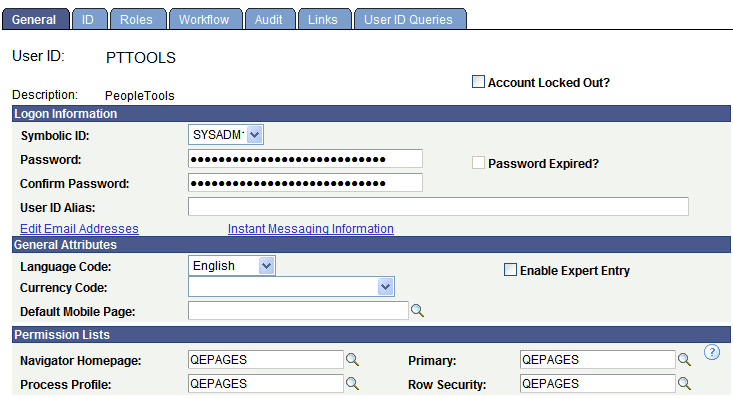
This example illustrates a sample component.
To access a component:
-
Select the content reference from the menu hierarchy or navigation page that relates to your page.
-
On the search page, enter search criteria to identify the row of data that you want to retrieve from the database.
-
Click Search to perform the search.
If your search returns multiple results, they appear in a grid from which you can select the data you want to view. If your search returns only one result, the system automatically displays that result on a page in the browser.
See Entering and Saving Search Criteria.
All pages in a group have the same search record, so the prompt in the initial search dialog box is the same regardless of which page you access first. You will not be prompted to enter new search criteria as you move from page to page in a component.
Likewise, during a save, pages in a component are treated as a single entity. When you click Save, the system commits the data on the pages to a database. If you have not completed all required fields, the system prompts you to enter additional data.