Changing Column Sort Order
You can change the sort order of grid columns without leaving the transaction page. Click a single column header to toggle between ascending and descending order. Click multiple column headers in the reverse order that you want to sort them with the last column header that you click becoming the primary sort for the grid. Grids enable you to have primary, secondary, and tertiary sorts. A dark blue arrow to the right of a column header indicates a primary sort; a light blue arrow indicates a secondary or tertiary sort. Any sort changes that you make to a grid remain in place until you change them.
Note:
Sorting is disabled on columns consisting of radio button fields.
See Removing User-Specific Grid Settings.
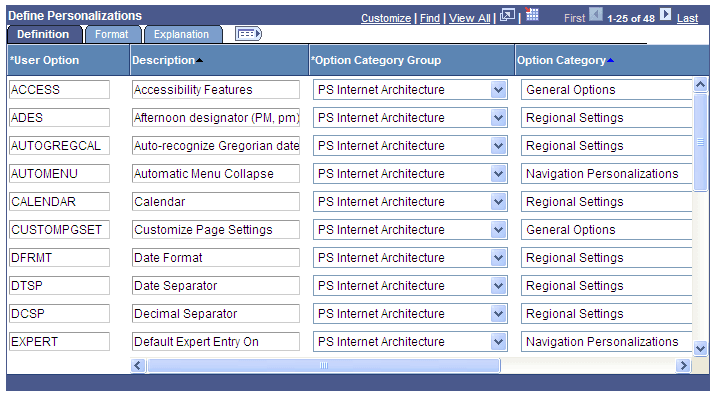
In this example of the Define Personalizations grid, the Description field displays the primary descending sort, the Option Category Group field displays the secondary descending sort, and the Option Category field displays no sort:
This example illustrates the user-specified sort order on the Define Personalizations grid.
You can also change the sort order by using the Personalize link.
Related Topics