Moving, Freezing, and Resizing Columns
You can change the column order, freeze columns, and resize columns in a scrollable grid directly within the grid control. Moved and frozen columns persist until you change them. Resized columns persist until you leave the page.
Important:
If the grid navigation header is not present or if the Personalize link is not present in the navigation header, you cannot move, freeze, or resize grid columns.
Moving Grid Columns
To move columns:
-
Place the cursor on the column header label.
The cursor image becomes a hand.
-
When the cursor changes shape, click the column label and drag the column to its new location.
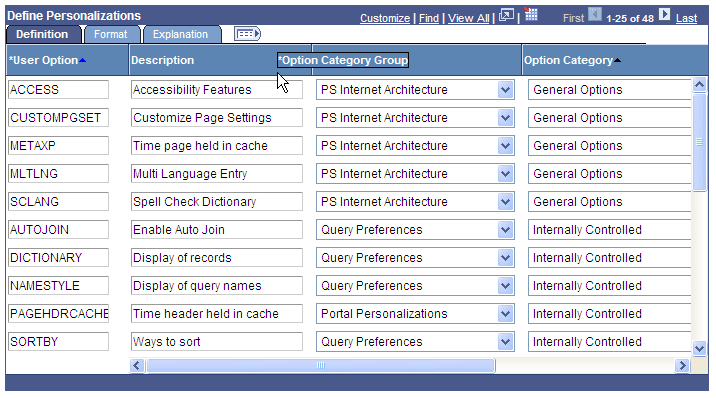
As you drag the column, a border appears around the column header label, and the label moves with the cursor.
-
When you have the column in the desired location, release the mouse to drop the column.
This example illustrates moving the Option Category Group column.
You can also change the column order by using the Personalize link.
Note:
Drag-and-drop functionality is enabled only if the grid can be personalized. If you do not see the Personalize link in the grid header, you cannot drag and drop columns.
Freezing Grid Columns
A grid can be divided into left and right panes. If the grid is divided, the left pane contains the frozen columns and right pane contains the other columns. If enabled, a horizontal scroll bar appears in the right pane if the columns are wider than the right panel width. If the grid has frozen columns, you can freeze other columns on the transaction page.
To freeze grid columns:
-
Place the cursor on the column header label.
The cursor image becomes a hand.
-
When the cursor changes shape, click the column label and drag the column to its new location.
As you drag the column, a border appears around the column header label, and the label moves with the cursor.
-
When you have the column in the frozen column area (to the left of the leading edge of the horizontal scroll bar), release the mouse to drop the column.
You can unfreeze columns by dragging them out of the frozen area.
Note:
If the grid has only one frozen column, the grid does not allow you to unfreeze that column by dragging it. You must use the Personalize link. Likewise, if you see no frozen columns, you cannot drag a column to freeze it; you must use the Personalize link.
If the grid has multiple tabs, you can drag a column into the frozen area on the first tab only.
Note:
Drag-and-drop functionality is enabled only if the grid can be personalized. If you do not see the Personalize link in the grid header, you cannot drag and drop columns.
Resizing Grid Columns
To resize grid columns on a transaction page.
-
Move the cursor into the column header.
-
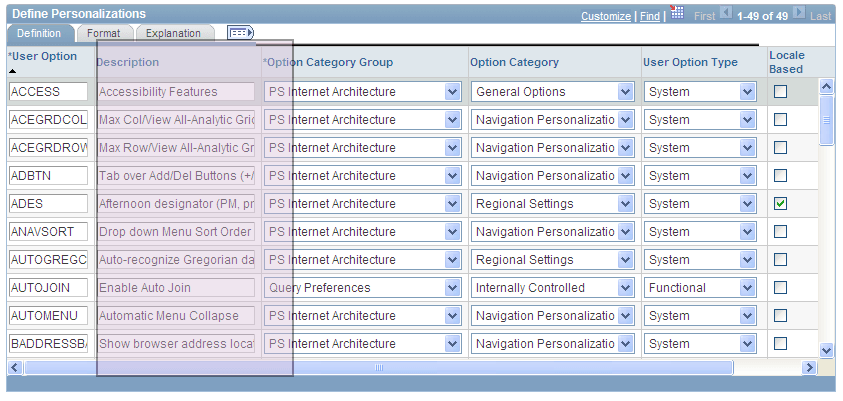
When the mouse changes to a hand, click and drag to resize the column.
-
When the column is the size you want, release the mouse.
Note:
You cannot resize columns to be smaller than the column header width.
This example illustrates resizing the Description column.
Removing User-Specific Grid Settings
You can remove user-specific settings, thereby restoring the default grid settings. To remove user-specific grid settings:
-
Click the Personalize link.
-
On the Personalize Column and Sort Order page, click the Delete Settings link.
-
On the Delete Settings page, click the Delete button.
-
On the Personalize Column and Sort Order page, click the OK button.
Related Topics