Contextual Menus
Related content can appear at the component, page, and field levels. You access the content at all levels similarly: through links that appear in contextual menus.
You work with these types of contextual menus in PeopleSoft applications:
-
The Related Content menu, which displays only related content.
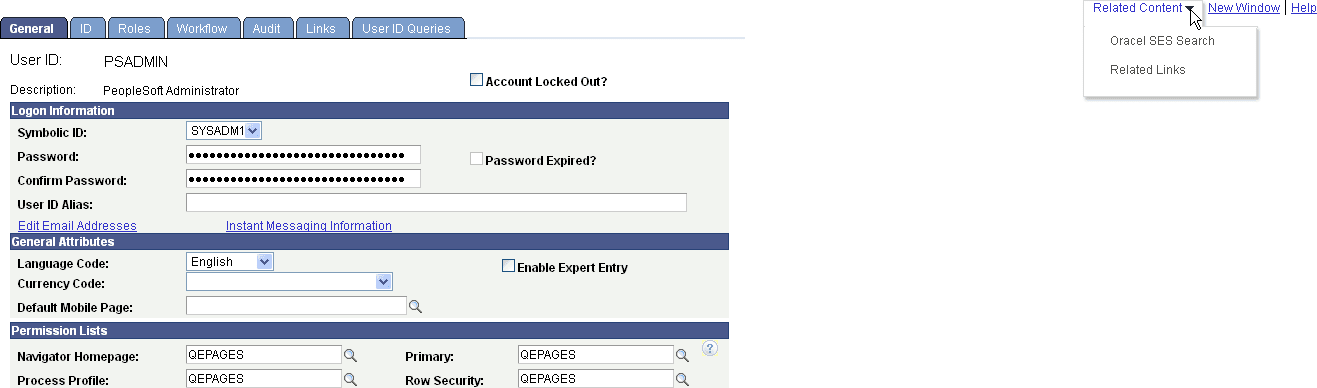
The Related Content menu appears in the page bar at the top of the transaction page.
The following example shows two services in the Related Content menu:
-
The related actions menus, which displays only related actions.
The related actions menus can appear as:
-
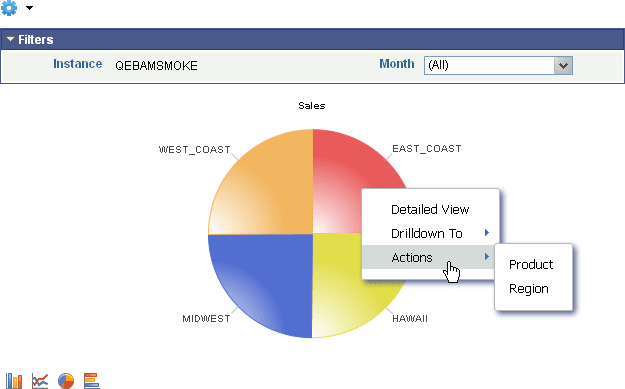
An Actions menu on a pivot grid chart.
This example shows an Actions menu on a pivot grid chart:
-
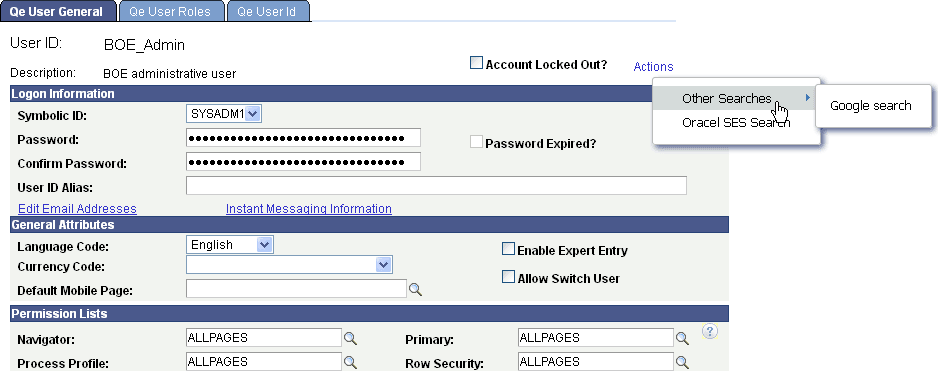
A free-standing Actions button on any page.
Note:
The label on the Actions button is configurable within PeopleSoft Application Designer.
This example shows a free-standing Actions button that has been added to the page to display a list of related actions:
-
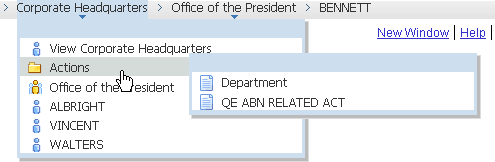
An Actions folder in drop-down SmartNavigation menus.
This example shows the Actions folder in a drop-down SmartNavigation menu:
-
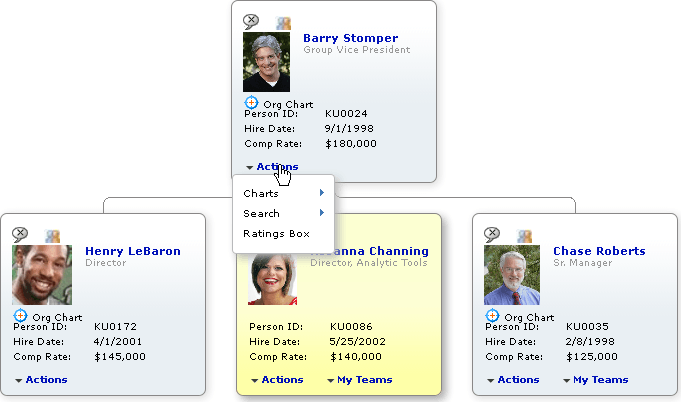
A drop-down Actions menu on chart nodes of SmartNavigation charts.
This example shows a drop-down Actions menu on a chart node of a SmartNavigation chart:
-
As pop-up related actions in the search results of a keyword search.
The following example shows pop-up related actions links in the search results of a keyword search:

-
-
Page field contextual menus, which can combine both related content and related actions.
Page field contextual menus appear when you click the red page-field glyph.