Using Related Content Frames
The Related Content frame appears at the bottom or to the right of the page.
Bottom Frame
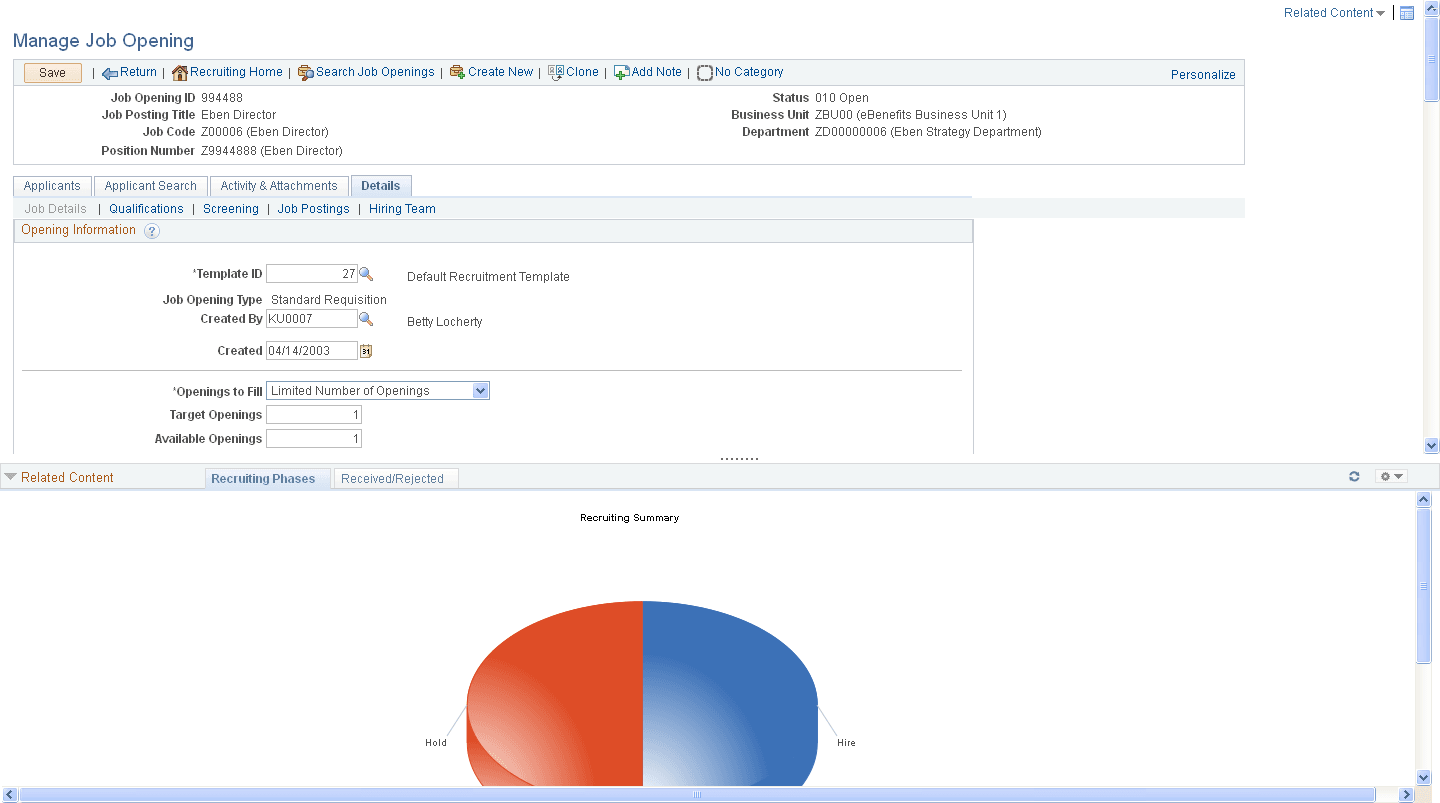
Note these points about the Related Content frame when it appears at the bottom of the page:
-
The frame extends across the width of the transaction page.
-
The visible area increases and decreases when you drag the handle on the upper edge of the frame in a vertical direction.
-
The frame appears and disappears when you click the Expand/Collapse button on the left side of the frame header.
-
The frame reloads when you click the Refresh button in the frame header .
-
The frame loads the current active service in a new window when you click the Zoom icon.
-
The frame closes when you click the Close button.
-
Open the active service in another window by clicking the zoom button in the frame header.
Note these points about the services that appear in the bottom frame:
-
Only one service can be active and have focus at a time.
-
Multiple services appear as tabs across the top of the frame.
-
You click the tab to bring the service into focus.
The following example shows a transaction page with related content in the Related Content frame at the bottom of the page:
Right Frame
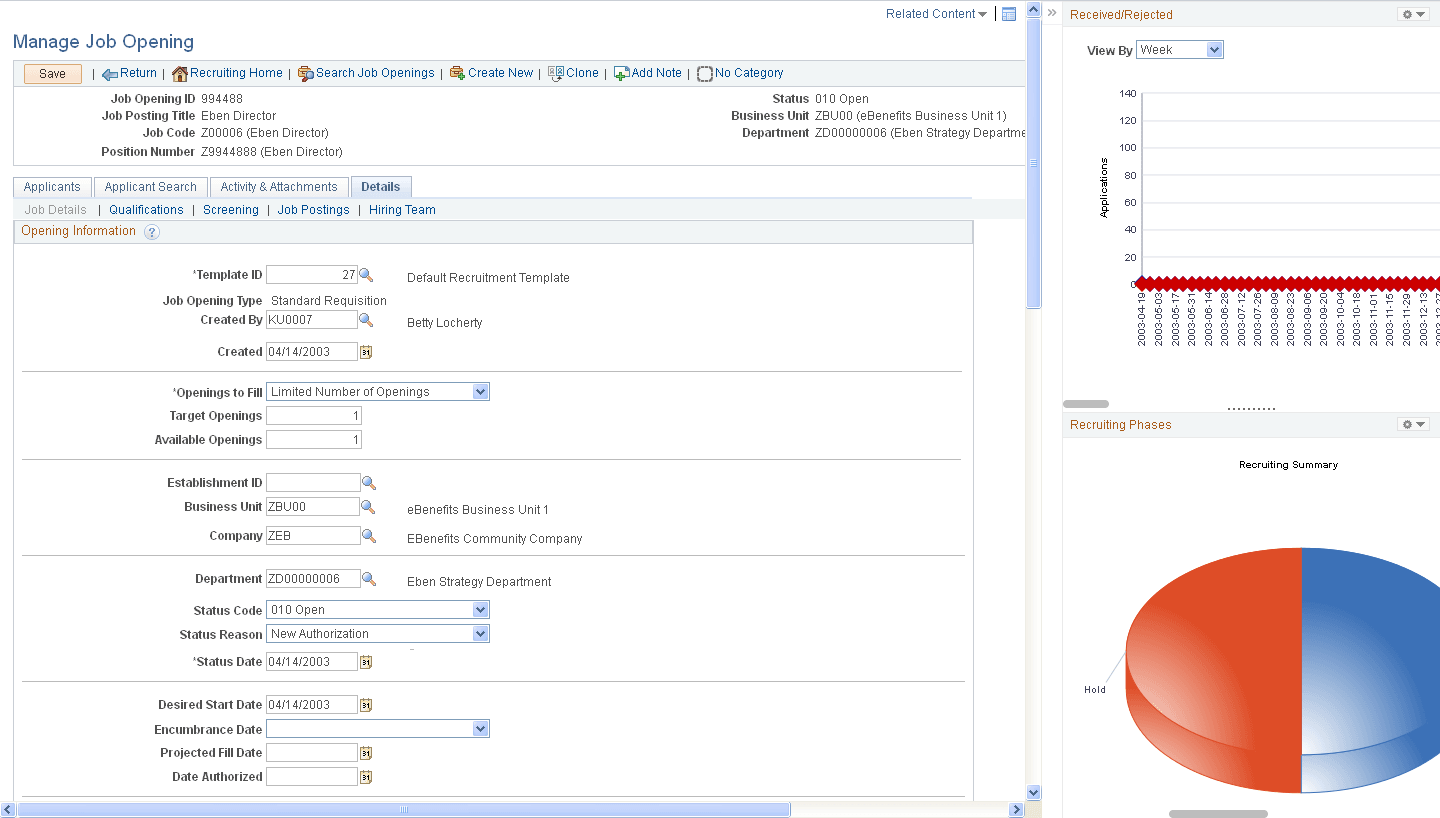
Note these points about the Related Content frame when it appears at the right of the page:
-
The frame extends down the length of the transaction page.
-
The visible area increases and decreases when you drag the left edge of the frame in a horizontal direction.
-
The frame appears and disappears when you click the Maximize and Minimize buttons on the left border of the frame.
-
The frame divides the visible area equally among all open pagelets.
-
The bottom of the frame displays a More menu, which you use to access minimized pagelets.
Note these points about the services that appear in the right Related Content frame:
-
Each service exists as a self-contained pagelet inside the Related Content frame.
-
Any number of services can open be active and in the expanded state simultaneously.
-
All maximized service pagelets divide the available space equally and always share the same vertical and horizontal dimensions. As users maximize and minimize other service pagelets in the frame, any service pagelets that remain open resize automatically so that the space appears equally divided.
-
Each pagelet header can contain:
-
A Zoom button that you click to display the service in a new window.
-
A Refresh button that you click to reload the service.
-
A Maximize/Minimize button that you click to toggle the service between the expanded and collapsed states.
Note:
The state of each pagelet persists based on the state from your last session.
-
-
Scroll bars appear on the right and bottom of a service pagelet if it is too small to fully display the content.
The following example shows a transaction page with related content in the Related Content frame at the right of the page: