Downloading Grid Data
Some grids enable you to download grid data to a Microsoft Excel spreadsheet. The download feature extracts all active, non-hidden rows, regardless of whether the rows are visible on your screen.
To download grid data, click the Download button in the navigation bar of the grid.
Depending on your browser setting, a download dialog window may open and prompt you to save the downloaded spreadsheet.
Note:
Ensure that you disable any pop-up blockers in your browser.
Date and DateTime data are downloaded in the canonical format and Excel honors the regional settings of the user's machine while displaying Date and DateTime.
Note:
The system downloads all field types (columns) with the exception of images. Hyperlinks are downloaded as quoted text of the field labels, even though the labels may contain numeric values. If any numeric calculations are to be performed based on hyperlink, you must manually convert the text strings to numeric values after downloading the spreadsheet.
Subscribe to the following technical bulletin on My Oracle Support for the latest information: PIA Grids Download to Excel Functionality (Doc ID 2988403.1).
Note the following characteristics when you download the grid data as a Microsoft Excel (.xlsx) file:
-
The downloaded Excel file name follows this format: PS_<Component>_<TimeStamp>.xlsx.
-
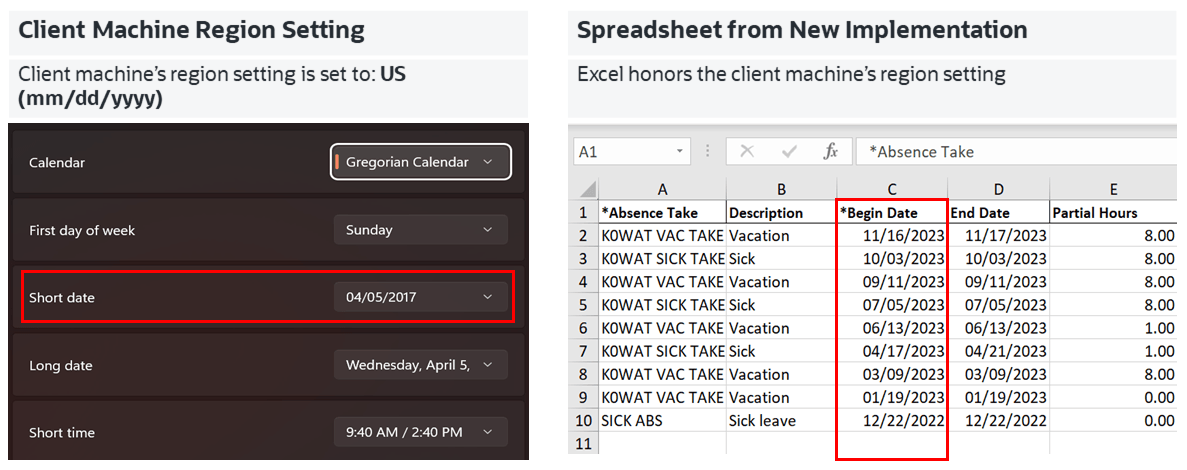
Date and DateTime values are exported in a canonical format, which aligns with the regional settings of the user's machine.
-
Dates in the Excel file use the short Date format (regional settings of the user's machine).
-
DateTime in the Excel file uses the Custom format. The date part uses short date format and the time part uses the long time format (regional settings of the user's machine).
-
Character fields are exported as-is, even if they contain numeric values. Leading zeros are preserved.
-
If a DateTime field in the grid includes timezone information, it is exported as a DateTime value without the timezone; the date and time information is retained, but milliseconds are not displayed.
-
Currency symbols, thousand separators, and decimal separators are preserved.
The following screenshot highlights the regional settings in the downloaded spreadsheet (xlsx).
Client machine regional setting supported in spreadsheet
The download to Excel feature requires the fontconfig package.
See PeopleSoft 9.2 Application Installation for your database platform, "Completing the Installation," to install the fontconfig package.
Fallback Mechanism
If you encounter any issues preventing the use of the .xlsx file, you can use the .xls format as a fallback by setting the Download to Excel as XLS option on the PeopleTools Feature Options page. You can follow these steps:
- Navigate to PeopleTools, Utilities, PeopleTools Feature Options.
- Set the Download to Excel as XLS option to Yes. The default is .xlsx format.
For information on the .xls format, refer to the Download to Excel (.xls extension) section on this document PIA Grids Download to Excel Functionality (Doc ID 2988403.1).