Personalizing Your Pagelet Area
You can set preferences to personalize your WorkCenter page experience. Changes are visible when you click the Save button.
Access the Personalize page (select the Personalize option from the Pagelet Settings menu).
Note:
Your page title reflects the label that your WorkCenter administrator enters. The page name always begins with Personalize.
This example illustrates a sample Personalize page.
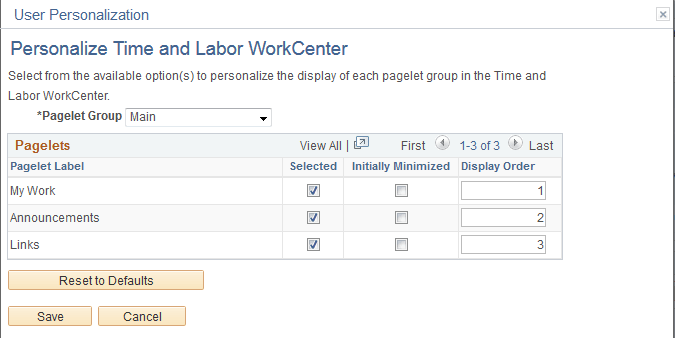
| Field or Control | Description |
|---|---|
|
Pagelet Group |
Select the tab (group) for which you want to set your preferences. |
|
Pagelet Label |
Displays the names of the pagelets in the group. |
|
Selected |
Select to make the pagelet visible in this pagelet group. Deselect the check box to hide the pagelet. Deselecting this check box does not remove the pagelet from the group. The check box is disabled if the administrator requires that the pagelet appear. |
|
Initially Minimized |
Select to collapse the pagelet so that only the pagelet header is visible when you access the WorkCenter page. |
|
Display Order |
Enter a number between 0 and 999 to specifically determine the position of the pagelets in the group. This field is empty by default and pagelets appear in the order configured by the administrator. Pagelets for which you leave the Display Order field blank precede pagelets for which the field contains a value. |
|
Reset to Defaults |
Click to set all fields to their original settings as specified by the administrator who configured the WorkCenter page. |