Working with WorkCenter Pages
WorkCenter pages divide the browser window into two frames:
-
A pagelet area.
-
A target content area.
These two areas of the WorkCenter interact; they pass information back and forth by using an event-driven model. The actions in the pagelet area determine the content in the target area. When you click a link in the pagelet area, it triggers the appropriate transaction, and passes values from the pagelet area so that the application can display the appropriate content in the target content area or in a new browser window.
Pagelet Area
The pagelet area, which is always accessible for WorkCenter pages, aggregates related transactions as navigation collection pagelets, query pagelets, activity guide pagelets, component-based pagelets, and analytics pagelets and makes them constantly available for instant access. Your pagelet area might be divided into groups indicated by tabs at the top of the pagelet area; the pagelets appear below the tabs. Pagelets can be based on queries, navigation collections, or components. Pagelets can include folders, links, and even charts. If you click a navigation collection folder, the folder opens and only the contents of that folder are visible in the pagelet. If you click a link, the transaction is started in the target content area or a new browser window.
This table describes the icons that can appear in the WorkCenter header and the pagelet area headers. The pagelets and pagelet area are highly configurable; not all icons appear for all users, and they may differ from those shown here.
| Field or Control | Description |
|---|---|
|
|
Click to access the WorkCenter Settings menu, and select an option. Possible options are reload, personalize, and configure. |
|
|
Click to access the Pagelet Settings menu, and select an option. Possible options are minimize, expand, and personalize. |
|
|
Click to show the help information associated with the pagelet. |
|
|
Click to reload a pagelet. |
|
|
Click to hide the WorkCenter frame and associated pagelets. Use this option to maximize the size of the target area. |
|
|
Click to restore the WorkCenter frame and associated pagelets. |
|
|
Click and drag up or down to resize a pagelet. |
 WorkCenter Settings
 Pagelet Settings
 Help
Help Reload
 Hide
Hide Show
Show Resize
Target Content Area
The target content area displays the object that is associated with the link that you click in the pagelet area. When you click a link or button in the pagelet area, it launches in the target content area and is ready for you to start the task. This area is the primary area for performing any transaction. You complete your task in this area just as you would in a standard PeopleSoft page.
Note:
Developers and administrators can design tasks to launch in a new browser window, a modal pop-up page, or to take you out of the WorkCenter page and to a standard PeopleSoft application page.
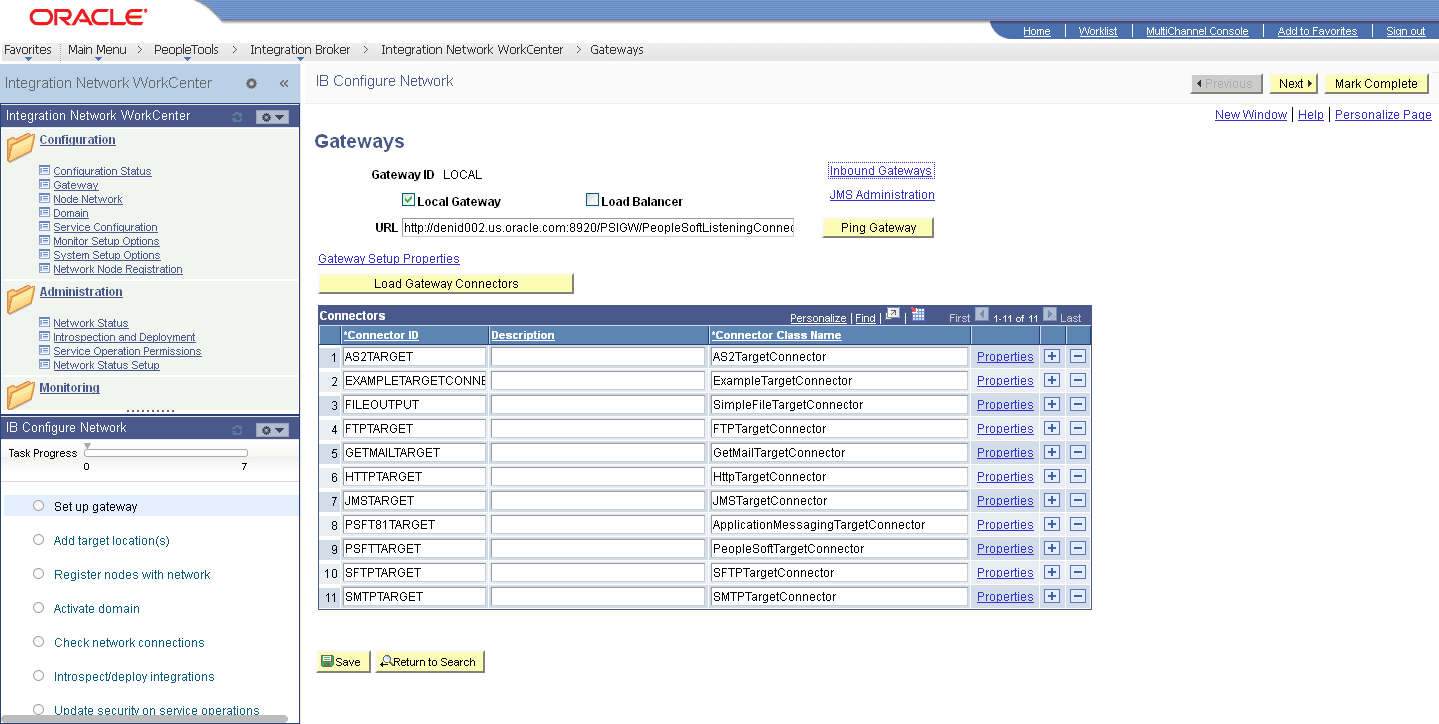
WorkCenter Examples
This section shows several WorkCenter examples.
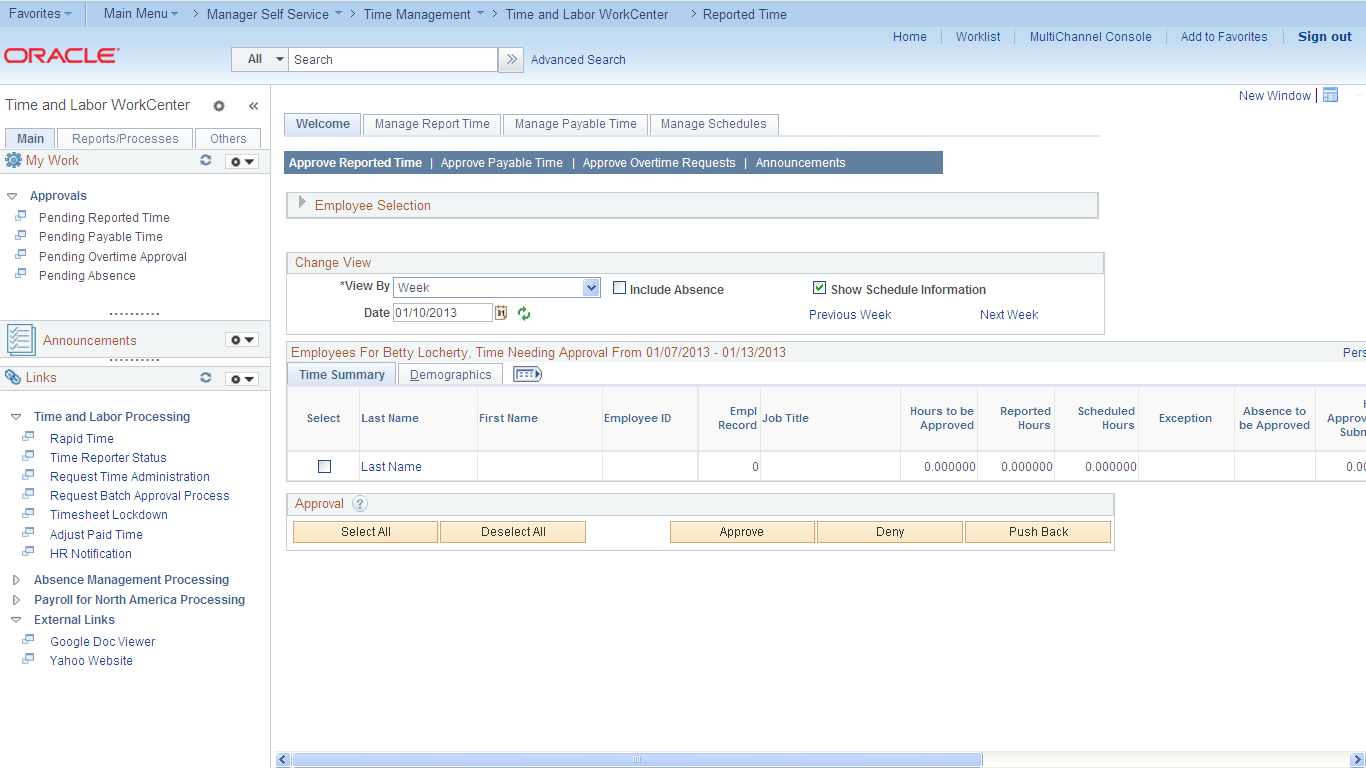
The following example illustrates the main parts of a WorkCenter page. On the left, the pagelet area displays two pagelets configured to display in this WorkCenter. On the right, the target area displays the current transaction page as selected in a WorkCenter pagelet. The standard portal header, including the drop-down menu and navigation breadcrumbs, appears above the WorkCenter page.
This example shows the Time and Labor WorkCenter. The pagelet area includes three groups: Main, Reports/Processes, and Others. Here you see the three pagelets for the Main group: My Work, Announcements, and Links.
Delivered WorkCenters
This table lists PeopleTools-delivered WorkCenters:
| WorkCenter | Link to Product Documentation |
|---|---|
|
Integration Network WorkCenter |
See Integration Broker Administration: Accessing the Integration Network WorkCenter |
|
Setup Activity Guide |
See Portal Technology: Using the Setup Activity Guide WorkCenter |
|
Search Administration |
See Search Technology: Understanding the Search Admin Activity Guide |
|
Search Designer |
See Search Technology: Understanding the Search Designer Activity Guide |