Saving Personalized Analytic Grid Layouts
You have learned how to personalize the initial layout of the analytic grid by pivoting data cubes and dimensions, viewing selected slices of your data, and more. In addition, you can save your personalizations and return to them later. If you have saved a personalized layout, you can also easily return the analytic grid to its original settings.
Note:
The configuration of the Preferences dialog box changes depending upon whether a cube is in the column header. If a cube is in the header, then you have the option to hide non-dimensional fields. If not in the header, then this option is not available.
This example illustrates the fields and controls on the Preferences dialog box.
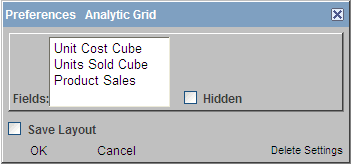
To save a personalized analytic grid layout:
-
Modify the grid layout as desired.
-
Click the Preferences link.
The Preferences dialog box appears.
-
If applicable, select which non-dimensional fields to hide by selecting them and clicking the Hidden check box.
You can hide all non-dimensional fields but one. For example, if you have three, you can hide two; if you have four, you can hide three; and so on.
-
Select the Save Layout check box and click OK.
To restore the default settings of an analytic grid:
-
Click the Preferences link.
The Preferences dialog box appears.
-
Click Delete Settings.
Note:
Clicking Delete Settings restores the default layout of the analytic grid and also reveals hidden non-dimensional fields.