Scrolling and Sorting
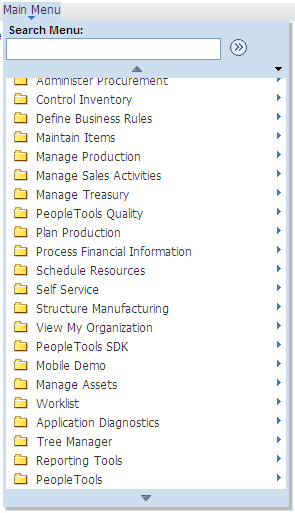
Submenus always open in the viewable area. If the viewable area is too small to display the full list of items in a submenu, then scroll indicators (up and down arrows) appear at the top and bottom of the submenu to let you know that the list contains more menu items. Hover your mouse over the up or down arrow to make the menu scroll in the direction of the arrow. Click and hold the arrow to double the scrolling speed. You can also use your mouse wheel to scroll through a menu.
You can sort the drop-down menu alphabetically by clicking the sort icon on the Main Menu window. Continue clicking to toggle through an ascending, descending, and portal sequence number sort. As you click the sort icon, the icon changes to indicate the direction of the sort.
This example shows the Main Menu drop-down navigation with scroll and menu sort indicators.
Note:
While the sort icon appears only on the Main Menu, any sort you initiate at the Main Menu level applies to all submenus and persists until you change the sort or sign out.