Sending Ad Hoc Notifications from Fluid Components
The system sends notifications automatically as part of standard workflow routings. You can also send notifications from fluid components by using the Notify link from the Actions menu of a fluid component.
The Notify feature is based on the notification configuration framework and supports three types of notifications:
-
In-App (the Notifications panel)
-
Email
-
Text
You can use the Notify option to send notifications to other users.
To use the Notify feature, an administrator must enable the Notify check box on the Fluid tab (Component Properties dialog box in Application Designer) of the component from where you want to send the notification. See Fluid User Interface Developer’s Guide: Administering Notifications and Fluid User Interface Developer’s Guide: Setting Component Properties for Fluid Components.
Note:
The Notify option is not available for Activity Guide because Activity Guide has its own mechanism to notify.
To access the Notify page, select the Notify link from the Actions menu of a fluid component.
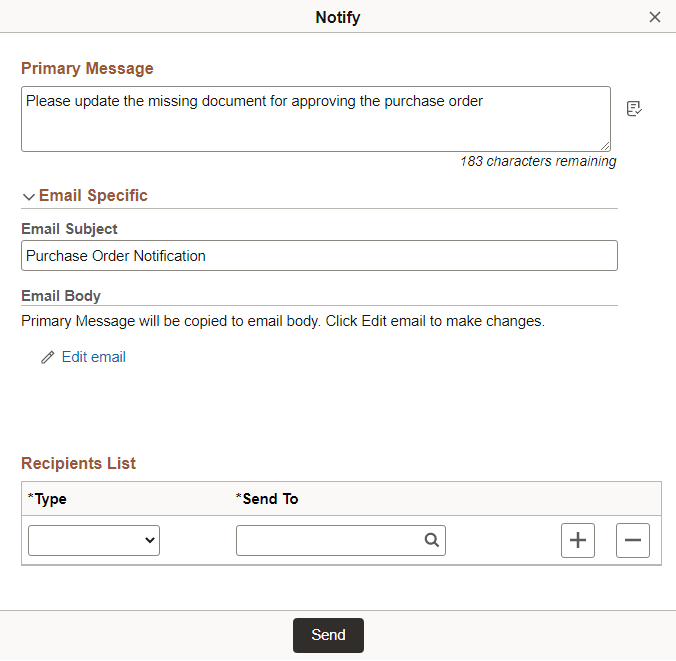
This example illustrates the fields and controls on the Notify page.
| Field or Control | Description |
|---|---|
|
Primary Message |
Enter your own comments. The message text is sent in the language of the sender. The Primary Message will be displayed in the in-app notification in the Notifications panel and in the subject of the text notification. |
|
Email Subject |
Enter the topic or a brief description of the email. The default value is the description of the component from which the notification is invoked, but you can edit it. |
|
Email Body |
Includes the primary message to be delivered in the email. Displays the contents of the Primary Message field by default. |
|
Edit Email |
Select this link to edit the contents of the Email Body. When you select this link, the Copy Primary Message and Available Binds links are displayed. |
|
Type |
Select the type for the recipients list.
|
|
Send To |
Select the sender ID of the recipient. |
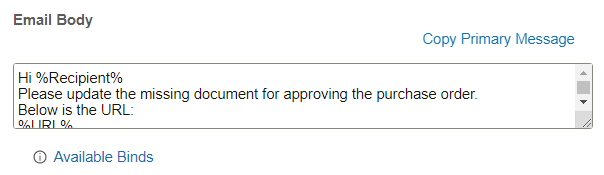
The following example illustrates the Notify page with the Edit Email option selected.
| Field or Control | Description |
|---|---|
|
Email Body |
Includes the primary message to be delivered in the email. Displays the contents of the Primary Message field by default. You can edit the content and add bind variables to the Email Body to send a personalised email. |
|
Copy Primary Message |
This link is displayed when you select the Edit Email link. Select the Copy Primary Message link to copy the contents of the Primary Message to the Email Body. |
|
Available Binds |
This link is displayed when you select the Edit Email link. Select the Available Binds link to display a list of bind variables that you can use within your Email Body to send a personalised email.
|