Personalizing the Notifications Panel and Your Notifications
Use the Notifications Settings page to personalize the Notifications panel.
Navigation:
In the Notifications panel, click the
This example illustrates the fields and controls on the Notifications Settings page. You can find definitions for the fields and controls later on this page.
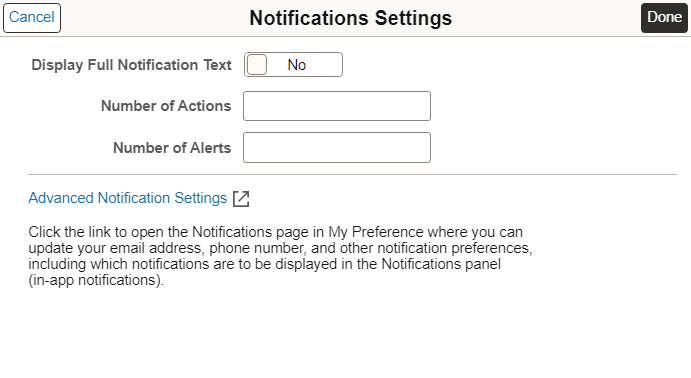
| Field or Control | Description |
|---|---|
|
Display Full Notification Text |
Select this option if certain notifications are truncated when displayed in the Notifications panel. |
|
Number of Actions |
Enter the maximum number of actions to be displayed in the Notifications panel. Note: If the number of actions exceeds this value, a View All link is displayed to allow you to view all of your actions in New, Unread, and Read state on the View All Notifications page. Actions in Dismissed state are not displayed. |
|
Number of Alerts |
Enter the maximum number of alerts to be displayed in the Notifications panel. Note: If the number of alerts exceeds this value, a View All link is displayed to allow you to view all of your alerts in New, Unread, and Read state on the View All Notifications page. |
|
Advanced Notification Settings |
Click to open the Notifications page in My Preferences, where you can personalize how you wish to receive your notifications. |
When you personalize your notifications, you can select among the notification options that have been configured for each notification type. When the options are available, you can select to receive notifications in the Notification panel (in-app), in email, or by text message. You can also personalize which pop-up notifications you wish to receive. The following table provides links to additional topics for personalizing the Notifications panel and your notifications.
| Topic | See |
|---|---|
|
Personalizing the Notifications panel. |
See the preceding information in this topic for more information. |
|
Personalizing whether the Notifications panel is displayed on your homepages by default. |
|
|
|
|
Specifying an email address for receiving notifications. |
Setting Up Your System Profile Note: The location to define your email address can differ by PeopleSoft application pillar. See the documentation for your PeopleSoft application for more information. |
|
Specifying a phone number for receiving text messages. |
“Notifications” section in Specifying General Settings in My Preferences Note: The location to define your phone number can differ by PeopleSoft application pillar. See the documentation for your PeopleSoft application for more information. |
|
Personalizing pop-up notifications. |
“Pop-up Notification” section in Specifying General Settings in My Preferences |