Viewing All Notifications
Use the View All Notifications page to review all of your actions and alerts together.
Navigation:
From the Notifications panel,
This example illustrates the fields and controls on the View All Notifications page. You can find definitions for the fields and controls later on this page.
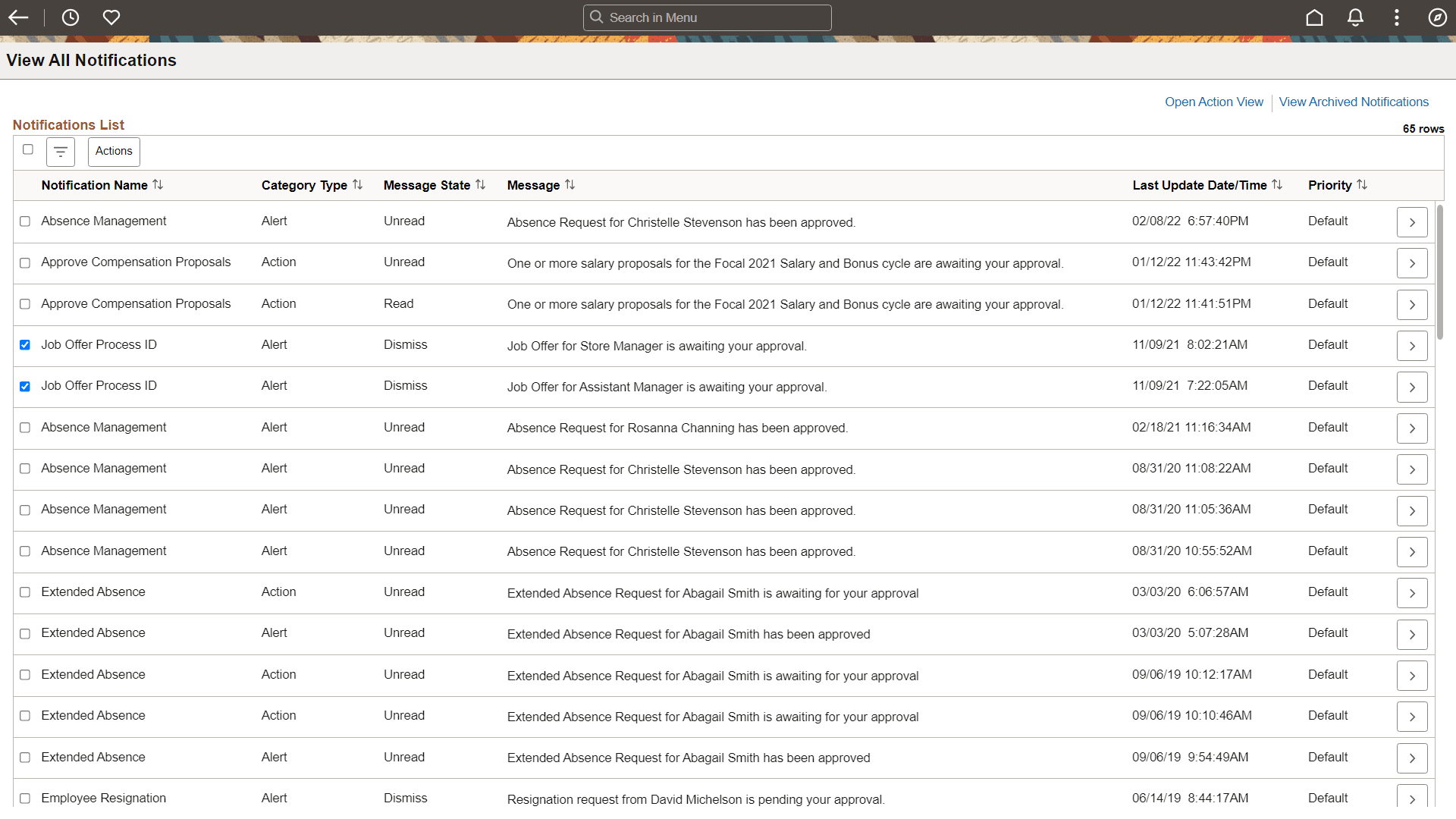
In the left panel, you can filter the list of notifications by:
-
Notification name
-
Category type
-
Message state
-
Priority
Select one or more notifications, and then select an item from the Actions menu:
-
Mark the notifications as read.
-
Mark the notifications as unread.
-
Mark the notifications as dismissed (available for alerts only).
Click the Open Action View link to open the two-panel action view. See Using the Two-Panel Action View for information. Click the View Archived Notifications link to view your archived notifications. See the following section.
Archived Notifications
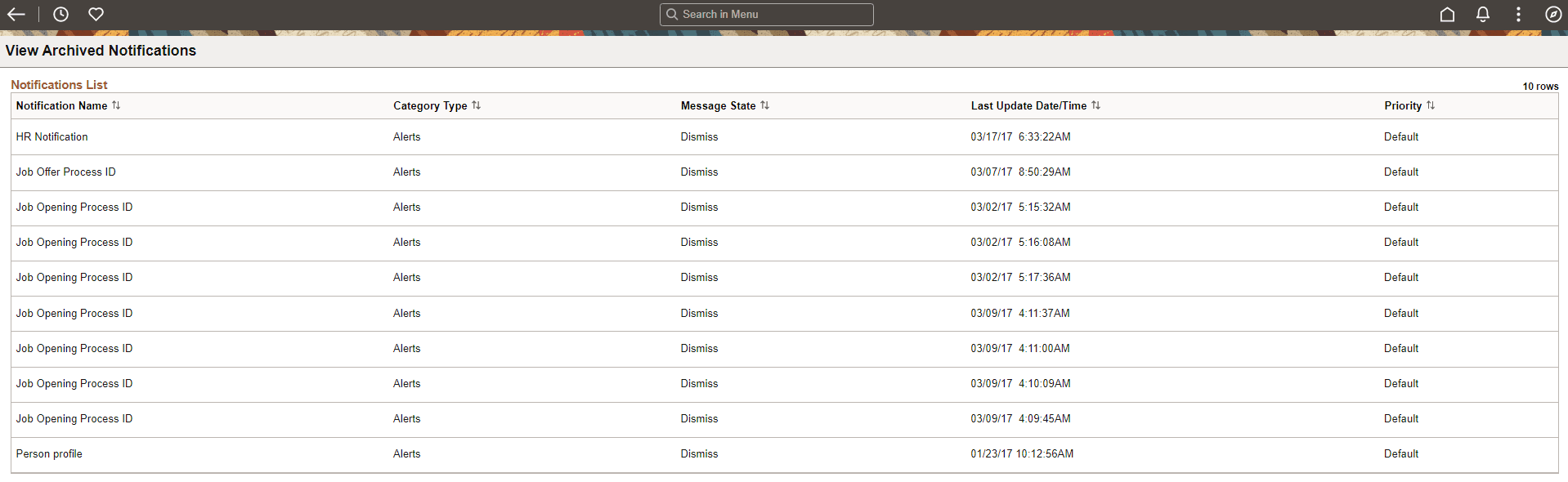
Use the View Archived Notifications page to view notifications that have been archived by your system administrator.
Navigation:
On the View All Notifications page, click the View Archived Notifications link.
This example illustrates the fields and controls on the View Archived Notifications page.