Sending Ad Hoc Notifications
The system sends notifications automatically as part of standard workflow routings. You can also send notifications from many classic components by using the Notify toolbar button. This button picks up any available notification templates for that component.
In both cases, you can send notifications by way of worklist or by email.
Access the Send Notification page (click the Notify button at the bottom of any page).
This example illustrates the fields and controls on the Send Notification page.
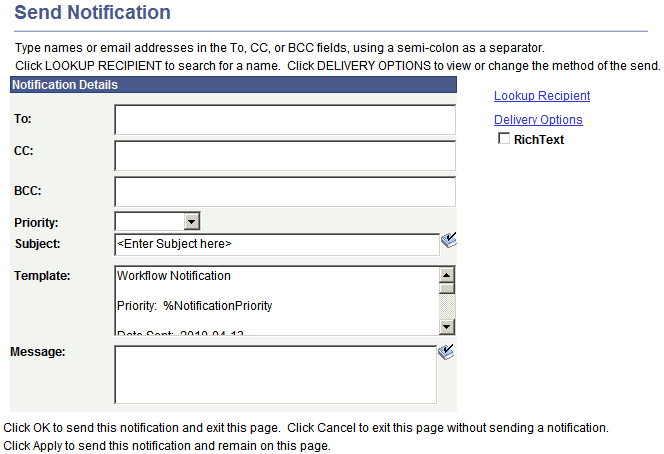
| Field or Control | Description |
|---|---|
|
To |
Enter the user names or email addresses of those who need to take action. This field can contain one or more email addresses or user names separated by a semicolon. |
|
CC (carbon copy) |
Enter the names or email addresses of CC recipients, who are made aware of this notification publicly. |
|
BCC (blind carbon copy) |
Enter the names or email addresses of BCC recipients, who are made aware of this notification privately. |
|
Priority |
Select a priority level for the notification: low, medium, or high. This priority is reflected in the notification only if the %NotificationPriority variable is in the template text. |
|
Subject |
Enter the topic or a brief description of the notification. The subject value may appear by default from a template, but you can edit it. |
|
Template Text |
Displays the template text, which is based on a predefined notification template. The text in this field is sent in the language of the recipient. However, the notification template has to be defined with template text for each language. |
|
Message |
Enter your own comments. The message text is sent in the language of the sender. |
|
Rich Text |
Select this check box to enable rich text. |
|
Lookup Recipient |
Click to access the Lookup Address page. Enter the first characters of a recipient's name and click Search to see a list of people who match your search. To use someone as a recipient, select the check box for the type of recipient (To, cc, bcc) and click Add to Recipient List. |
|
Delivery Options |
The system populates the check boxes based on the delivery options that are defined in the recipient's user profile. The Worklist check box is unavailable for external email addresses. |
Related Topics