Using Drop-Down List Boxes
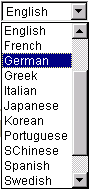
To select a single item from the list, click the down arrow to display the list, scroll through the list until your choice is visible, and then click the desired list item. The list closes and the selected value appears in the list box. You can also type the first letter of an item to select it. If there is more than one choice for a letter, type the letter repeatedly to cycle through the list. In the following example, first click the down arrow, then, if you want to select Greek, type the letter G twice. Alternatively, press the Down Arrow key to select the field entry that you want. Once your choice is highlighted, press Enter.
This example shows a drop-down list box.
Using Smart Drop-Down List Boxes
Application developers can configure drop-down fields to respond to user choices and list values based on the recently used items or frequently used items. Such drop-down fields are called smart drop-down list boxes.
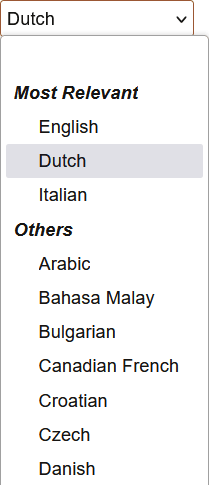
Smart drop-down list values are separated into two sections, namely, Most Relevant and Others. The Most Relevant section displays the values based on your setting as specified on the My Preferences page. For example, if you select Most frequent first, then in the Most Relevant section of the drop-down list, the most frequently used items are listed first followed by the most recently used items. Similarly, if you select Most recent first, then in the Most Relevant section of the drop-down list, the most recently used items are listed first followed by the most frequently used items.
The Others section displays the remaining items of the drop-down values. Both the sections do not display duplicate values, that is, a value is displayed either in the Most Relevant section or in the Others section.
Initially, when you navigate to a drop-down field that is enabled for smart prompt, the drop-down list is not divided into the Most Relevant and Others sections. After you've selected values from the list, the smart drop-down list displays the Most Relevant and Others sections.The default value is always listed at the top.
If a drop-down list contains a blank value and a user selects it, the blank value is not added under the Most Relevant section.
For information on setting the smart drop-down option, see Specifying General Settings in My Preferences
For information on using smart drop-down list in grids and scroll area, refer to the Considerations for Using Smart Prompt and Smart Drop-Down in Grids and Scroll Areas section in Adding Rows.
The following example illustrates the display of smart drop-down list separated into the Most Relevant and Others sections.