Using Fluid Activity Guides
For guided processes, the activity guide subbanner displays the standard Next and Previous navigation buttons. Custom navigation buttons are displayed in the activity guide subbanner for all activity guide types.
Fluid Activity Guide Icons and Controls
This table describes the icons and controls for fluid activity guides:
| Term | Definition |
|---|---|
|
|
Click this button to navigate to the next step. |
|
|
Click this button to navigate to the previous step. |
|
|
When viewing on small form factor device, the task list will be hidden. Click the left panel tab button to display the tasks or steps in the activity guide. |

 Next
Next

 Previous
 Activity Guide
Navigation Area
Activity Guide
Navigation AreaExamples of Horizontal Guided Sequential Activity Guides
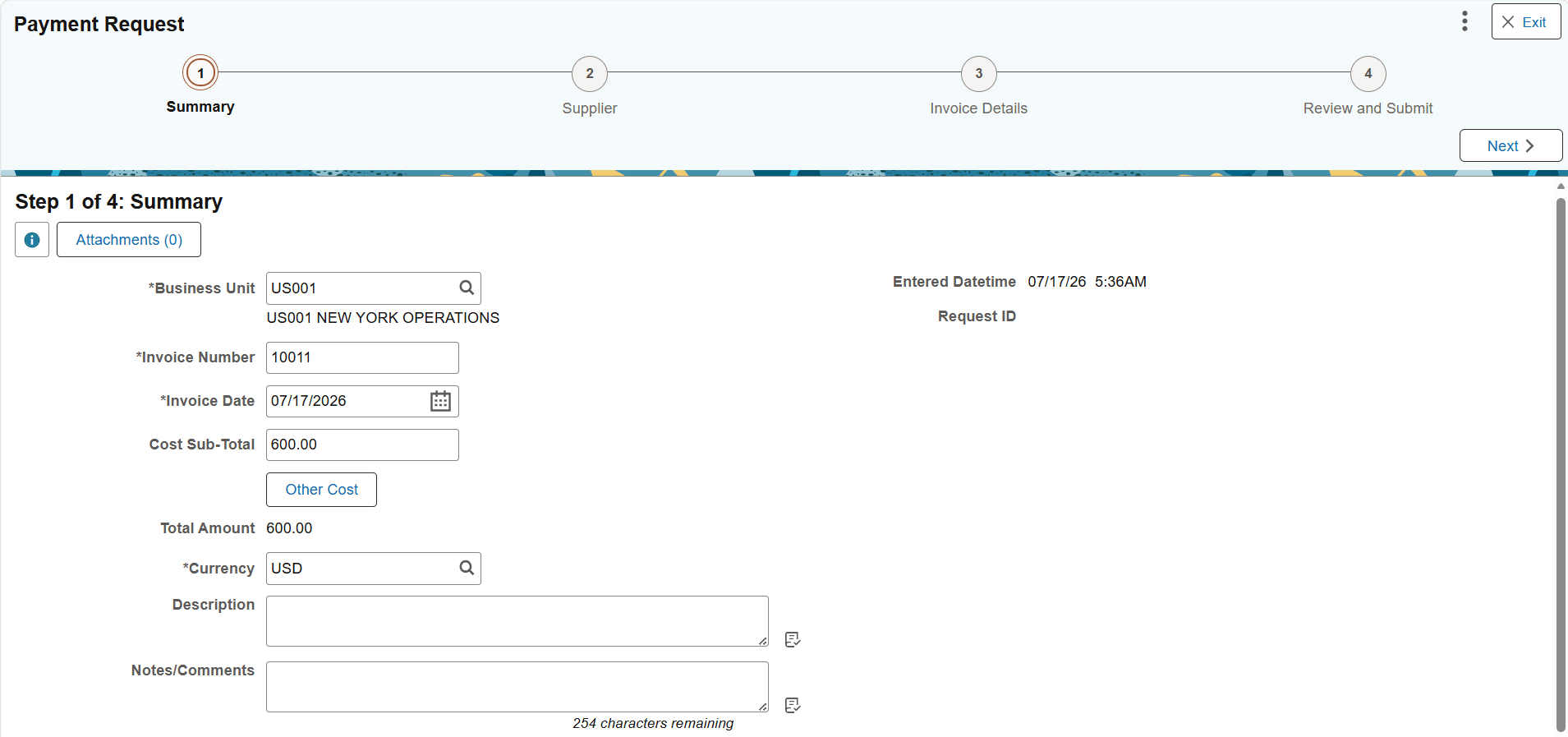
In a horizontal sequential guided activity guide, the steps are presented across the top of the page. When the activity guide is displayed on a phone or tablet, the task progress bar will show the current progress and the step number.
The Payment Request activity guide is an example of a horizontal guided sequential activity guide. Each task must be completed in order. Click the Next button to move to the next task.
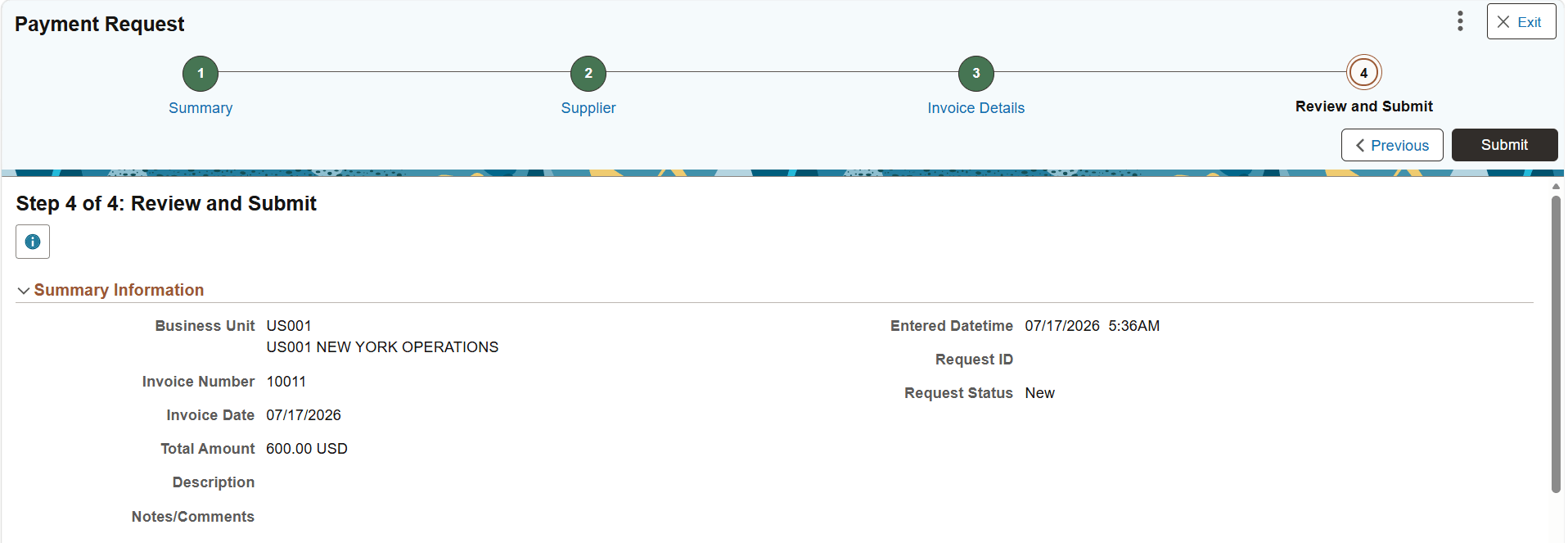
The final step or task in a horizontal guided sequential activity guide may include a Submit button if one has been configured for the guided process.
This example shows the last task for a Payment Request, when all of required information has been entered, the navigation bar contains a Submit button that has been configured for this guided process.
Note:
If the activity guide has related content, use the Supplementary Panel button to expand the right panel when the activity guide is displayed on a phone.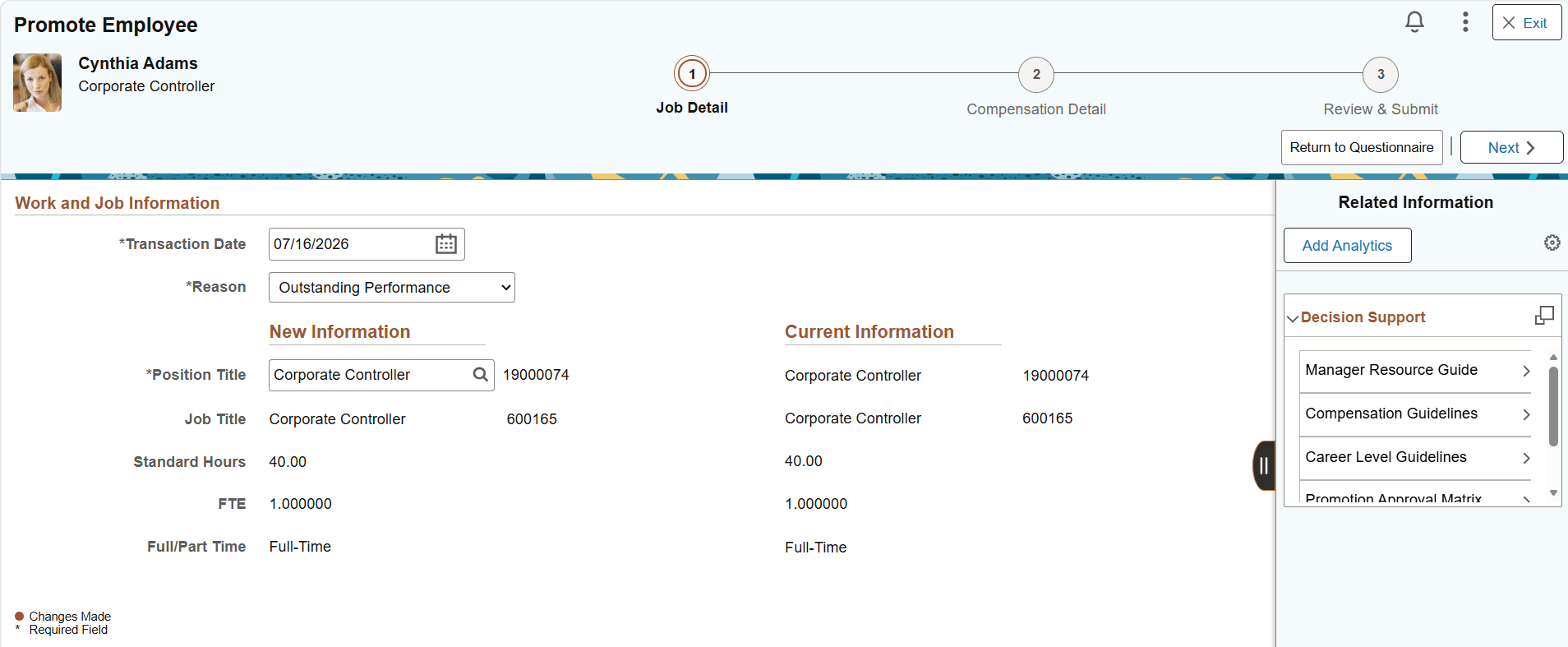
Examples of Vertical Guided Sequential Activity Guides
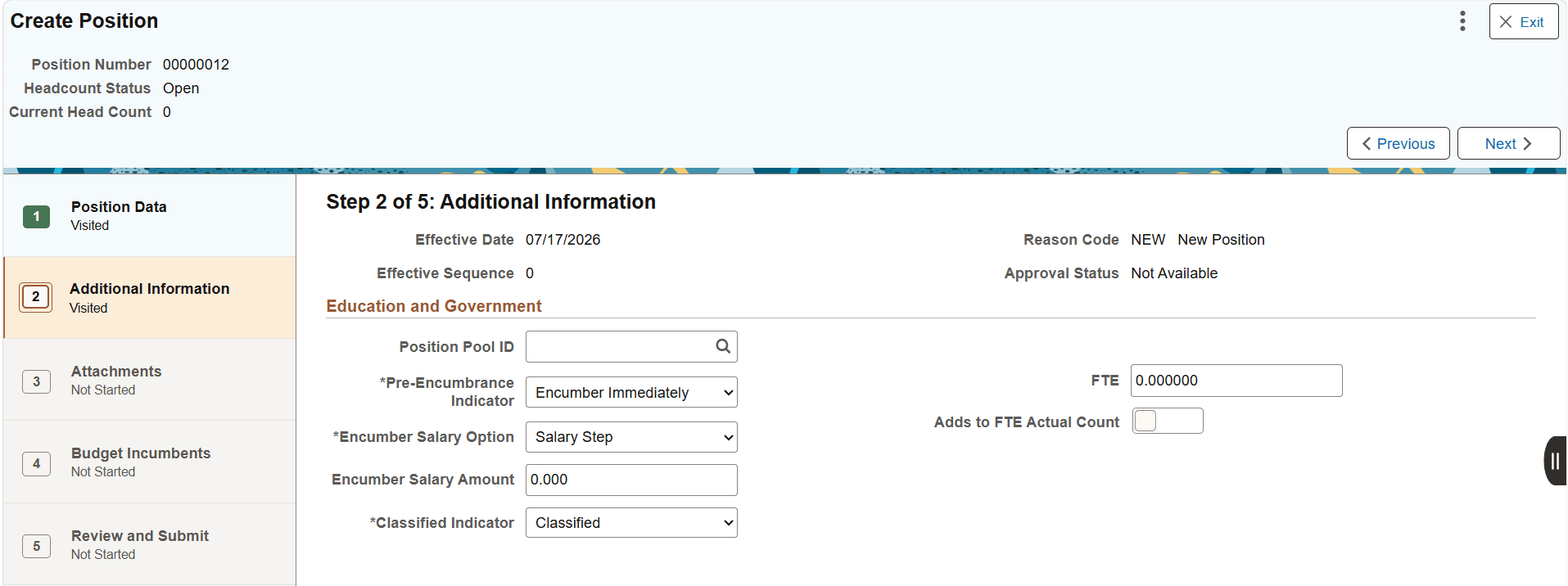
In a vertical guided sequential activity guide the numbered steps are presented vertically in the left panel. The current step is highlighted and the step status is displayed for each step. When the page is displayed on a phone or tablet, the left panel is collapsed and the progress bar is displayed at the top of the page along with the step number.
This example illustrates a vertical guided sequential activity guide. In this example, the tasks are displayed vertically on the left-hand side of the page. When you complete the task and click Next, the next task will be displayed.
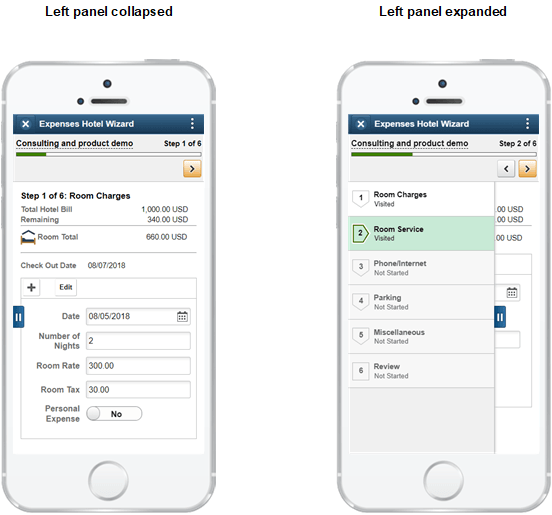
This example illustrates a vertical guided sequential activity guide as it is displayed on a smart phone. On the left, the left panel is collapsed and the task list is not visible. On the right, the left panel is expanded, and the tasks are visible. The progress bar visually indicates completion progress along with the step number.
Example of a Vertical Guided Non-Sequential Activity Guide
In a vertical guided non-sequential activity guide the steps are presented vertically in the left panel. The current step is shaded in green and the step status is displayed for each step. When the page is displayed on a phone or tablet, the left panel is collapsed.
The following icons and controls are used with the vertical guided non sequential activity guides:
| Term | Definition |
|---|---|
|
|
Indicates the task has not been started. |
|
|
Indicates you have visited the task, but not completed it. |
|
|
Indicates that a required task is not yet complete. In addition, it designates a summary task that has required detail tasks that are not yet complete. |
|
|
Indicates you have completed the task. |
|
|
A red asterisk displays to the left of each required step. If a step is not required, the status can be changed from Not Started to Visited. |
|
|
Click to expand a summary (parent) task, and view its substeps. |
|
|
Click to collapse a summary (parent) task, and hide its substeps. |
|
Locked |
Steps that have a dependency will be grayed out and the status will indicate Locked (View Dependency). Click or tap on the step and a modal will open to show the dependencies. |
|
Pending Approval |
Indicates the task or step is waiting for approval through the approval framework. |
 Not Started
 Visited
 In Progress
 Complete
 Required
 Expand
 Collapse
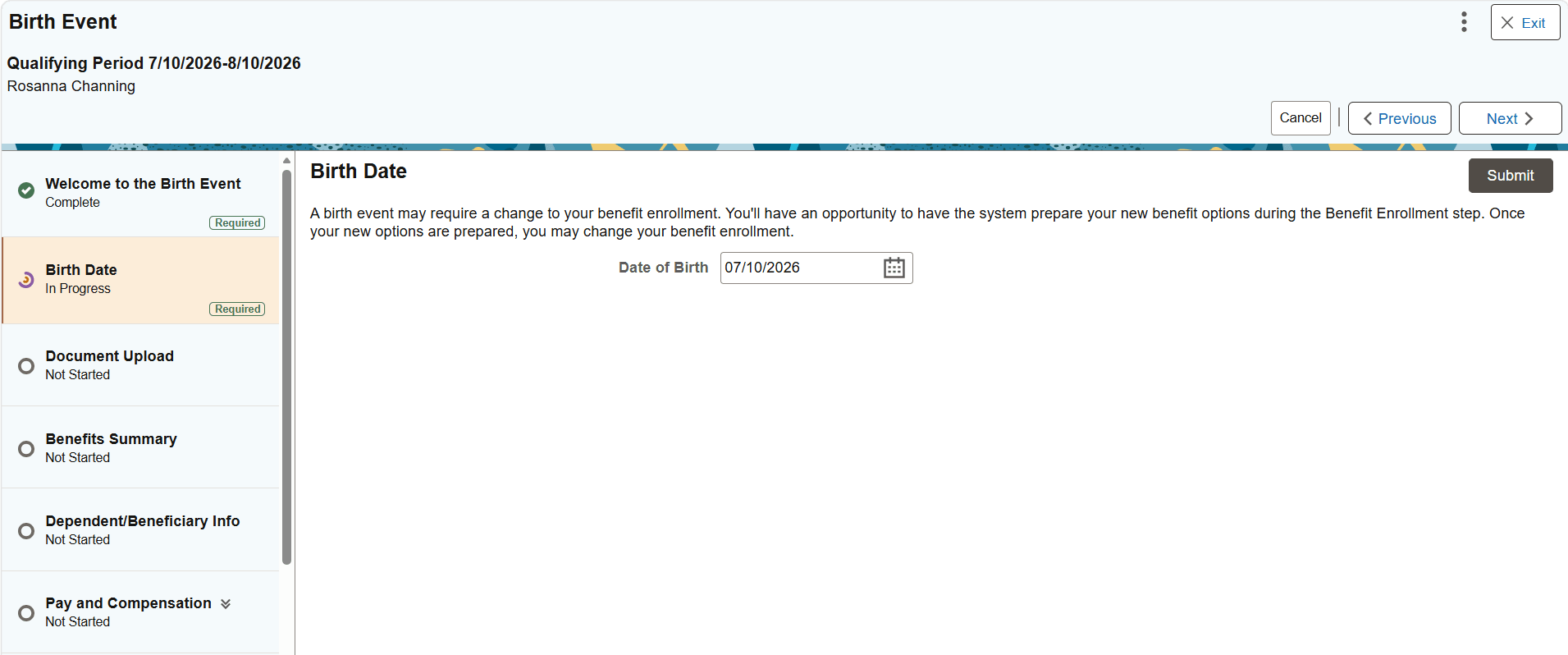
This example illustrates a vertical guided non-sequential activity guide. Required tasks, such as Birth Date, are indicated by an asterisk. Dependent tasks, such as Benefit Summary, are grayed indicating that they cannot be started until one or more tasks have been completed; click the task to view the dependencies..
Example of a Non-Optimized Activity Guide
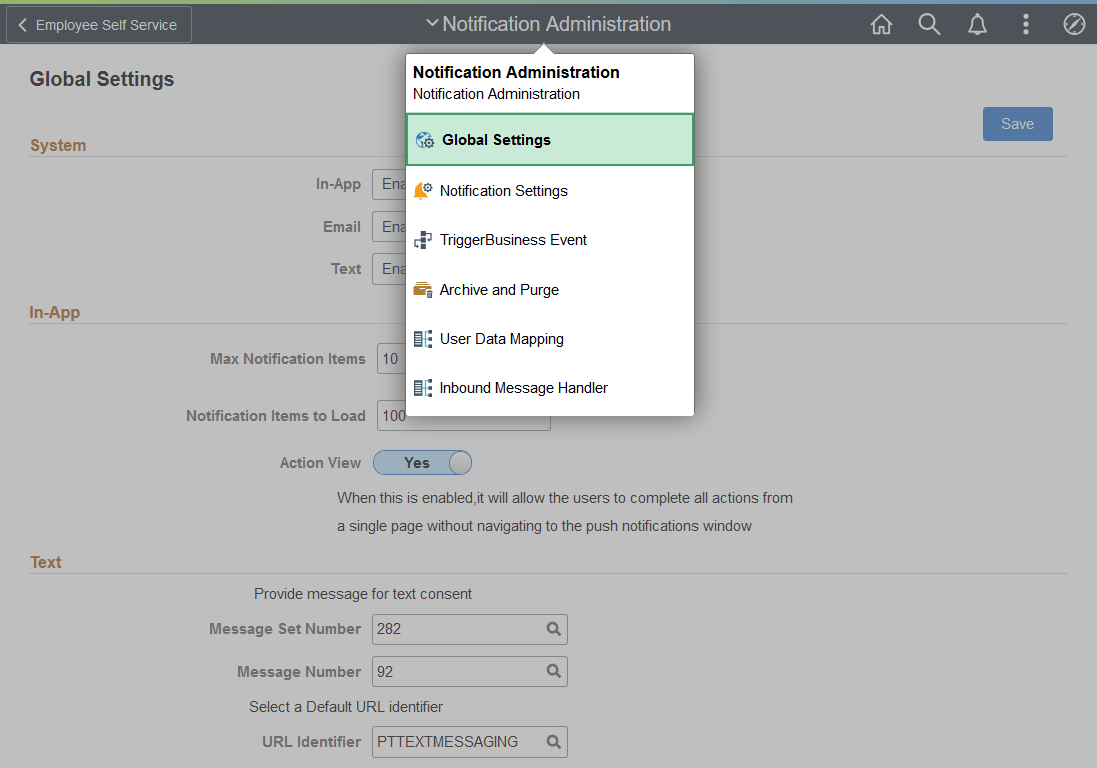
Non-optimized activity guides list the steps or tasks in a drop-down selector from the middle of the banner versus in the left panel.
This example illustrates how a non-optimized activity guide is displayed. This example uses a navigation collection instead of an actual activity guide.
Examples of Pages Associated with Custom Actions
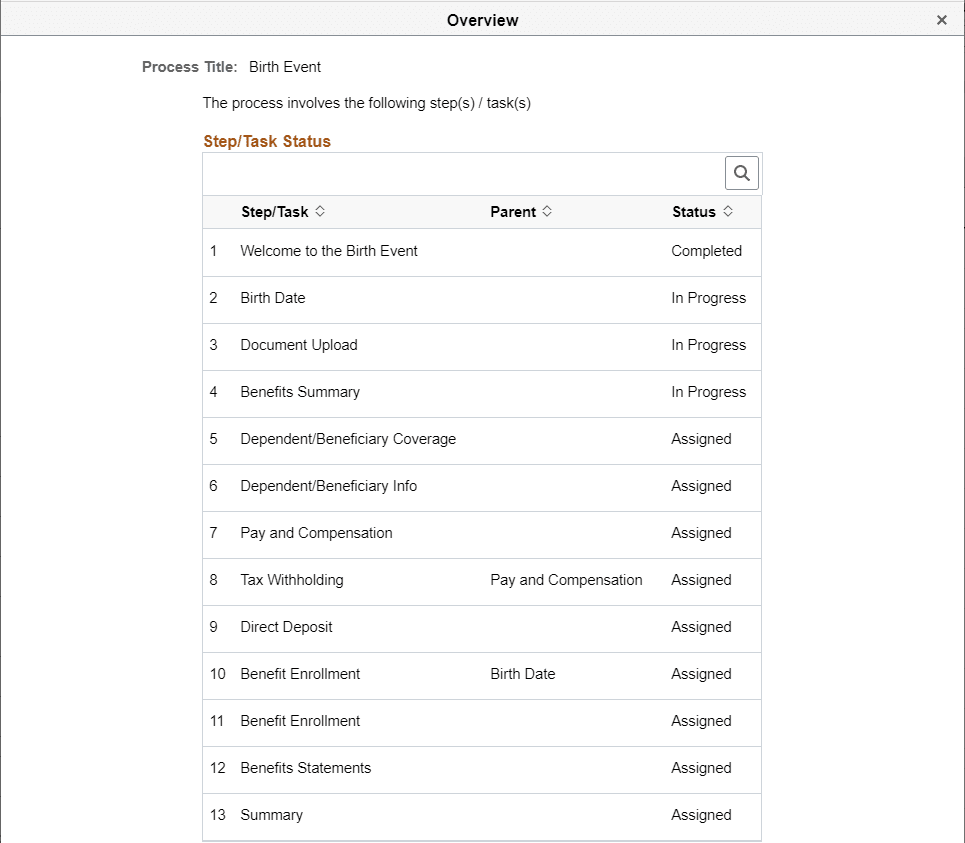
Fluid activity guides can be configured with custom actions such as grant, notify, and overview among others.
Note:
The labels for the custom actions are also configurable.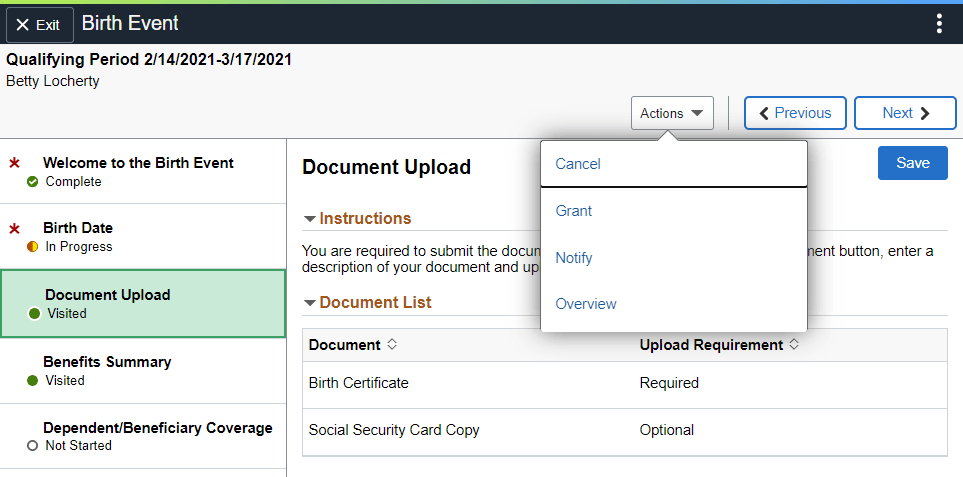
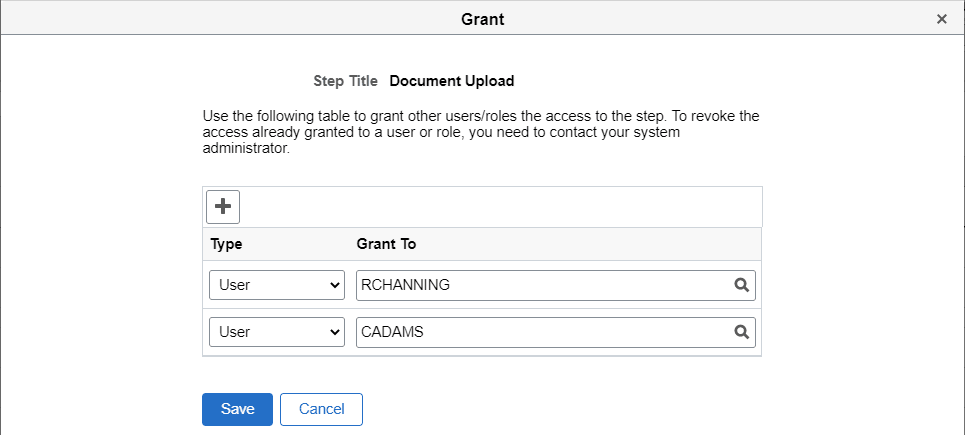
The grant action enables you to grant access to an activity guide step to other users or roles who are also assigned as contributors on this activity guide.
Note:
If the recipient is not a contributor on this activity guide, then the link URL is not provided to that recipient.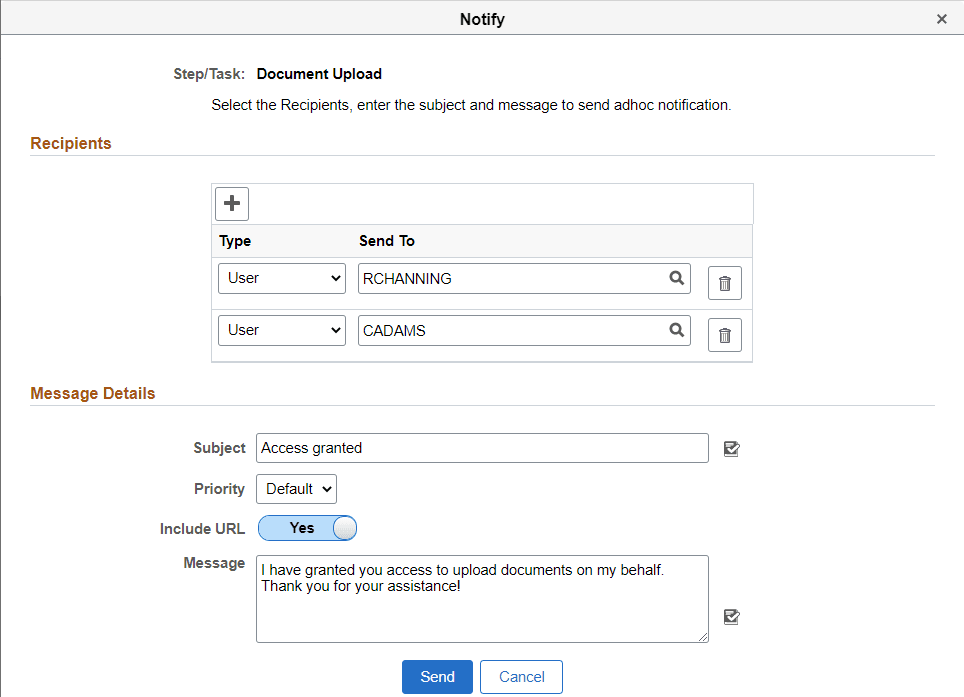
Note:
Depending on the configuration of the overview custom action, certain steps can be hidden and not displayed for certain users.