Using Spell Check
PeopleSoft applications are equipped with a spell check feature that you can use for data entered in edit boxes and long edit boxes. Activate spell check by clicking the spell check button next to those fields where spell check is available.
Note:
On classic components where the Spell Check tool bar button is enabled, you can click Spell Check.
| Field or Control | Description |
|---|---|
|
|
Click to activate spell check for the corresponding field. If no spelling errors are found, you will see the message “No misspellings found.” You can also activate spell check by pressing Alt+5 when the cursor is in the field. |
|
|
Note: The Spell Check tool bar button is supported on classic components only. Click the Spell Check tool bar button to activate spell check for all fields in the component that have been enabled for spell check, regardless of whether those fields have changed. The system checks each field and then proceeds to the next spell check field until all fields in the component have been checked. If no errors are found, the "No misspellings found" message will appear. |


Running a spell check opens the Spell Check page. This page displays the errors in the text and offers a list of alternatives, if applicable. You can ignore the occurrence, ignore all occurrences, change the spelling, change the spelling for all occurrences, or add the word to the current language dictionary.
This example illustrates the fields and controls on the Spell Check page. You can find definitions for the fields and controls later on this page.
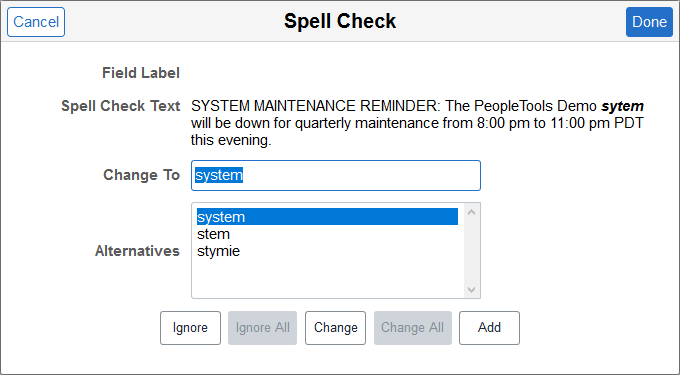
| Field or Control | Description |
|---|---|
|
Field Label |
Displays the field label text of the field currently being checked. |
|
Spell Check Text |
Displays all of the text in the field being checked, highlighting the first misspelled word. This field is display-only. This field information is particularly important when multiple fields are being checked simultaneously by using the toolbar action or mandatory spell check. |
|
Change To |
Initially displays the first highlighted value in the Alternatives list. You can select a new value from the Alternatives list or enter a new word in the Change To field. The maximum length is based on the maximum field length, which is 40 characters. If you enter a new value, the system spell checks the entry when you click the Change or Change All buttons to verify the correct spelling. If the system does not find any alternative spellings, the Change To field is blank and the Change and Change All buttons are disabled. |
|
Alternatives |
Lists other possible spellings. The options listed match the case of the misspelled word. |
|
Ignore |
Click to leave the current spelling as is and locate the next misspelled word. |
|
Ignore All |
Click to leave the current spelling as is for all text in the field that exactly matches the original text. This action is case-sensitive; only exact matches are ignored. |
|
Change |
Click to correct the error to the value that appears in the Change To field. Users can either select one of the proposed alternatives or type in their own value. The system then moves to the next misspelled word. |
|
Change All |
Click to correct all occurrences of the error with the value in the Change To field. You can either select one of the proposed alternatives or type in your own value. The system then moves to the next misspelled word. Like Ignore All, this action is case-sensitive; only exact matches are changed. |
|
Add |
Click to add the highlighted misspelled word (as is) to your currently selected personal dictionary. The system then moves to the next misspelled word. Additions to the dictionary must be 40 characters or less. See Selecting a Spell Check Dictionary and Using the My Dictionary Page. |
Mandatory Spell Check
Note:
Mandatory spell check can be enabled on classic components only.
Certain pages, such as those that require an email response, have a mandatory spell check requirement. When you save these pages, the system automatically runs spell check on spell check enabled fields. A field is eligible for automatic spell check if you have changed its contents and you have not already run spell check for that field. If a page has more than one spell check field, spell check runs in succession. If no errors are found, the system saves the data without issuing a message.