Working with Global Search
Global search is available wherever you are working in the PeopleSoft system: on fluid homepages, fluid application pages, classic application pages, and classic homepages.
Working with the Global Search Bar
The Global Search bar is open by default on fluid homepages. On smartphones, and non-small form factor devices, when the browser width is too small and does not permit display of the global search bar, global search appears as an icon. Click the Global Search button in the banner to reveal the global search bar.

When displayed on fluid dashboards and transaction pages, the Global Search bar is muted and is activated when selected.

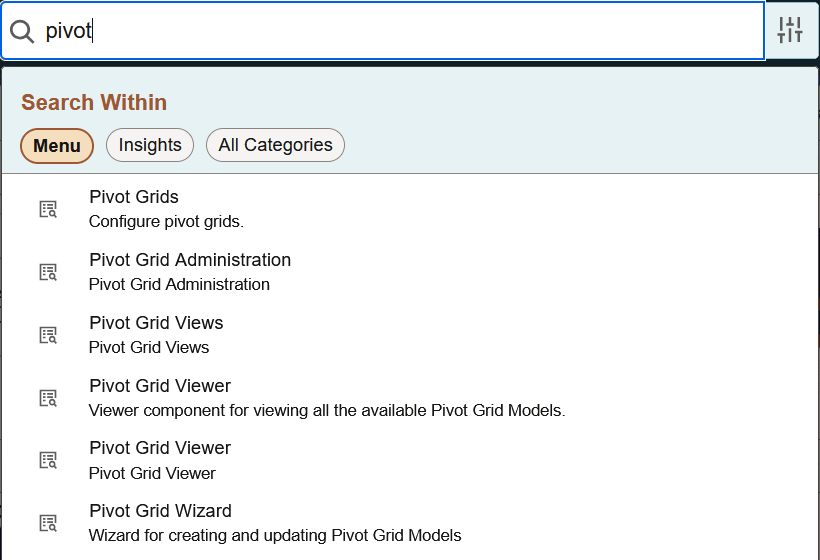
When you click in the keyword input field, search suggestions are displayed immediately. As you type, the suggestions are updated to reflect the search term or terms you have entered. Click a search suggestion, either recently visited or any other suggestion, to navigate directly to that item.
| Term | Definition |
|---|---|
|
|
Use the Search Category selector to select the global search category. The search categories available to you vary based on the PeopleSoft application and your permissions. The Menu category is selected by default. |
|
|
Click in the keyword input field to automatically display search suggestions and to enter search terms. As you type, search suggestions are updated to reflect the search term or terms you’ve entered. |
|
|
Click the Advanced Search button to execute the search and review the complete result set on the Search Results page. There, you can filter results, apply advanced search criteria, perform related actions, and so on. See the next section, “Working with the Advanced Search Results Page,” for more information. |
|
|
The recently visited icon indicates items in this search category that you have recently visited. You can click any recently visited or other suggestion to navigate to that item. |
|
|
The item icon indicates other search suggestions. You can click any recently visited or other suggestion to navigate to that item. |




Working with the Advanced Search Results Page
Use the Search Results page to review the complete results of a search you executed using the Global Search bar.
This example illustrates the fields and controls on the Search Results page.
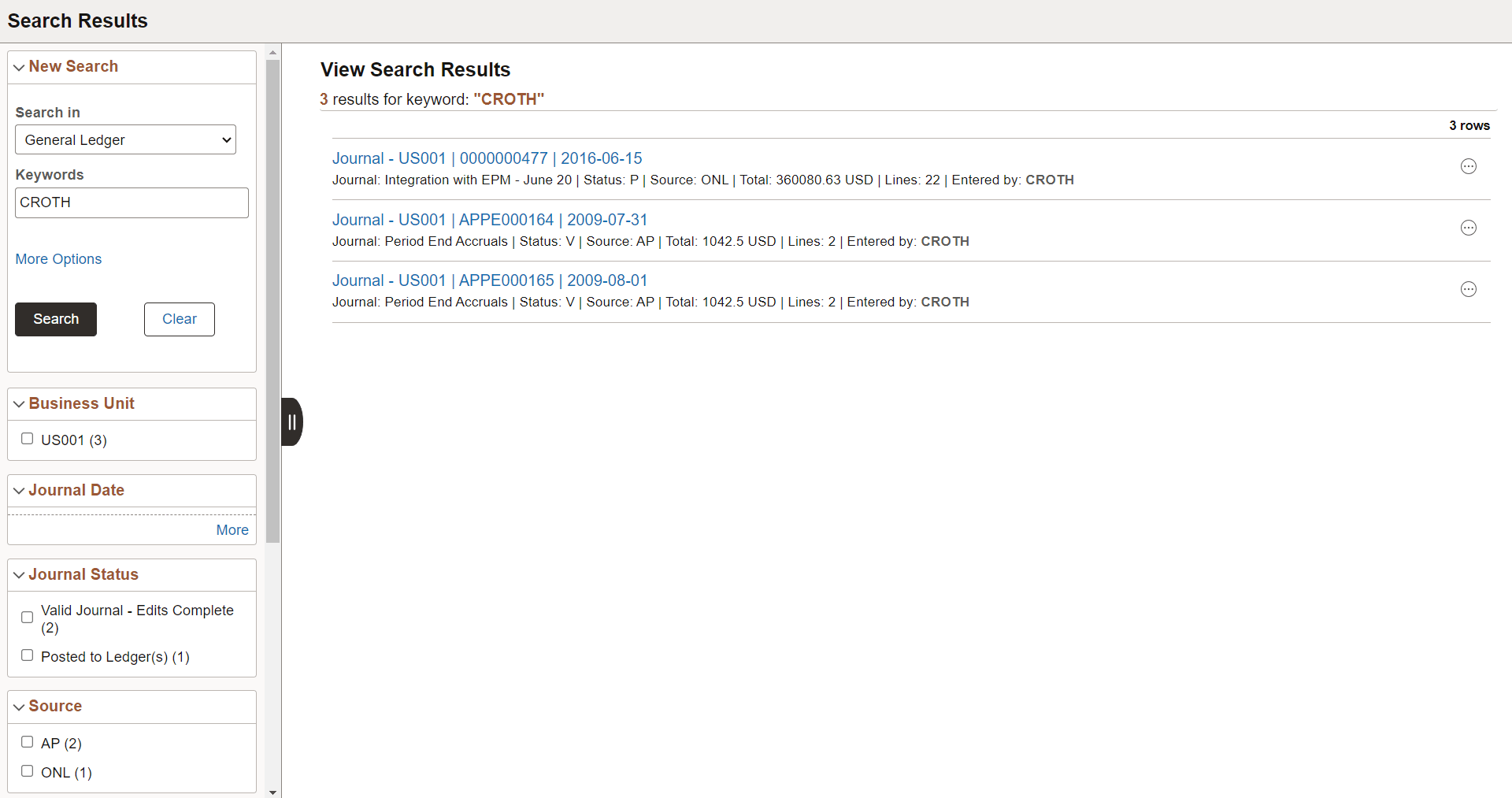
Use the Search Results page to filter results, apply advanced search criteria, perform related actions, execute a new search, and so on.
| Term | Definition |
|---|---|
|
Search in |
Select the global search category. The search categories available to you vary based on the PeopleSoft application and your permissions. |
|
Keywords |
Enter one or more search terms. |
|
More Options |
Click to display advanced search options that allow you to search on an exact phrase, to exclude search terms, and to search within specific fields among others. |
|
Search |
Click to execute the search. |
|
Clear |
Click to clear all search criteria including the search category, keywords, advanced search options, and selected facets. |
|
|
Select one or more facets to filter the search results displayed. |
