Initiating a Resolve Dependency Request
You resolve plug-in dependency dynamically by click Resolve Dependency on the Configuration Template Definition page.
This example illustrates initiating a dynamic resolution of dependency by clicking Resolve Dependency.
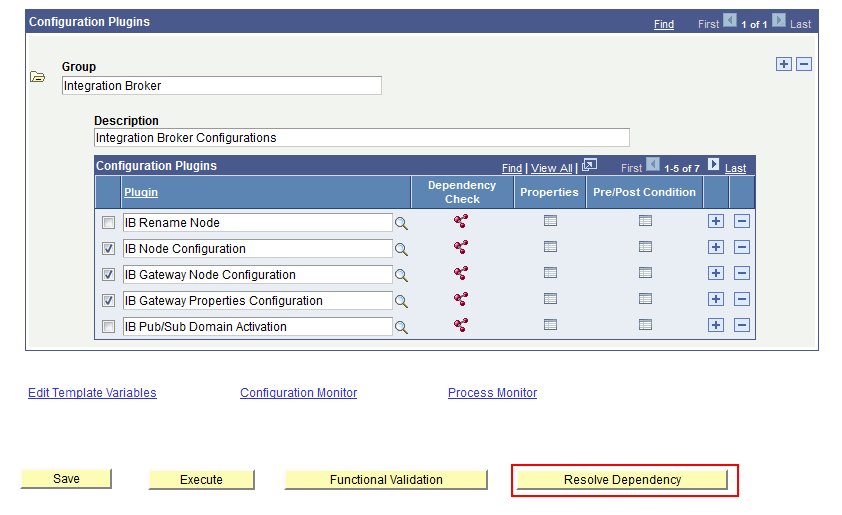
With all the appropriate meta data set up as described in the previous sections, the system resolves dependency as described in this table and in the order presented.
| Sequence | Description |
|---|---|
|
1 |
The group dependency (based on the order of sequence number) is checked and all plug-ins belonging to groups that are dependant on the current plug-in group are added to the template. For example, assume these groups: Group 1: Plug-in 11, Plug-in 12 Group 2: Plug-in 21, Plug-in 22 Group 3: Plug-in 31, Plug-in 32, Plug-in 33 Group 3 is dependant on Group 1 and Group 2. If we add Plug-in 32 to a template, then all plug-ins in Group 1 and the plug-ins in Group 2 are added to the template automatically. |
|
2 |
The plug-ins within the same group are added automatically. For example, assume these groups: Group 1: Plug-in 11, Plug-in 12 Group 2: Plug-in 21, Plug-in 22 Group 3: Plug-in 31, Plug-in 32, Plug-in 33. Group 3 is dependant on Group 1 and Group 2. If we add Plug-in 32 to a template, then all plug-ins in the same group will also be added (Plug-in 31 before Plug-in 32 and Plug-in 33 after Plug-in 32). |
|
3 |
If the dynamically added plug-in is already part of the template, it is identified and will not be added. |
|
4 |
All dependant plug-ins added will be added to the template in the Inactive or Unselected state. The existing plug-ins within the template are contained as such and its values are preserved while adding the dependant plug-ins. |