Maintaining Sub-Templates
Access the Content Library page (Select .)
This example illustrates the fields and controls on the Content Library page. You can find definitions for the fields and controls later on this page.
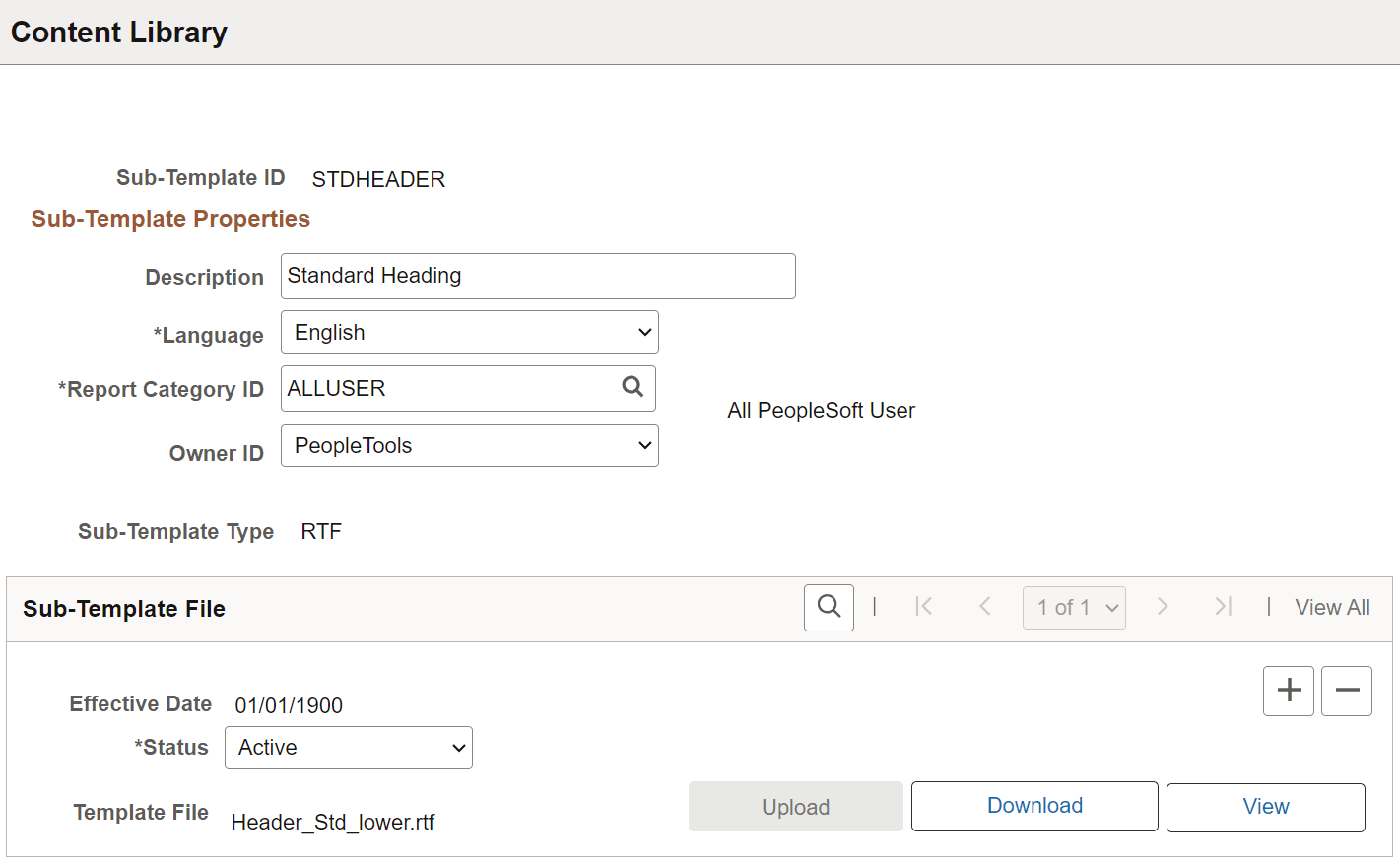
| Field or Control | Description |
|---|---|
|
Sub-Template ID |
Enter a unique sub-template ID. |
|
Description |
(Optional) Enter descriptive text that provides more detail about the sub-template and identifies its use. |
|
Language |
Select a language code for the sub-template. The default value reflects the users base language. |
|
Report Category ID |
Select a report category ID. This is a grouping mechanism that provides row-level security for editing sub-templates per the rights defined on the report category setup table. |
|
Object Owner ID |
(Optional) Indicate which product, feature, or application owns this sub-template. Use this field to extract and package production data source and report registrations and their supporting files. |
|
Sub-Template Type |
Select RTF or XSL. |
|
Effective Date |
Select an effective date for the sub-template file in order to maintain new versions or versions that are specific to a particular time period. For example, a new file could be uploaded to reflect a new format or new legal language for reports, and the new sub-template is automatically used as of the new effective date. The default date for a newly added sub-template file is the current system date. This effective date has no correlation with the effective date of the primary template. The as of date on the Query Report Viewer, Query Report Scheduler, or Run Control page determines which effective-dated templates and sub-templates are run. |
|
Status |
Select a status of In Progress, Active, or Inactive for the sub-template file. This field indicates the usability of the sub-template file. Runtime selection logic for a sub-template file uses this field in conjunction with the Effective Date field to determine which sub-template file to use at runtime. At least one file must be active to save a sub-template in the Content Library. |
|
Template File |
Displays the name of the sub-template file. |
|
Upload |
Click to attach an actual effective-dated sub-template file. When you save the sub-template, this button becomes disabled. To re-upload a new version of the sub-template, you must delete and add it again. |
|
Download |
Click to download the sub-template to your local computer for updating. |
|
View |
Click to view the contents of the sub-template. |