Maintaining Template Translations
Access the Template Translations page (Select .)
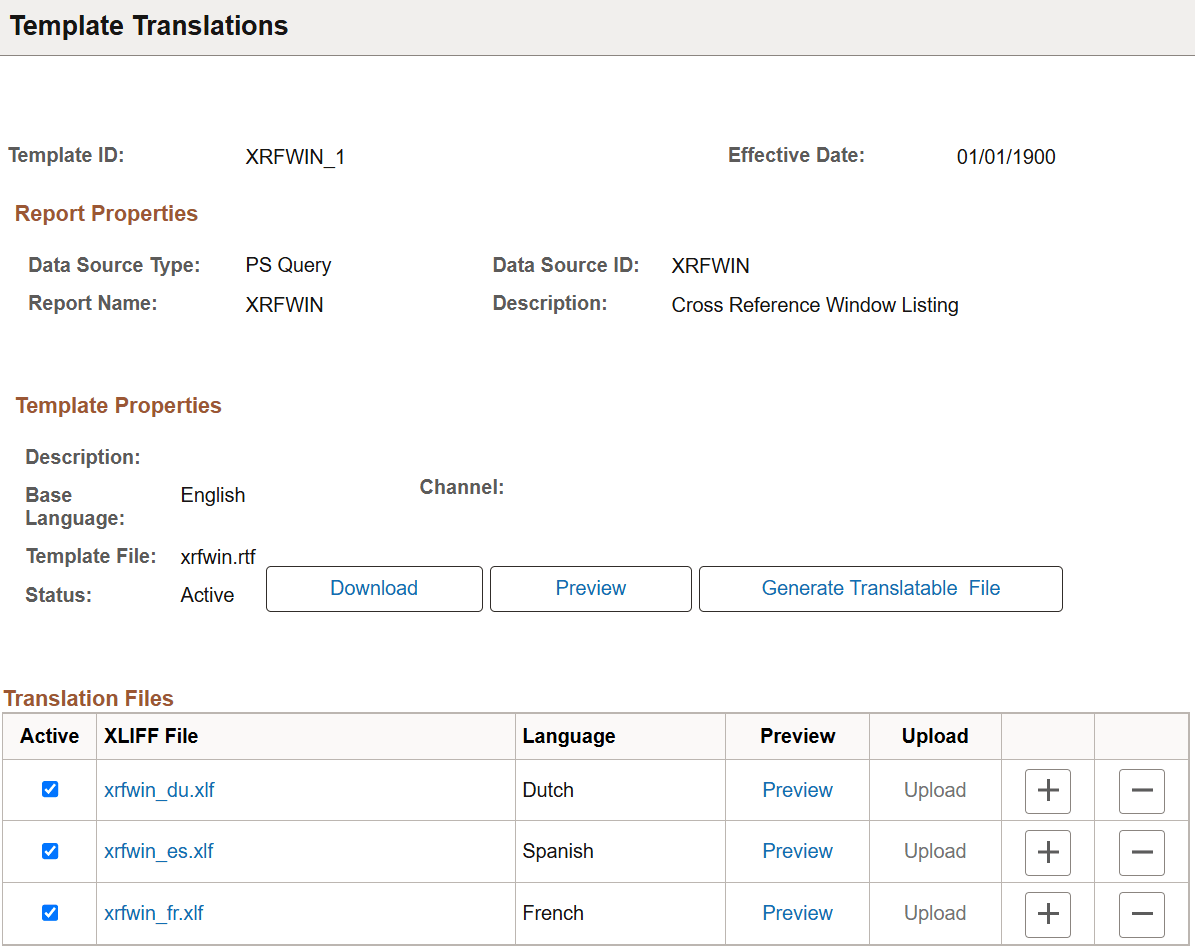
This example illustrates the fields and controls on the Template Translations page. You can find definitions for the fields and controls later on this page.
| Field or Control | Description |
|---|---|
|
Template ID/Sub-Template ID |
Displays the unique template ID or sub-template ID. |
|
Effective Date |
Displays the effective date as registered for the template under the Report Definition component or for the sub-template under the Content Library component. Note: The translation inherits the same date and cannot be changed. |
Report Properties
When the file to be translated is a report template, basic metadata about the report appears. This information does not appear when the file selected is a Content Library sub-template.
| Field or Control | Description |
|---|---|
|
Data Source Type |
Displays the report's corresponding data source type of PS Query, Rowset, XML Doc, XML File, Connected Query, or Composite Query. |
|
Data Source ID |
Displays the report's data source ID. |
|
Report Name |
Displays the report's name. |
|
Description |
Displays the report's description. |
Template Properties/Sub-Template Properties
The Template Properties/Sub-Template Properties group box displays basic metadata about the base-language template file that has been selected for translation.
| Field or Control | Description |
|---|---|
|
Description |
Displays the template's description. |
|
Base Language |
Displays the base language of the template. |
|
Channel |
Displays the distribution channel for the template. |
|
Template File |
Displays the name of the template file. |
|
Status |
Displays a status of In Progress, Active, or Inactive for the template file. |
|
Download |
Click to open or save the base template file. |
|
Preview |
For report templates, click to preview the report template with sample data from the sample data file that was registered with the data source. The Preview button is not enabled when no sample data file is registered with the data source. For sub-templates, click the View button to view the sub-template file. |
|
Generate Translatable File |
Click to generate an .xlf file, which includes all translatable units extracted from the fixed text of the selected template or sub-template file. This file must be saved locally and then manually translated. |
Translatable Files
The generated translatable
XLIFF file includes the template’s static headings and body text that
require translation into another language. At the top of the file,
the <source-language> tag indicates the base language value. You must update the<target-language> tag to the language that you are translating into. Initially the<source-language> and<target-language> values are the same. Prior to uploading the translated file into
the database, you must edit the<target-language> tag to the translated language code. The value must be the two-character
ISO language code.
For example, fr equals French,jp equals Japanese,
and so on. The file won't load if the file type isn’t .xlf or if the<source-language> equals the<target-language> and an error message appears.
In the <body> section
of the file, each<trans-unit id> tag contains both a<source> tag
and a<target> tag. The<source> tag contains the text in the base language. The corresponding<target> tag
contains the translate fixed text.
No naming restriction is placed on XLIFF files; however, you should keep them close to the template file name and include the language. For example, for a French translation of the XRFWIN template, you could use XRFWIN_FR.xlf.
This code is an example of a translated XLIFF file:
  <?xml version="1.0" encoding="utf-8" ?>
- <xliff version="1.0">
 - <file source-language="en-US" target-language="fr-FR" datatype="XDO"
     original="orphen.rtf" product-version="orphen.xlf" product name="">
     <header />
   - <body>
     - <trans-unit id="" maxbytes="4000" maxwidth="15"
         size-unit="char" translate="yes">
         <source>Total</source>
         <target>Totale</target>
         <note>Text located: body/table</note>
       </trans-unit>
     - <trans-unit id="" maxbytes="4000" maxwidth="22"
         size-unit="char" translate="yes">
         <source>Seq Name/</source>
         <target>Nom de Seq/</target>
         <note>Text located: body/table/table header</note>
       </trans-unit>
Translation Files
You maintain the translated XLIFF files for your templates in the Translation Files grid.
| Field or Control | Description |
|---|---|
|
Active |
When it is uploaded, the translated template must be Active to make that language translation available at runtime. The file is Active by default. |
|
XLIFF File |
Click the name of the uploaded translation file to open or save the file. This action opens a new window that displays the file per the user’s browser and OS settings and allows for updating and reloading the file. |
|
Language |
Displays the language into which the file was translated. During the upload of
the translated file, the system determines the language from the |
|
Preview |
Select to display a translated version of the report in a new window. This link is active only if the report’s data source has a sample data file. No link is available for sub-templates, because no report context is available to preview. |
|
Upload |
Select to browse and upload the translation file. |