Setting Bursting Options
Bursting is an optional advanced feature that is available only when reports are run through Process Scheduler. It is not intended for real-time online viewing. It is typically used when you are repeating the generation of a templated report layout many times for multiple like sets of data, for example, generating a batch run on vendor purchase orders or customer invoices. With bursting, you can generate individual report files resulting in separate secured output, for example, generating a file for each vendor, customer or employee.
Setting up bursting requires thorough knowledge and understanding of data values and schema structures. You could possibly make entries on the Bursting page that would cause the report to fail at runtime. When you generate a bursted report, the system creates separate document files for each unique data value for a specified field tag.
Note:
This Burst by field tag must be from the highest level repeating group (node) in the XML data. For bursting to work, only one high-level repeating group should be in the XML source.
Because bursting is an advanced feature, PeopleTools delivers permission list security that is intended for BI Publisher report developers (PTPT2600). When users are assigned a role with this permission list, they have access to setup entries on the Bursting page. A view-only permission list (PTPT2500) option also exists for BI Publisher power users that provides view-only access to the bursting information. The Bursting page appears for the power user only when bursting instructions exist for the report.
Note:
In previous versions of BI Publisher, schemas were necessary for bursting. For backwards compatibility, you can still register and use schemas to define bursting.
Access the Bursting page (Select .)
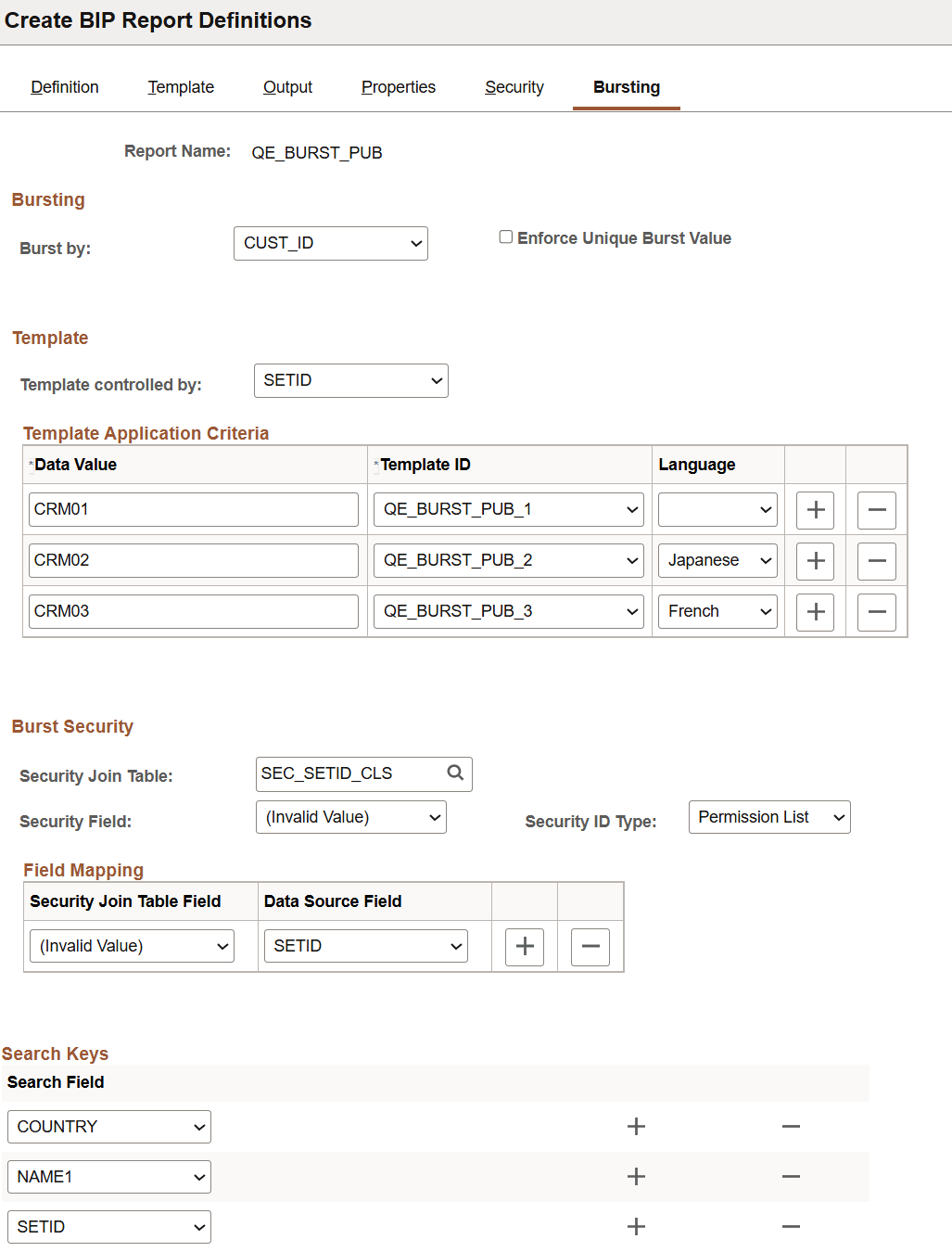
This example illustrates the fields and controls on the Create BIP Report Definitions-Bursting page. You can find definitions for the fields and controls later on this page.
| Field or Control | Description |
|---|---|
|
Burst by |
Select a burst by field to enable report bursting. All subsequent bursting features are disabled until you select this value The values in the drop-down list box are the children from the highest-repeating level (group node) in the XML schema associated with the data source that is assigned to the report definition. When you select a burst field, the report generates multiple files at runtime with a separate report instance file generated each time a unique value appears for the Burst by data tag. For example, this could be one report file for each employee when you are bursting by EmplID or one report for each department (that includes multiple occurrences of the report, one for each employee) when you are bursting by DeptID. |
|
Enforce Unique Burst Value |
Select this check box to indicate that the Burst by field contains unique values. If a non unique value is found, the report will not be published and an error will be logged. It is recommended to use unique bursting values. If this check box is cleared, bursted files with the same Burst by field will be combined in one report. Note: Prior to 8.5x, unique burst value was not enforced. Non unique burst value will produce unpredictable results including incorrect search. |
Template Assignment for Bursting (Optional)
This feature dynamically drives the template assignment at runtime based upon the data value of a designated schema tag. You can assign a language code to apply a specific template translation as well. This means that the various bursted report occurrences in one batch run can each have an appropriately assigned template and translation. For example, you can print Canadian paychecks in English or French depending upon the employee’s preference.
You should select a template ID for each data value that requires a special template.
At runtime, the process looks for the specified template and language. If the language does not exist, then it applies the base untranslated template. If the process encounters a data value that is not assigned on the report definition, then it assigns the template ID that is entered on the run control. If the system captures no template ID selection at runtime, then it applies the default template of the report definition.
| Field or Control | Description |
|---|---|
|
Template controlled by |
Select the schema tag value from the first child level to indicate the field with the template translation preference. |
|
Data Value |
Enter a row for each data value that requires a specific template or template translation. |
|
Template ID |
Select the template ID to apply when the data value specified previously is found in the XML data. These drop-down list box values are dynamically determined by those already defined on the report. |
|
Language |
(Optional) Select a language code for the desired translation of the template when the specified data value is found in the XML data. The language choices in the drop-down list box reflect the complete list of available languages and are not limited by the existing registered Translation XLIFF files. |
Security for Bursting (Optional)
When a report is set up to be bursted, the report designer can also designate how the generated documents are secured when they are posted to the Report Manager. At runtime, the system uses this information to determine who can view each bursted report instance. You can use bursting security to supplement or replace the basic report viewer security by role or user ID. Otherwise, the system limits access to each report instance based on preexisting system security definitions.
The system automatically limits access to each report instance based on the Burst by field. For example, if the report is burst by employee ID, only the users designated with access to each employee ID can view the output file.
The report designer must provide the record name of the security join table and designate the common fields to join with the bursting field. The system performs the join and determines who can view the report instances. This matching allows the Report Manager’s posting process to dynamically identify the user IDs or roles that are assigned viewing rights for each report instance.
Note:
If a user has the role ReportDistAdministrator, that user can view all bursted reports, regardless of security join table.
| Field or Control | Description |
|---|---|
|
Security Join Table |
Select the record name for the table that stores either a user ID or a permission list assigned to a data value in the XML data. |
|
Security Field |
Select the field from the Security Join table that stores the user ID or permission list to secure on. |
|
Security ID Type |
Select either User ID or Permission List to indicate what type value is in theSecurity Field. |
|
Security Join Table Field |
Select the field from the Security Join table that joins with the data tag to identify the proper row from which to find the value in the in the Security Field that is used to secure the bursted file. |
|
Data Source Field |
Select the data tag that stores the values that determines the security assignment. This may require more than one tag, because they must be first-child level tags. For example, they could be employee, customer, department ID, or a set ID/vendor ID combination, and so on. |
Search Keys (Optional)
When report results are burst into separate files, you should be able to locate the desired individual report from the Report Manager repository. Delivered search keys include Burst By, Report Definition Name, and Generated On Date. You can define additional search keys to provide even more specific granularity.
At report runtime, the report posting program uses this information to store the key names defined here along with the specific data values for each burst report. From the BI Publisher Report Search page, users can use these configurable search fields to locate a specific report occurrence. For example, if the pay advice report runs regularly and posts numerous report files for self-service access, and as an employee you want to locate a particular dated advise, you would not want to browse through all the advise files to locate the one you want to see. By assigning the pay period as a Search Field in the report definition, the user can enter a date to search for the correct advise.
| Field or Control | Description |
|---|---|
|
Search Field |
Select an additional field to search on from within the BI Publisher Report Search page. The drop-down list box values are taken from the children from the highest repeating level (group node) in the XML schema. Make sure that these values are unique per burst value. At design time, you can select as many search fields as are required. However, at search time, the BI Publisher Report search page allows only two search criteria in addition to the Burst by value. An API is provided to facilitate finding bursted BI Publisher reports in the Report Manager repository. When reports are burst into multiple separate files and posted in the Report Manager, the configurable search keys with their values are available as search keys in addition to Report Name, Burst By, Date, and Process Instance ID. Note: The search feature uses Integration Broker functionality. The service operation PSXP_RATTR is used to insert BIP report metadata for searching. This service operation must be active with a local-to-local routing. |