Setting Output Options
Access the Output page (Select .)
This example illustrates the fields and controls on the Create BIP Report Definitions-Output page (RTF template). You can find definitions for the fields and controls later on this page.
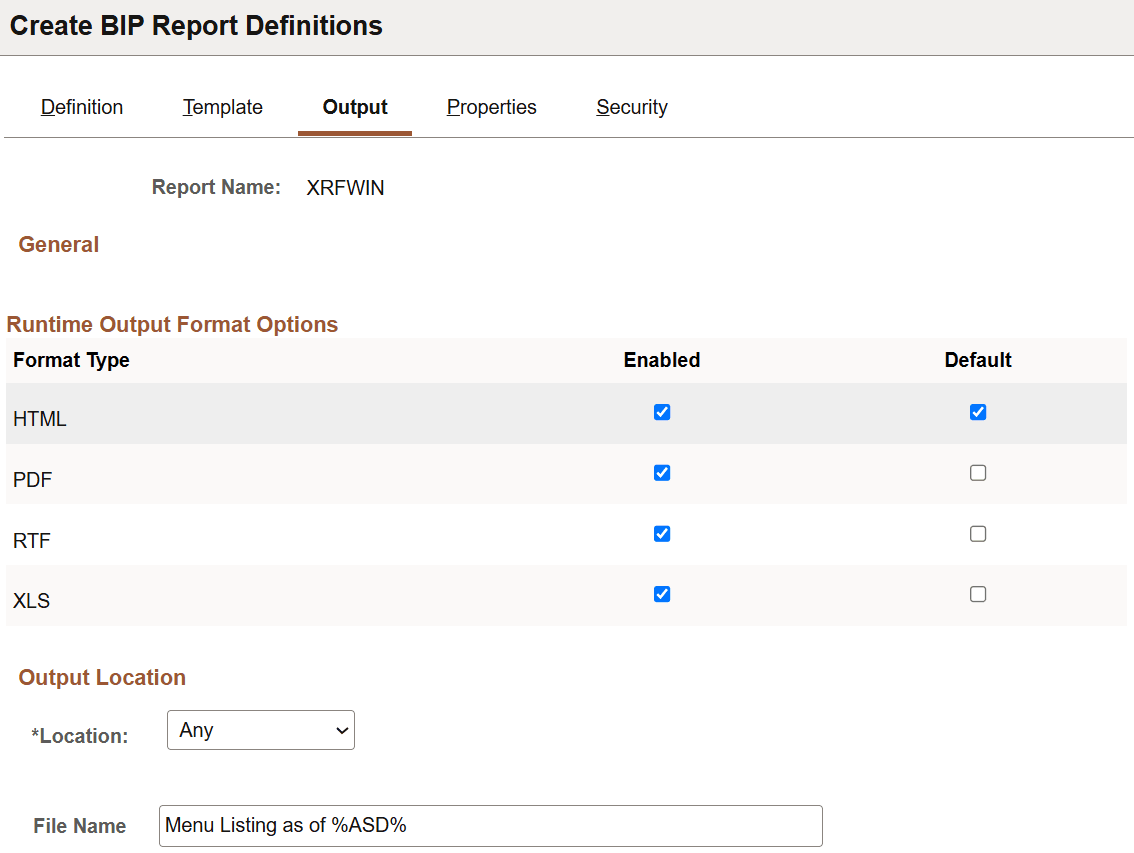
| Field or Control | Description |
|---|---|
|
Format Type |
Dynamically lists the available output formats based on the template type. |
|
Enabled |
Select specific values to limit the output choices for the user at runtime. |
|
Default |
Select a default format type. This value appears at runtime on the prompt or run control page. It specifies the output format that the system uses if no other value is fed into the BI Publisher engine. |
|
Location |
Select one of the following locations:
|
|
File Name |
Specify a file name template that gets translated at runtime to a physical file name. This field accepts a combination of output variables and plain text. Output variables are enclosed within percent signs (%) and used as part of the descriptive report name visible in the Report Manager or on the BIP Report Search page. The following variables are supported.
For example, if you have a report CERTIFICATE that is burst by STUDENT_ID, you can use the file name to provide more details:
Note: If you leave the File Name field blank, the system uses the report ID as the file name. For bursted report, burst value can be used as file name if set programmatically through the ReportDefn class property UseBurstValueAsOutputFileName. The ReportFileName can also be set programmatically as a property of the ReportDefn class. If a ReportFileName is set either in PeopleCode or on the page, it overrides the UseBurstValueAsOutputFileName property. |
Note:
The BI Publisher report definition output options are reflected in the output type and output format prompts on the Process Scheduler Request page only when the application process that runs the report is assigned the process type of BI Publisher.
Output Format Options
The output options are based on the template type as shown in this table:
| Template Type | Output Options |
|---|---|
|
RTF |
.pdf, .html, .rtf, .xls (html) |
|
|
|
|
E-Text |
.txt |
|
XSL |
.pdf, .html, .rtf, .xls (html) |
Printing BI Publisher Report Output
PeopleSoft applications support batch printing BI Publisher reports directly from a server using several output formats such as HTML, PCL, PDF, PS, RTF and XLS.
Bursted reports are sent to a single printer, but as multiple print jobs
Users can print BI Publisher reports from process scheduler, query report scheduler, or PeopleCode.
Note the following points when printing reports in Microsoft Windows:
-
BI Publisher functionality uses the Copy DOS command to print reports from Microsoft Windows:
copy file-name printer-name -
For printing in Microsoft Windows the printer must be shared in a windows print server and the printer name has to be specified in UNC format:
\\server-name\printer-name
Note the following points when printing reports from Unix, GNU, and Linux environments:
-
BI Publisher functionality uses the “LP” command in Unix, GNU, and Linux environments:
lp -c –d printer-name file-name -
For Unix and GNU environments, the printer can be local or in a network, and it doesn’t necessarily need to be in a print server.
See Setting Up BI PublisherRunning Reports Using PeopleCodeRunning Reports in Process SchedulerUsing RTF Templates