Accessing the Define Data Conversion Page
Before you run data conversion, you may need to change what the Upgrade Driver program runs. You can add, remove, or deactivate Application Engine sections through the Define Data Conversion page.
To access the Define Data Conversion page:
-
From your browser, sign in to the Demo database.
-
Select , , , .
-
The Define Data Conversion page appears.
-
Enter your upgrade path.
For example:
HC91
CR91
-
Click Search.
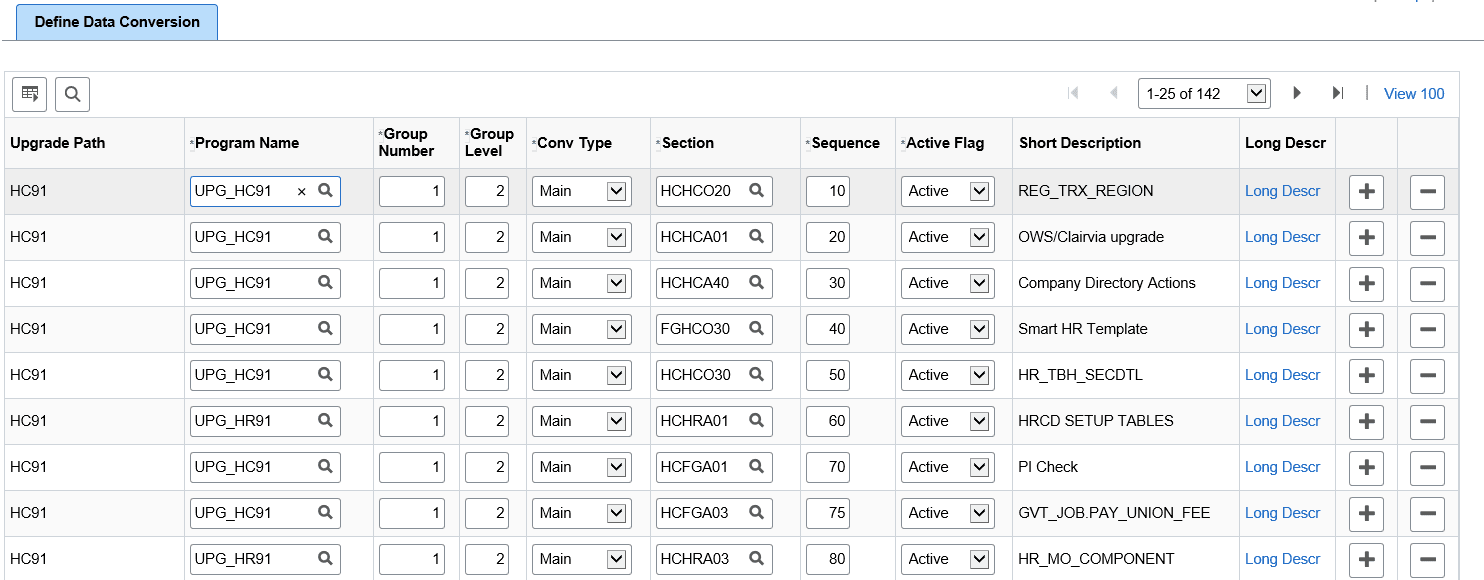
The Define Data Conversion page displays information for the selected upgrade path, as shown in the example below. Following the example of the Define Data Conversion page are descriptions for each section of the page.
This example illustrates the fields and controls on the Define Data Conversion page. You can find definitions for the fields and controls later on this page.
Field or Control Description Upgrade Path
This field contains the upgrade path on which the section will be run.
Program Name
This is the Application Engine program that contains the section.
Group Number
This is the group number. All sections with the same group number will be run during the same run of the PTIA_DATACONV Application Engine program.
Group Level
This is the group level.
Conv Type
This is the conversion type. PTIA supports two categories: MAIN and DDL.
Section
This is the section that will be called from the PTIA_DATACONV Application Engine program.
Sequence
This is the order in which the sections will be called during the run of PTIA_DATACONV for the group number.
Active Flag
This field determines whether the section will be run. If the value of this field is Active, the section will be run. If the value is Inactive, it will not be run. If you need to remove a section, change the value in this field to Inactive.
Short Description
This field contains the Section description.
Long Descr
This field is optional.
This section also discusses:
-
Adding a new Section on the Define Data Conversion Page.
-
Inactivating a Section on the Define Data Conversion Page.
Adding a new Section on the Define Data Conversion Page
Follow the instructions below to add a new section to the Define Data Conversion page.
Note:
To add a new section, the Application Engine program and section must exist on the Demo database.
To add a new section to the Define Data Conversion page:
-
From your browser, sign in to the Demo database.
-
Select .
-
The Define Data Conversion page appears.
-
Enter your upgrade path.
For example:
HC90
CR90
-
Click Search.
The Define Data Conversion page displays information for the selected upgrade path.
-
Add a new row.
-
Select a value for Program Name.
-
Enter a value for Group Number.
Note:
Each group number corresponds to a data conversion step in the PeopleSoft Change Assistant template. If you select a group number that already exists in the PS_PTIA_DCAEPGMS table, your section will be executed when PeopleSoft Change Assistant runs the data conversion step that corresponds to the group number you selected. Alternatively, if you assign a group number to your new section that does not already exist in PS_PTIA_DCAEPGMS, you must add a new step to your PeopleSoft Change Assistant template. The new template step will have the same properties as the other data conversion steps, except for the group number specified in the step properties Parameters box.
-
Enter values for Group Level and Conv Type.
-
Select a value for Sectionand enter value for Sequence.
-
Select a value for Active Flag.
-
The Short Descriptionfield is populated from the Section description. The Long Descrfield is optional.
-
Click Save.
Inactivating a Section on the Define Data Conversion Page
Follow the instructions below to deactivate a section on the Define Data Conversion page. If a section is deactivated, the section will not run as part of data conversion.
To inactivate a section on the Define Data Conversion page:
-
From your browser, sign in to the Demo database.
-
Select .
-
The Define Data Conversion page appears.
-
Enter your upgrade path.
For example:
HC90
CR90
-
Click Search.
-
Find the row with the Program Name and Section you want to remove and change the value of the Active Flag field to Inactive.
-
Click Save.