Assigning Filter Query to a Step
To use a filter query, the filter query must be assigned to a step. The following rules apply:
-
The drop down list of filter queries will be restricted to filter queries that are defined in the template at a position ahead or above the step being updated.
-
Steps can only be associated to Filter Queries that would execute prior to the step being executed.
-
Steps cannot be associated to the same Filter Query twice.
Adding a Filter Query to a Step
To add a filter query to a step:
-
Double-click on the step to open the Step properties.
-
Select the Filter Queries tab.
This example illustrates the fields and controls on the Filter Queries dialog box. You can find definitions for the fields and controls later on this page.
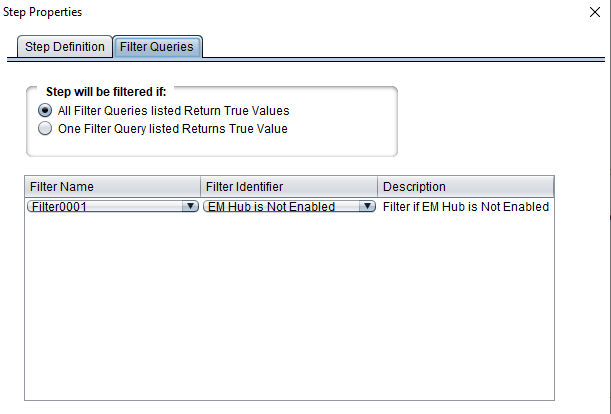
| Field or Control | Description |
|---|---|
|
Step will be filtered if: |
Select when filtering will be done.
|
|
Filter Name |
Select the Filter name from the drop down list. To add additional filter queries, right-click and select Insert Query. |
|
Filter Identifier |
Select the Filter Identifier from the drop down list. Note: The drop down list will contain all of the Filter IDs for the selected Filter Name. This field will be grayed out if a Filter name has not been specified. |
To add additional Filter Queries, right-click on a row and select Insert Query.
Deleting a Filter Query from a Step
To delete a filter query:
-
Double-click on the step to open the Step properties.
-
Select the Filter Queries tab.
-
Right-click on the row with the filter and select Delete Query.
-
Click OK.