Configuring Change Assistant for Update Manager – Upgrade to a New Release of PeopleTools
If this is the first time you are selecting Update Manager, the Wizard will guide you through the Change Assistant setup. As you click Next you will complete the following pages:
-
General Options
-
PUM Source Options
Note:
PUM Source is not used with PeopleTools upgrades. You will click Next to skip this page.
-
EM Hub Options
Note:
EM Hub is not used with PeopleTools upgrades. You will click Next to skip this page.
-
Additional Options
-
Select Task
Note:
Once the environment has been configured, you can use to make any changes to the environment options.
General Options
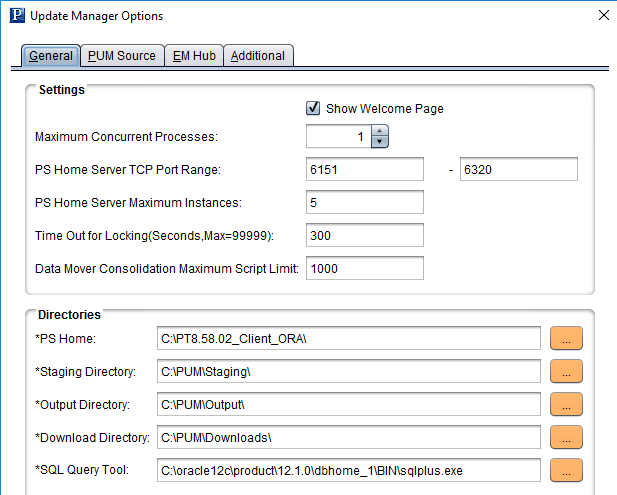
This example illustrates the fields and controls on the General Options page. You can find definitions for the fields and controls later on this page.
| Field or Control | Description |
|---|---|
|
Maximum Concurrent Processes |
Specifies the maximum number of processes that can be executed concurrently on the local machine. The default is 1. |
|
PS Home Server Starting Port |
Specify the port number for the first PS Home server. Change Assistant uses this port number to communicate with Change Assistant PS Home servers. The default starting port number is 6151. If you enter a port number that is already in use, you see an error message. You must change to a port number that is not in use, and then restart Change Assistant for the change to take effect. |
|
PS Home Server Maximum Instances |
Enter a number between 1 and 10 for the maximum number of PS Home servers. Use this value for environments with more than one PS_HOME. For each server instance, Change Assistant increments the PS Home Server Starting Port number by 1 up to the maximum number of instances. For example, with a PS Home Server Starting Port value of 6151 and a PS Home Server Maximum Instances value of five, the port numbers would be 6151, 6152, 6153, 6154, and 6155. The default is 5. If you change this value, you must restart Change Assistant for the change to take effect. |
|
PS Home |
Enter the full path to the new PeopleTools release PS_HOME. Note: This is the same PS_HOME used to install Change Assistant. |
|
Staging Directory |
Enter the directory in which you would like to stage all the Change Assistant upgrade files. This is the location that Change Assistant will store files to be used during the upgrade to new PeopleTools process. |
|
Output Directory |
Enter the directory in which you want the log files generated by the upgrade process to reside. |
|
Download Directory |
Enter the full path of the location to which you want to download your change packages. |
|
SQL Query Tool |
Select the correct executable for the database platform that matches the PS_HOME defined for CA. This value is used as the default when creating environments. Each environment contains separate settings and therefore, you can change this executable for a specific database. Valid SQL query executables for each platform are:
Note: Change Assistant uses the command line version of the .exe, not the GUI version. For example, sqlplus.exe is used for an Oracle database, rather than sqlplusw.exe. Important: Oracle Database Customers: For systems running on the Oracle database, by default, Change Assistant copies the generated SQL script files to the location specified as the TEMP User variable on the Environment Variables dialog box. So, on Oracle, the generated SQL script files will actually exist in two locations: the specified Change Assistant output directory, and the TEMP directory. This behavior is in place because some versions of Oracle SQL Plus do not support pathnames longer than 79 characters. It is recommended that you ensure that the value specified for the TEMP User variable is set to a path short enough so that the string comprising the path and generated SQL file will not exceed 79 characters. |
Additional Options
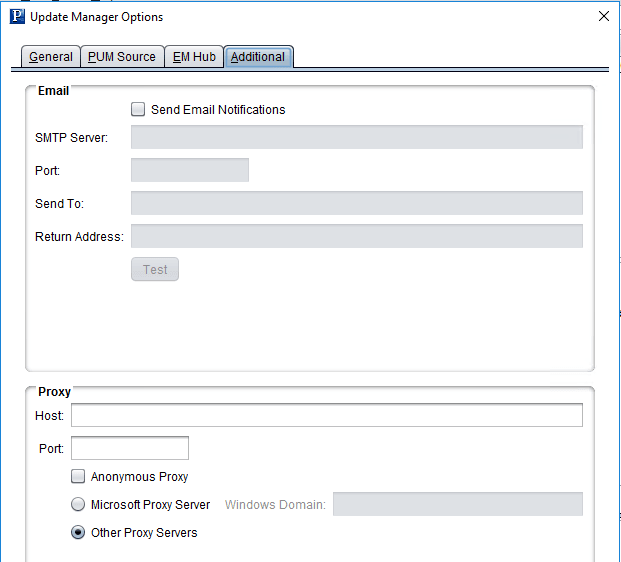
This example illustrates the fields and controls on the Change Assistant - Additional Options page. You can find definitions for the fields and controls later on this page.
Notification Settings Section
| Field or Control | Description |
|---|---|
|
Send Email Notifications |
Select this check box to receive email notifications if there are errors in the upgrade process. Change Assistant also sends you a completion message when it encounters a Stop in the update process. |
|
SMTP Server |
Enter the SMTP mail server from which you receive the error or completion messages. |
|
Port |
Enter the port from which you want to access the email. |
|
Send To |
Enter the address to which you want the email sent. |
|
Return Address |
Enter the email address of the sender. Use this to identify who sent the notification. |
|
Test |
Validates that email is sent to the designated recipients and is working correctly. Note: Ensure that your SMTP server is installed and configured correctly. |
Proxy Section
| Field or Control | Description |
|---|---|
|
Host |
(Optional) Enter the name of the proxy server if you want to run Change Assistant behind the firewall using a proxy server. |
|
Port |
(Optional) Enter the port number for the proxy server. |
|
Anonymous Proxy |
Indicates that you are using a proxy server that does not require authenticated connections. |
|
Microsoft Proxy Server |
Indicates that you are using a proxy server with Windows authentication. |
|
Windows Domain |
The network domain in which the system runs. |
|
Other Proxy Servers |
Indicates you are using non-Microsoft proxy servers. |
Select Task
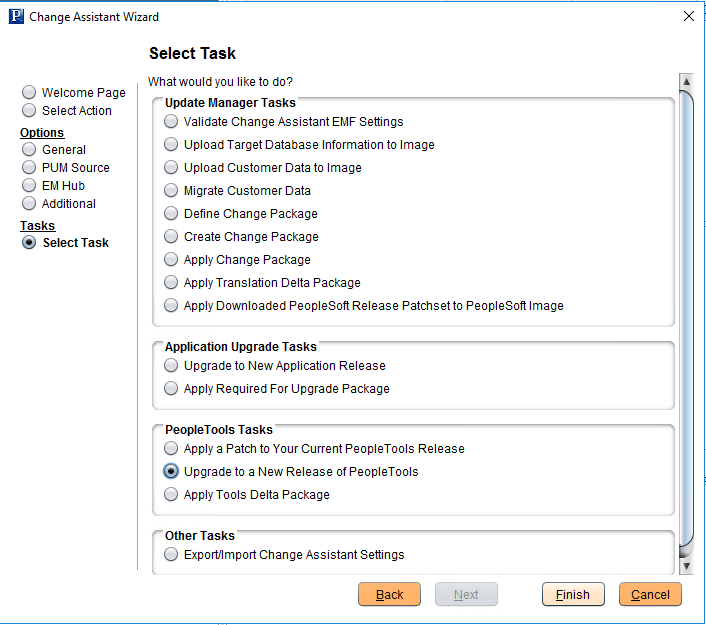
Select Upgrade to a New Release of PeopleTools.
This example illustrates the task Upgrade to a New PeopleTools Release selected.