Upgrading to a New Release of PeopleTools
To apply the PeopleTools upgrade, the Wizard will guide you through the environment setup. As you click Next you will complete the following pages:
-
Change Package Settings
-
Select Target Database
-
Select PeopleTools Upgrade
-
Validation
-
Apply Summary
Change Package Settings
This example illustrates the fields and controls on the Change Package Settings page for a PeopleTools Upgrade. You can find definitions for the fields and controls later on this page.
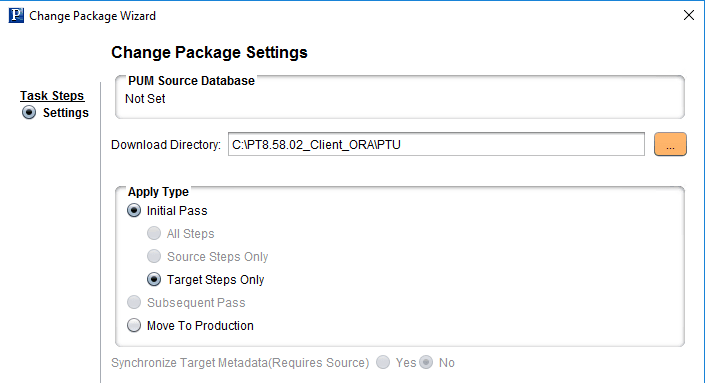
For a PeopleTools upgrade, the apply type is Initial Pass and Target Steps Only.
Select Target Database
On the Select Target Database page, select your target database if the databases were imported to the new instance of Change Assistant.
To create a new database or add the New Homes to an existing database:
-
Click the Create button, which will launch the Database Wizard.
-
On the Define Database page, enter the information for the database you are defining.
Note:
For PeopleTools Upgrade, you must set the path information for the new PS home locations. You must also ensure that the current PS_APP_HOME and the current PS_CUST_HOME are not set to the current PS_HOME. See Defining Databases
-
Click Next.
Change Assistant will query the database and gather additional database.
Note:
Change Assistant will verify the connection to the database, including User ID/password, Access ID/password, and Connect ID/password. You will need to correct any errors before continuing to define the database.
-
The information is then displayed on the Additional Database Details page.
-
Click Next and the Confirm Settings page is displayed.
-
Click Finish.
Select PeopleTools Upgrade
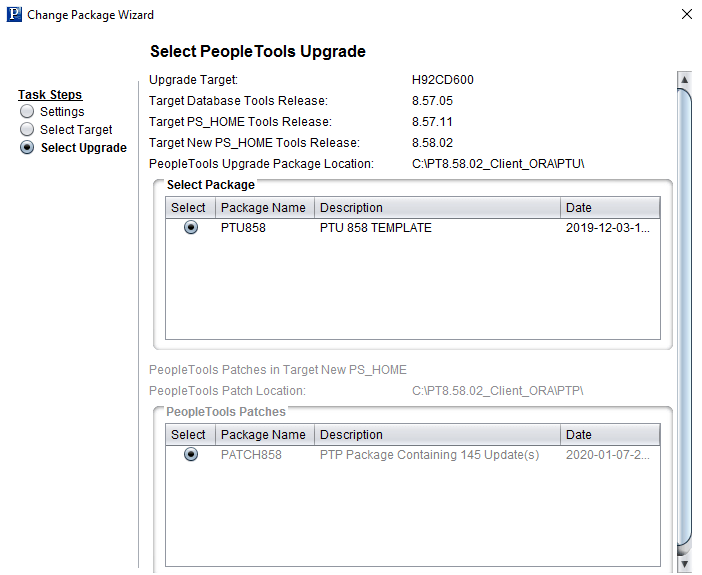
The select PeopleTools Upgrade page will display the target database information, as well as the change package to install and any PeopleTools patches that Required at Upgrade and downloaded to the download directory.
This example illustrates the fields and controls on the Select PeopleTools Upgrade page.
Validation
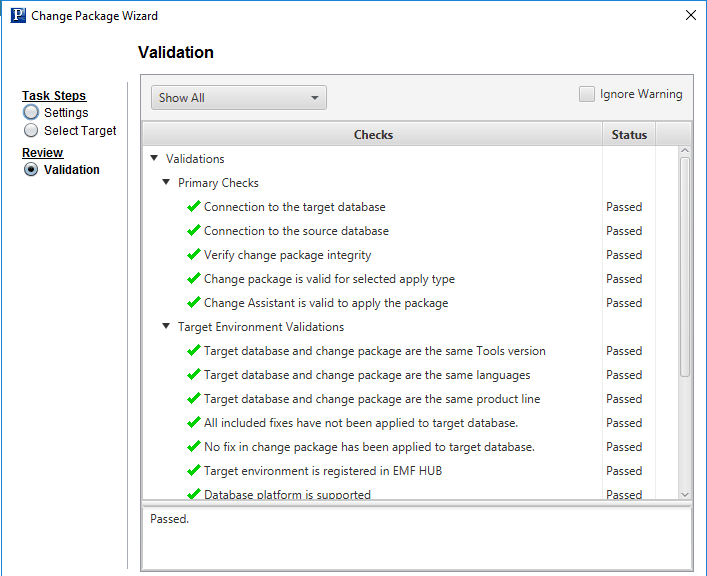
Change Assistant will check the connectivity to the target database, validate the PTU, and validate the target environment.
This example illustrates the fields and controls on the Validation page.
PeopleTools Upgrade Job
When you click Finish on the Summary page, the PeopleTools upgrade job is created and opens. The first step is usually a manual stop.
For more information on running Change Assistant Jobs, see Running the Upgrade Job