Defining Databases
Each source or target database that is used with Change Assistant needs to be defined. When you create the database definition, the system will query the database for details including:
-
If the database is Unicode
-
Products
-
Product Line
-
Industry
-
Languages
-
Base Language
-
PeopleTools Version
To create a new database:
-
Access the Database Wizard using one of the following methods:
-
Directly from the Change Assistant menu, select File, New Database.
-
From another Wizard or PeopleTools Options page that includes the Create button for the database. Click Create.
-
-
On the Define Database page, enter the information for the database you are defining. Depending on the action you selected and the database type, complete the fields necessary.
-
Click Next.
Change Assistant will query the database and gather additional database information.
Note:
Change Assistant will verify the connection to the database, including User ID/password, Access ID/password, and Connect ID/password. You will need to correct any errors before continuing to define the database.
-
The information is then displayed on the Additional Database Details page.
-
Click Next and the Confirm Settings page is displayed.
-
Click Finish.
This example illustrates the fields and controls on the Database Wizard - Define Database page. You can find definitions for the fields and controls later on this page.
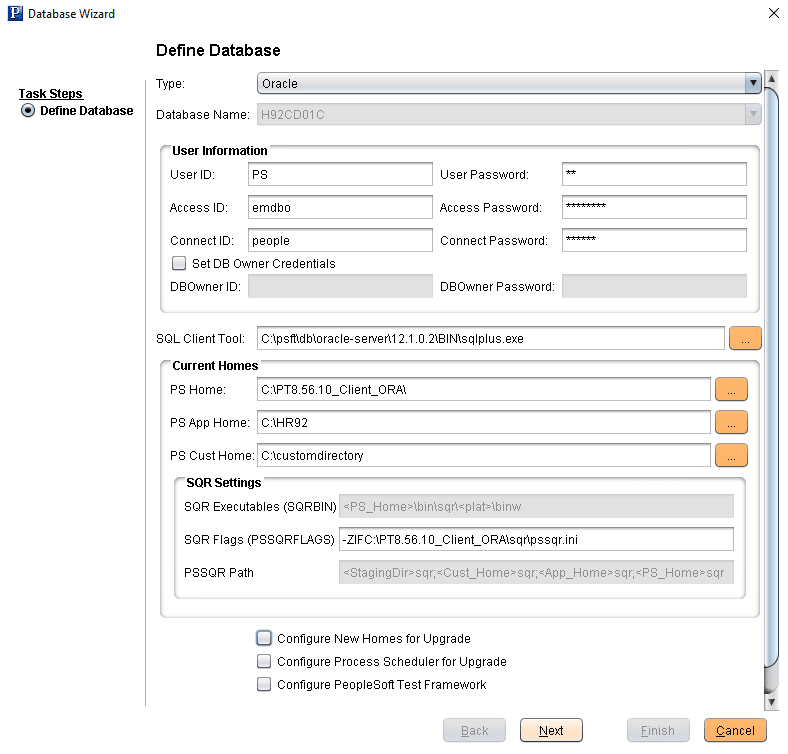
The Database Configuration Wizard provides a separate configuration page for each database type, containing these settings:
| Field or Control | Description |
|---|---|
|
Database Type |
Select a database platform from the list. Based on signon requirements for the database platform that you select in this field, other fields will be disabled or become available for entry. |
|
Database Name |
Enter a name of up to 8 characters for the database. If EMF is configured and running, you can select a database from Hub. |
|
Database Server Name |
Only applies to Informix, Microsoft SQL Server and Sybase. If applicable, enter a name of up to 256 characters for the database server name. |
|
Owner ID |
(Used for DB2 z/OS only). Enter the owner ID used for the tables. |
|
User ID and Password |
Enter the PeopleSoft user ID and password for the database that will be used to perform the upgrade. Examples of user IDs are VP1 and PS. |
|
Access ID and Password |
The access ID has full access to all objects in the database. Your access ID is not a PeopleSoft user ID, such as VP1 or PS. Examples of access IDs are sa or sysadm. Note: For Microsoft SQL Server the access ID must also have System Administrator privileges. Note: The IDs and passwords are case-sensitive. Note: The access ID is often the database owner. It is not normally the same value as the connect ID, which has limited access to the database. |
|
Connect ID and Password |
Enter the connect ID and password for the target database. The default connect ID is people. |
|
Set DB Owner Credentials |
If this check box is select, then the DB Owner ID and DB Owner Password Fields are required fields. The DB Owner is only used with the step type SQLScript-DBO. When the SQLScript-DBO step executes, the Set DB Owner Credentials option is checked prior to issuing the commandline. If the attribute is disabled, the job will exit with an error stating the credentials are not set, rather than attempting to execute the command and failing. |
|
DB Owner ID and Password |
Enter the Database Owner ID and password for the target database. |
|
SQL Client Tool |
Select the correct executable for the database platform. Valid SQL query executables for each platform are:
Note: Change Assistant uses the command line version of the .exe, not the GUI version. For example, sqlplus.exe is used for an Oracle database, rather than sqlplusw.exe. Important: Oracle Database Customers: For systems running on the Oracle database, by default, Change Assistant copies the generated SQL script files to the location specified as the TEMP User variable on the Environment Variables dialog box. So, on Oracle, the generated SQL script files will actually exist in two locations: the specified Change Assistant output directory, and the TEMP directory. This behavior is in place because some versions of Oracle SQL Plus do not support path names longer than 79 characters. It is recommended that you ensure that the value specified for the TEMP User variable is set to a path short enough so that the string comprising the path and generated SQL file will not exceed 79 characters. |
|
Current HomesPS Home |
Enter the location of your current PS_HOME. Note: Oracle recommends using a mapped drive. |
|
Current Homes PS App Home |
Enter the location of your current PS_APP_HOME. Note: Oracle recommends using a mapped drive. Do not enter your PS_HOME directory. |
|
Current Homes PS Cust Home |
Enter the location of your current PS_CUST_HOME. Note: Oracle recommends using a mapped drive. Do not enter your PS_HOME directory. |
|
SQR SettingsSQR Executables (SQRBIN) |
The SQRBIN value is read only and derived from the PS Home and platform setting. |
|
SQR Settings SQR Flags (PSSQRFLAGS) |
By default , the -ZIF parameter is to set the full path and name of the SQR initialization file, SQR.INI. Make any necessary changes or add additional SQL parameters if needed. |
|
SQR Setting PSSQR Path |
This field is read-only and will contain the path that is used in Change Assistant:
Each path is separated by a “;” (semi-colon). The static display is: “<StagingDir>\SQR;<Cust_Home>\SQR;<App_Home>\SQR;PS_Home>\ |
|
Configure New Homes for Upgrade |
Select this option to define new PeopleSoft Homes for a PeopleTools upgrade. |
|
Enable Process Scheduler |
Select this option to define up to two Process Scheduler servers to run ProcessScheduler steps during the upgrade job run. This option only applies in an application upgrade. |
|
Enable PeopleSoft Test Framework |
Select this option if the upgrade contains PTF steps or if you want to incorporate PTF scripts into your template. |