Specifying Database Process Scheduler Settings
If you have selected the Enable Process Scheduler check box for an applicable database definition, you must enter the required information for the host machine and the Process Scheduler server definitions associated with that database that will be running the ProcessScheduler steps.
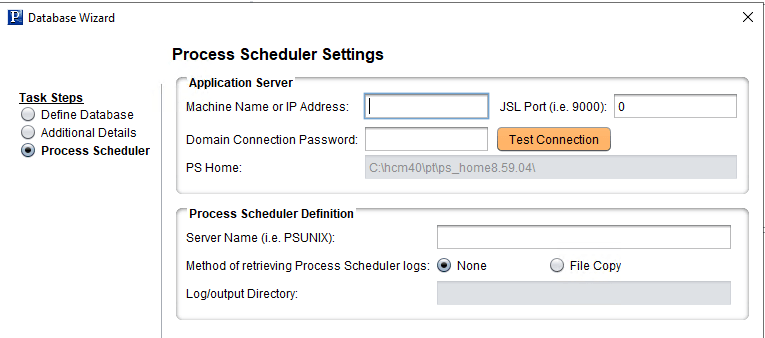
This example illustrates the fields and controls on the Database Wizard – Process Scheduler Settings page. You can find definitions for the fields and controls later on this page.
| Field or Control | Description |
|---|---|
|
Machine name or IP |
Enter the host name or the IP address of the application server where the appropriate Process Scheduler server domain is running (PSPRCSRV.EXE and so on). |
|
JSL Port |
Enter the domain's JSL port (listener port). |
|
Domain Connection Password |
Enter the domain connection password for the application server. |
|
Server Name |
Enter the name of the Process Scheduler server definition, such as PSUNIX. |
|
Method of retrieving Process Scheduler logs |
You can download and view the Process Scheduler logs from within Change Assistant so that you don't need to monitor the processes separately using Process Scheduler monitoring and logging. Similar to other Change Assistant log files, the downloaded Process Scheduler log files are saved to the Change Assistant output directory.
To copy log files when using Process Scheduler on Linux server:
Otherwise, you can directly download log files from Process Monitor on the PIA page. If running Change Assistant on Linux, user must mount the NFS share to a local path and configure the same in Change Assistant database definition. Note: If you have configured multiple Process Scheduler servers within your upgrade environment, and they each run processes within the job, as needed, note that the log information will reside in two locations, with each location containing the log information associated with the processes run on that server. |
|
Log/output Directory |
Applies to File Copy. Enter the path to where the Process Scheduler logs are located on the server. This is the (mapped) path on the Change Assistant workstation. |