Define Update Package Wizard Step 2 of 6
Navigation:
Open the Define Change Package folder and select Update Package.
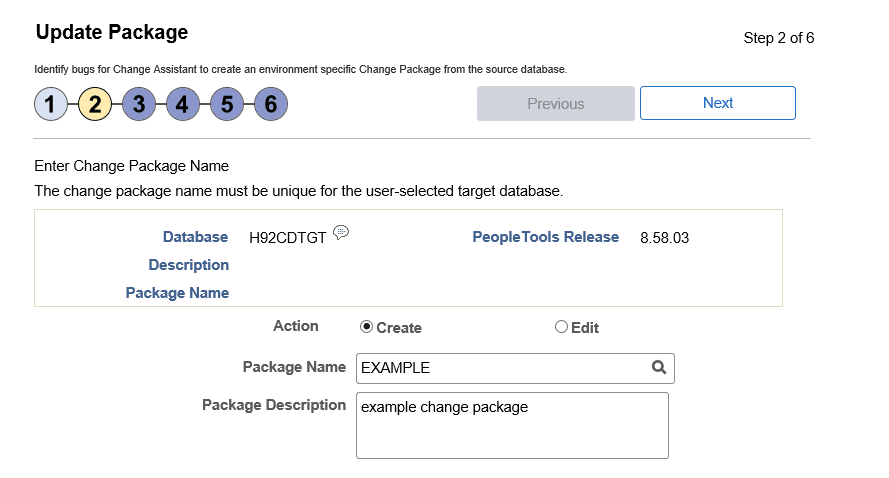
The second step is to enter an update package name.
This example illustrates the fields and controls on the Update Package Step 2 of 6 page. You can find definitions for the fields and controls later on this page.
| Field or Control | Description |
|---|---|
|
Action |
Select the action. Create is the default. Select Edit if you want to update an existing package definition. |
|
Package Name |
Enter a name for your custom change package. To edit an existing change package, select the Lookup button. The list of change packages that can be edited is restricted as follows:
|
|
Package Description |
Enter a description for the change package. |
Click Next.
If you selected Create and the package name already exists, a message “Exiting package name not permitted in Create action mode (269,259) Enter a new package name to continue.
If you selected Edit, the Change Package Options page id displayed.
Change Package Options
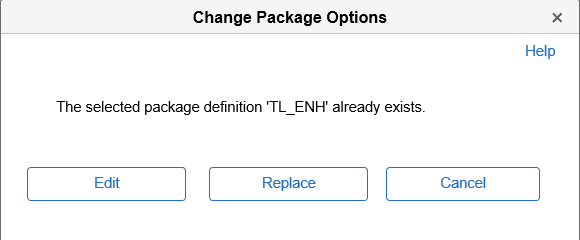
On the Change Package Options page, you can select whether to edit or replace the change package.
This example illustrates the fields and controls on the Change Package Options page. You can find definitions for the fields and controls later on this page.
| Field or Control | Description |
|---|---|
|
Edit |
Select this option to edit the existing change package. The search results previously entered are retained. |
|
Replace |
Select this option to replace the existing change package. |
|
Cancel |
Select this option to cancel and select a new name for the change package. |