Importing Change Assistant Setting in Change Assistant
Use the Export/Import Change Assistant Setting option to export or import settings.
Navigation:
In Change Assistant, select Tools, Export/Import Change Assistant Settings
or
In Change Assistant, select Tools, Change Actions, Update Manager, Export/Import Change Assistant Settings
This example illustrates the fields and controls on the Export&Import Settings Wizard – Export/Import page. You can find definitions for the fields and controls later on this page.
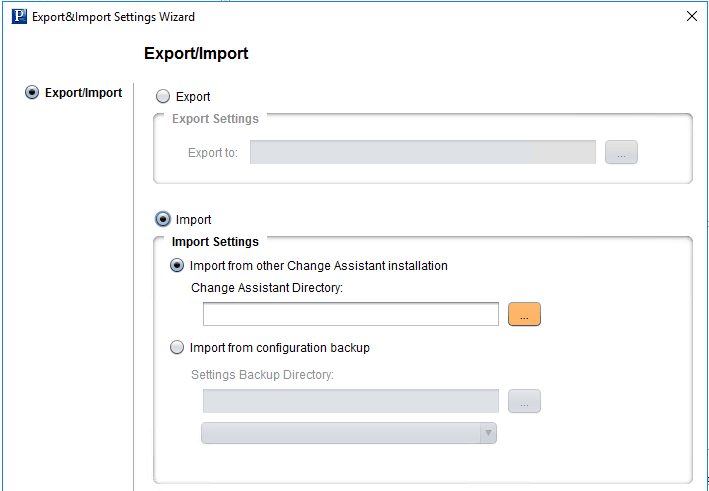
Importing Change Assistant Settings
You can import Change Assistant Settings from either another instance of Change Assistant or from a configuration backup file.
To import Change Assistant settings:
-
In Change Assistant, select Tools, Export/Import Change Assistant Settings.
-
Select the Import radio button.
-
Select the import option to use:
-
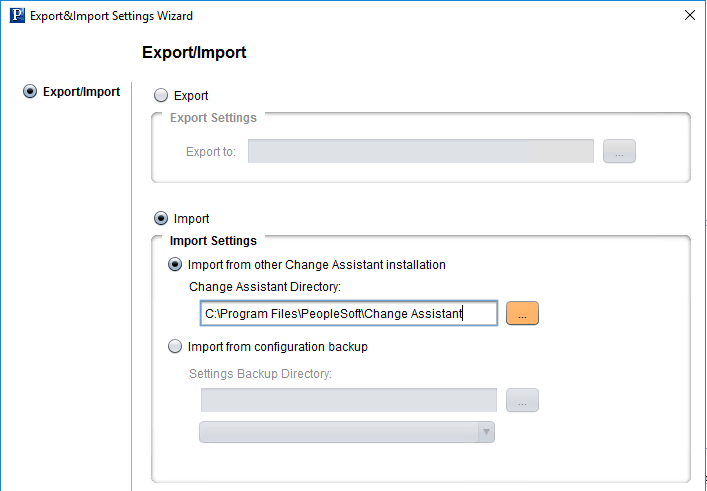
Import from other Change Assistant Installation
Select the Change Assistant directory for the instance.
This example illustrates the fields and controls on the Import from other Change Assistant Installation option.
-
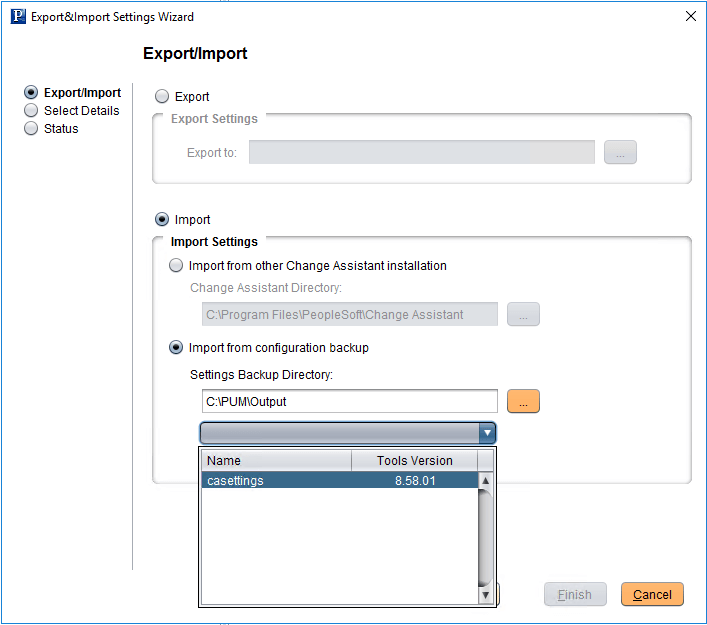
Import from configuration backup
Select the directory and file.
This example illustrates the fields and controls on the Import from configuration backup option.
-
-
Click Next. A progress bar is displayed as Change Assistant retrieves the information.
-
If Import from other Change Assistant installation is selected, Change Assistant will check the Tools version of the selected Change Assistant instance. If the Tools version is available, it will call the selected Change Assistant instance to export the configuration to a temporary folder. The configuration is then retrieved from the temporary configuration backup file.
-
If Import from configuration backup is checked, Change Assistant will retrieve the configuration from the selected configuration backup file.
-
If there is a problem with retrieving the configuration, a warning message is displayed.
-
-
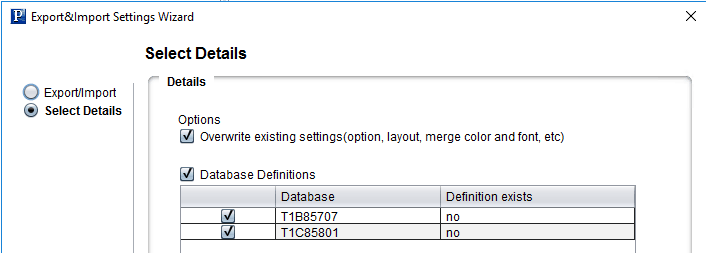
Click Next. On the Select Details page, select if you want to import the options and which databases you want to import.
-
If settings have already been configured on this instance of Change Assistant, the Overwrite existing settings check box will be cleared.
-
If this instance of Change Assistant has not been configured, the Overwrite existing settings check box is selected.
-
If a database definition already exists in Change Assistant, the check box for the database is cleared.
-
If a database definition does not exists in Change Assistant, the check box for the database is selected.
-
If a database definition is being used in a job, the check box for the database is cleared.
This example illustrates the fields and controls on the Export&Import Settings Wizard- Select Details page where the new instance of Change Assistant does not contain any settings.
-
-
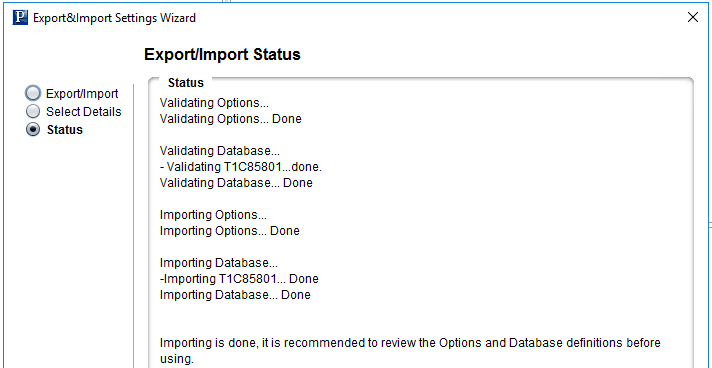
Click Next. Change Assistant will validate the settings and display the status.
This example illustrates the fields and controls on the Export&Import Settings Wizard- Status page where the new instance of Change Assistant does not contain any settings.
-
Click Finish.
If the validation showed any issues with the options settings, Change Assistant will launch the Options window automatically when you click Finish, in order to make the corrections.