Manage Tests
The Test Repository is used to identify the relationship between tests and components before the change package is created. For PTF customers, this would be the same as the Test Coverage Report, however it is available when selecting updates in the PUM Search. The Test Repository is delivered empty on the PUM Source and must be populated using Change Assistant to upload the customer data.
To access the Manage Tests page, select .
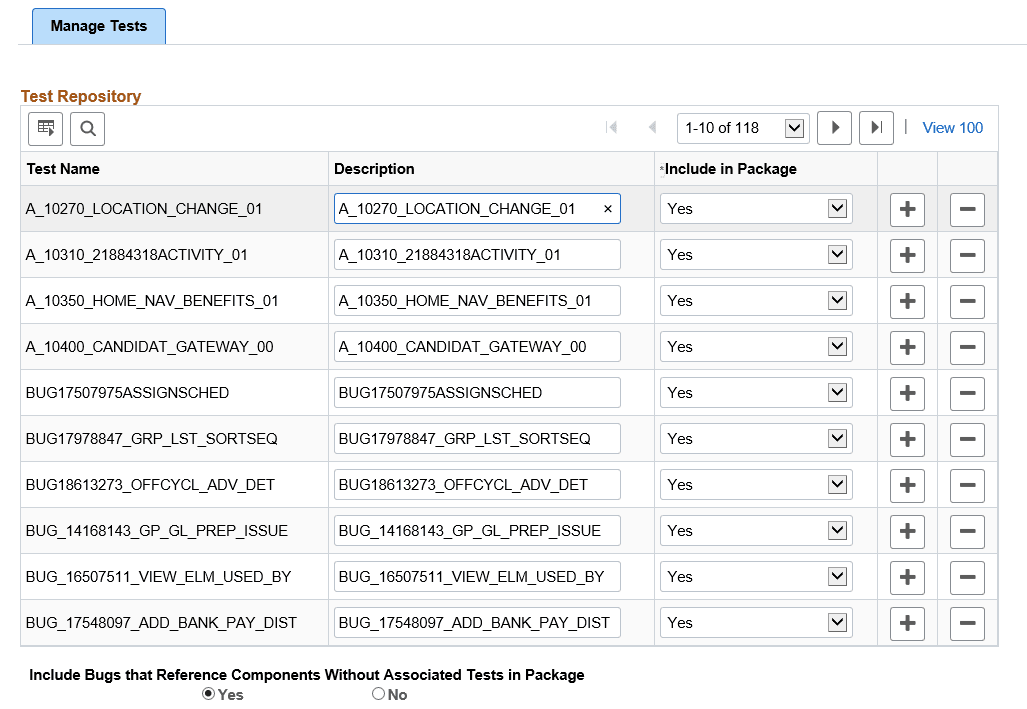
This example illustrates the fields and controls on the Manage Tests page. You can find definitions for the fields and controls later on this page.
| Field or Control | Description |
|---|---|
|
Test Name |
For PTF tests, this is the name of the test. For component projects, this is the name of the project. You can have 0–n test defined. Each defined test must have a unique test name. |
|
Description |
Use this field to provide a more detailed description of the test. |
|
Include in Package |
Specify whether bug fixes which impact the specified test should be, by default, included or excluded from change package creation.
Note: This value can be overridden in the PUM Search. |
|
Include Bugs that Reference Components Without Associated Tests in Package |
Select Yes to include the bugs in the change package even if the component does not have an associated test. Select No if you want 100% test coverage for the package. |
Adding Tests
To manually add tests, use the + action in the grid. When this method is used, a new row is added, however no objects will be associated with the new row. Use the Define Test Object Reference page to add the objects. See Managing Test Objects.
Rows can also be added by uploading customer data through Change Assistant. See Creating Test Repository.
Deleting Tests
To delete a tests, use the – (delete row) action in the grid.
If a test is deleted, the test coverage calculation must be re-run to ensure that the correct metadata exists in the database.