Managing Test Objects
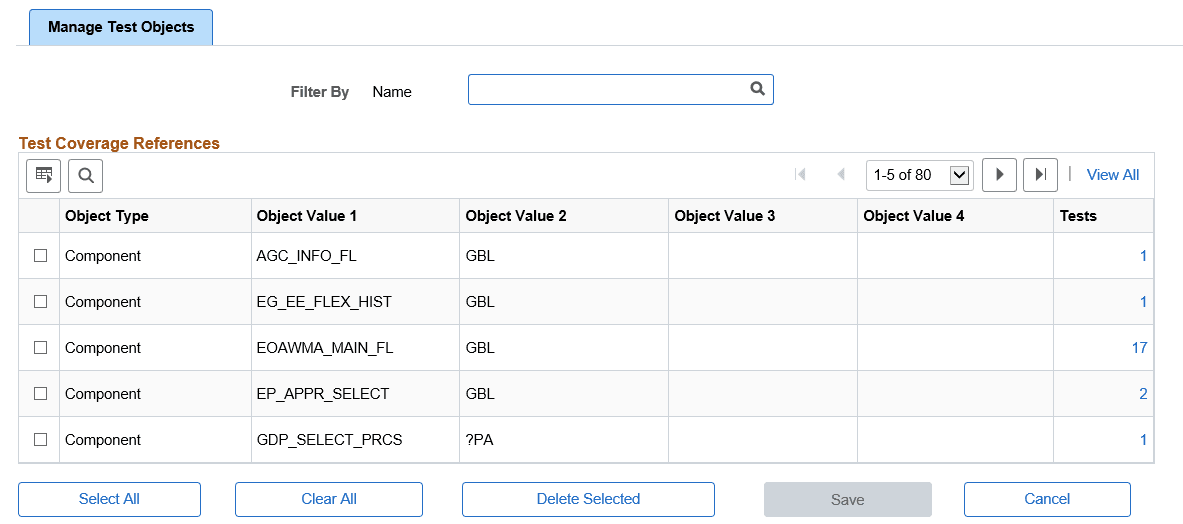
The Manage Test Objects page contains a list of the test objects. The same object may exist in more than one test.
Navigation:
To access the Manage Tests Objects page, select .
This example illustrates the fields and controls on the Manage Test Objects page. You can find definitions for the fields and controls later on this page.
| Field or Control | Description |
|---|---|
|
Filter By Name |
Use the Filter By editbox to select a test name and display all the components associated with that test. |
|
Object Type |
The object type is Component. |
|
Object Value 1–4 |
These 4 columns are the same 4 key columns used to identify a managed object in PUM and managed object projects. |
|
Tests |
Displays the test count. Click the count link to open the Add/Delete Test Coverage page, which displays the test names associated with the component. |
To delete a component, select the component on the grid and click Delete Selected.
Adding and Deleting Tests
To add or delete test coverage, click the count link. This will open the Add/Delete Test Coverage page.
This example illustrates the fields and controls on the Add/Delete Test Coverage References page. You can find definitions for the fields and controls later on this page.
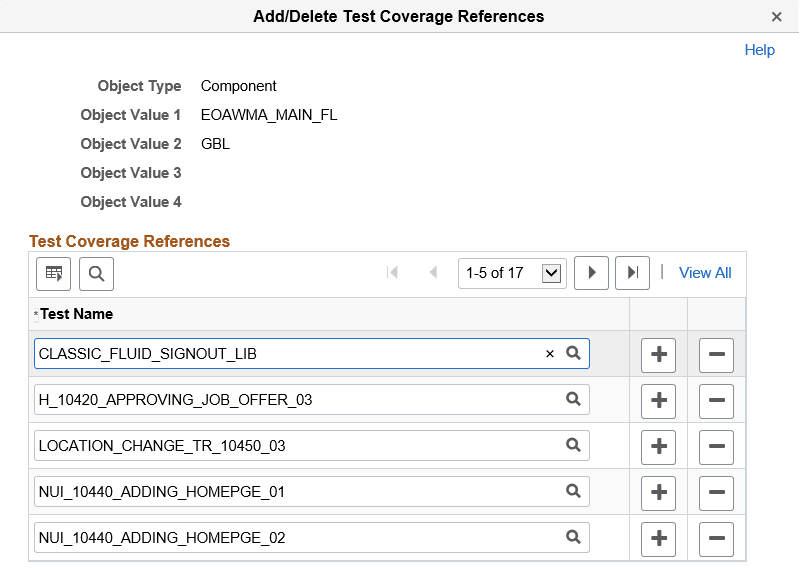
Use the + (add row) icon to add a test. The list of tests to add to a component is limited to the list of tests defined in the Test Repository.
Use the – (delete row) icon to delete a test from the component.