PUM Enabled PeopleSoft Systems
All PeopleSoft updates for a product family are made available on a PeopleSoft Update Image. The PeopleSoft Update Image contains the very latest PeopleSoft working database, applications, managed objects, codeline, and the data and metadata required to use the PeopleSoft Update Manager. The PeopleSoft Update Image is posted and downloaded from My Oracle Support (MOS). The schedule for images will be posted in advance on MOS for each PeopleSoft application database instance.
Software update tools include:
-
Environment Management Framework
Used to collect environment information.
-
Change Assistant
Used to upload target database information to the PeopleSoft Update Image, create change packages from the change package definitions created using PeopleSoft Update Manager, and to the apply change packages to target databases.
-
PeopleSoft Update Manager PIA Application
The Update Manager Dashboard provides a central location for all update tasks including:
-
PUM Analytics
-
Defining Change Packages
Wizards are used to search for updates and create custom change package definitions.
-
Change Package Utilities
-
Maintaining Test Repository
-
-
Change Packager
Creates the change package in Change Assistant based on the change package definition created in PUM.
This diagram illustrates the Software Update process steps for the initial pass.
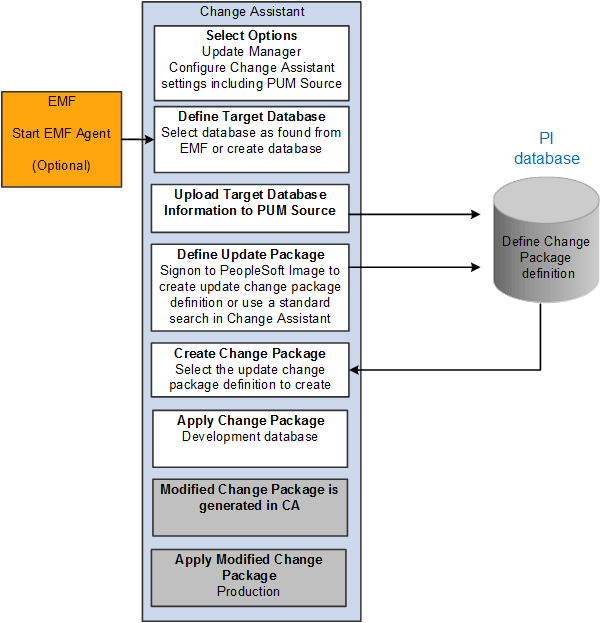
Steps Used in Software Update Process
This table lists the steps used to search for and apply updates to your development or target database.
| Step | Description |
|---|---|
|
1 |
Download and install the latest PeopleSoft Update Image from MOS. |
|
2 |
Configure your windows client to access the PeopleSoft Update Image (PI) database. |
|
3 |
( Optional )Install and configure EMF on the target environment. |
|
4 |
Install Change Assistant on the windows client. |
|
5 |
(Optional) Start EMF Agent. |
|
6 |
Start Change Assistant and configure for Update Manager. This includes defining the PUM Source. Note: Update Manager action. |
|
7 |
In Change Assistant, Select Tools, Upload Target Database Information to PUM Source. |
|
8 |
In Change Assistant, Select Tools, Define Change Package to create a change package. From this option, you can either:
|
|
9 |
In Change Assistant, Select Tools, Create Change Package to create the change package based on the change package definition defined in step 8. |
|
10 |
In Change Assistant, Select Tools, Apply Change Packages to create the change package and apply it to your target database. Use the Initial Pass option to identify your customizations and adjust the project accordingly. Reapply any customizations as necessary. |
|
11 |
As part of the initial pass process, Change Assistant will create a new change package with all of your customizations that can be applied to your other environments, using the Subsequent Pass or Move to Production Pass option. |