Retaining Object Merge Data and Session
Change Assistant writes back merged version of customized objects and merge session details in PUM source as part of the promote merge step.
For subsequent PeopleSoft application maintenance updates, Change Assistant can use the previously written-back merged objects as the latest customizations. This avoids re-upload of customizations.
Note:
If you have additional customizations after the last maintenance updates, you have to re-upload those to the PUM source.
Managing versions of customizations and details of merge sessions allows you to:
-
Use previous merge session objects for the next merge session.
-
Re-run merge sessions multiple times with same version of customization objects.
-
Use the appropriate object version of customized objects in different merge use cases as explained below.
-
Delete merge sessions, including promoted written-back versions, to roll back to use user uploaded version of customizations in the next run of merge process.
Few use cases on how to select the appropriate object versions of customized objects for merge analysis:
-
When you run merge analysis for the first time, there is no record of merge sessions stored in the PUM source. In this case, Change Assistant uses the latest uploaded customization objects for merge analysis. When running merge promotion, the merged version of the object is written-back in the PUM source to be used in subsequent runs of merge process.
-
You can run the merge analysis step again with modified merge rules until the merged version of the object is satisfactory. If you want to only change the merge rules to tweak the merge output, but use the same object versions that were used in the previous merge process run, then you can do so by re-running the merge analysis step with same merge session name.
Using the same merge session name, lets you to pick the same set of customization objects that were used in the previous run of that session.
-
After running a merge session (SESSN1), an updated merged version of the customization (M1), is written-back to the merge repository tables. On next merge session run (SESSN2), M1 will be used. If you want to revert to using the previous user uploaded version (A) instead of M1, then the merge session that wrote-back the merged version of the object must be deleted, which is SESSN1.
User may also run the previously run merge session SESSN1 which will use same objects for merge which were used in last run.
If you want to upload a new version of the customization object again (A2) and use SESSN2, then all previous merge sessions, including SESSN1, must be deleted. This is a scenario if A2 version is lower than the written-back version of the object (M1) from any previous merge runs (SESSN1).
By deleting all the previous merge sessions (SESSN1), the merge output that was written-back gets deleted (M1). At this point, Change Assistant picks the latest customization that was re-uploaded (A2).
To delete, refer the succeeding section on deleting merge session.
Note:
New version of customizations can be uploaded using either Change Assistant or Administer Metadata in Update Manager.
For details on syncing merge repository through Administer Metadata, refer to Defining and Managing Database Activities
-
When the merge analysis step runs on a subsequent change package apply job, the latest version of customization objects are picked from the merge repository. The latest version could either be the written-back version of the customization objects from the previous merge session or the version of the object that was synced through the Administer Metadata; whichever is the highest version of that object.
Delete Merge Session
You can delete existing merge sessions in Change Assistant. This deletes the merge session data and the corresponding merged objects.
To delete existing merge session in Change Assistant:
-
Set the action type as View PUM Automated Merge Sessions.
-
Open the Tools menu.
-
Select Merge PeopleCode/SQLT/XSLT option.
-
Next, select Delete Merge Session.
In the Delete Merge Session window, you can select multiple merge sessions to delete using the Shift and down arrow key.
You can also delete a merge session while applying a change package.
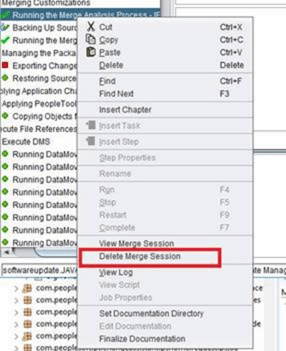
You can also delete merge sessions from the command line.
For more details, refer to Constructing Command Line to View and Delete Merge Sessions
Merge Session History
Change Assistant maintains the merge session details in the merge session history tables.
When customer runs the same merge session multiple times, then Change Assistant can lookup the merge session history tables to use the same set of customized objects that were used for merge analysis. This allows customer to run multiple sessions with changed merged rules.
When a merge session is re-run, Change Assistant deletes the previous merge session with the same merge name and inserts the latest one as the active merge session.
You can migrate (import or export) merge history tables.
In Change Assistant, select Tools, Options, PUM Source tab, then click Manage for Migrate Customer Data.
This example illustrates the fields and controls on the PUM Data Migration page.
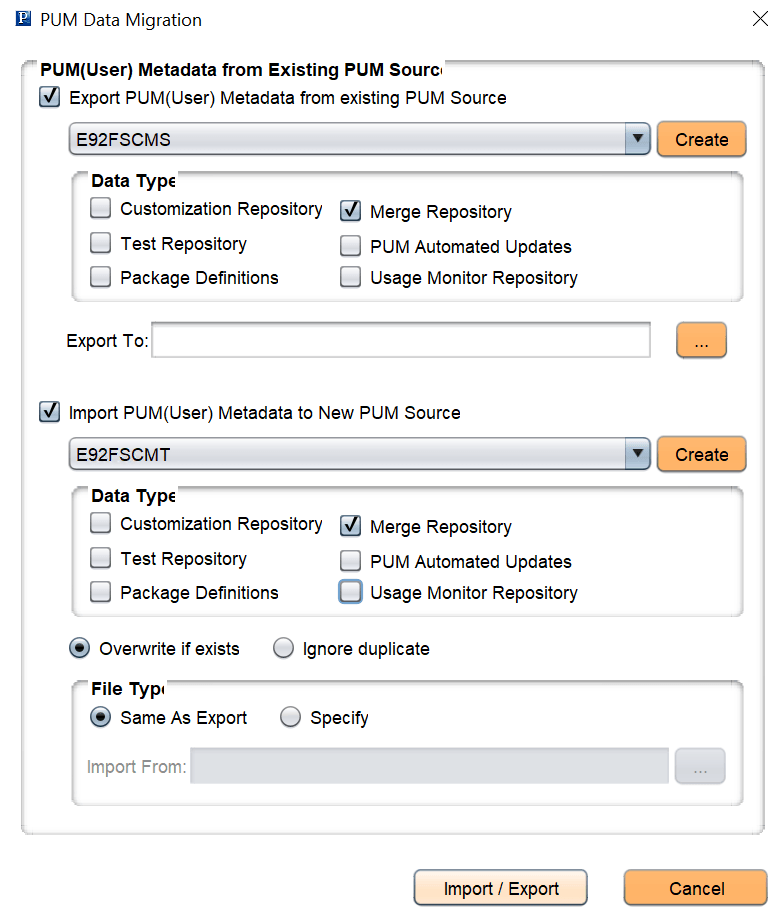
Select the appropriate Merge Repository option to import or export merge history tables.