Selecting Specific Objects
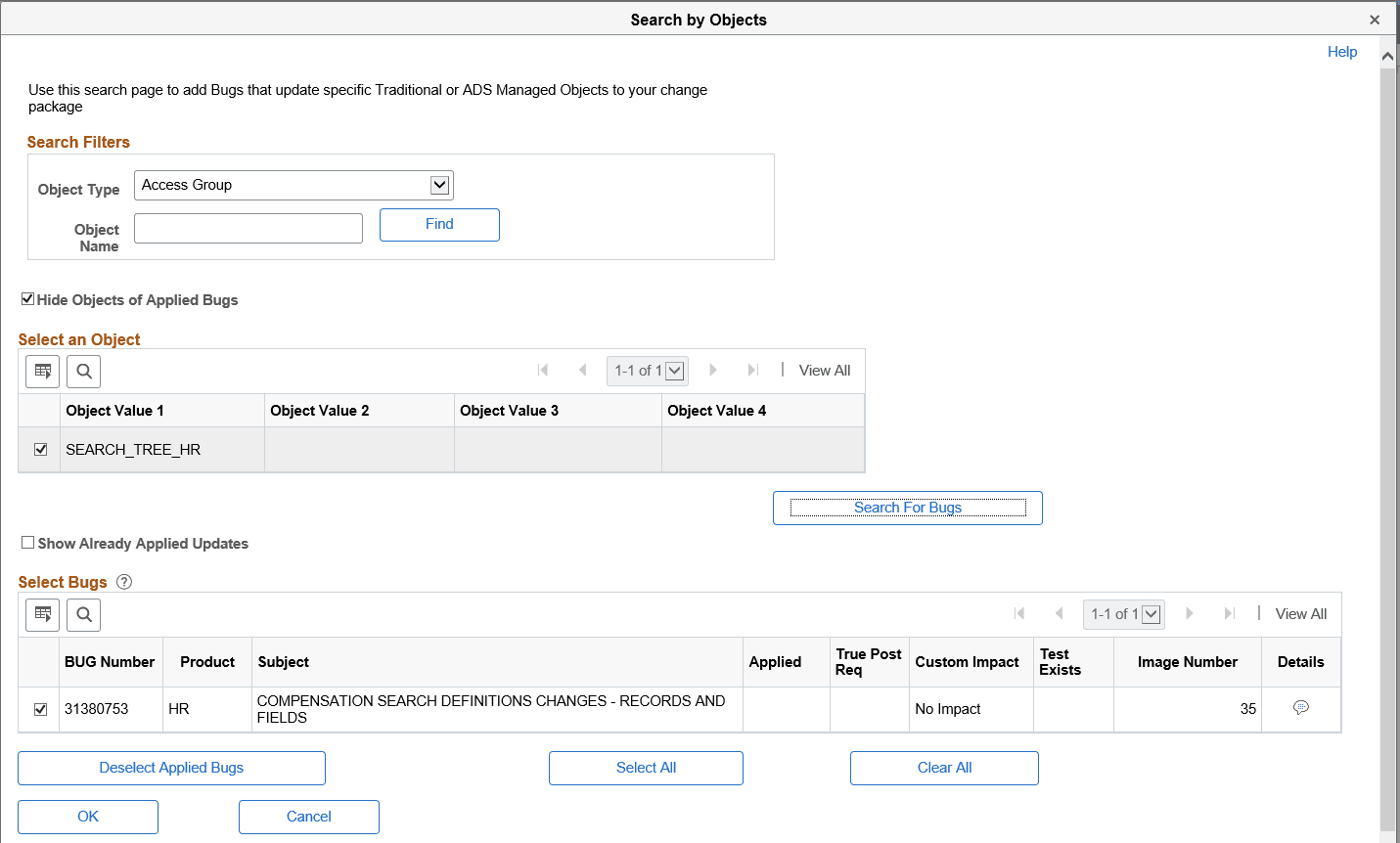
The Specific Objects link, enables you to search for updates related to specific traditional or ADS managed objects. Select an object type and enter an object name. For example, you can search for the PERSONNEL record and see all of that record’s related fixes.
To search for updates related to specific PeopleSoft objects:
-
Select an object type from the drop-down list.
-
Enter an object name.
For example, you can search for the records that start with JOB and see all of that records that start with JOB.
-
Optionally, deselect the Hide Objects of Applied Bugs if you want to see objects matching your criteria that have already been applied.
-
Click Find.
After clicking the Find button, the grid displays your query output; in this instance, the specific PeopleSoft objects related to your search criteria.
-
Select the check box next to each object in the result grid that you want to search for.
-
Click the Search for Bugs button.
-
By default all bugs returned in the grid will be selected.
You can manually deselect a bug or use the Clear All button to clear all the selections and then manually select the bugs to include.
-
Optionally, select the Show Already Applied Updates check box to include bugs that have already been applied to the target database or environment.
This example illustrates the fields and controls on the Search by Objects page. You can find definitions for the fields and controls later on this page.