Setting AE With Run Control Options for ADS Compare/Copy
The application engine process PTADSAEPRCS is used to copy an ADS project a a file, copy an ADS project from a file, validate an ADS project from file, or compare an ADS project from a file.
To set the AE run control options:
-
Insert a new step in the template and select Type ApplicationEngineWithRunControl or open an existing step with the type ApplicationEngineWithRunControl.
-
Make sure the orientation is set correctly.
-
Source is used for Copy to File.
-
Target is used for Compare From File and Copy From File.
-
-
Click the Options button.
This example illustrates the fields and controls on the AE With Run Control Options page. You can find definitions for the fields and controls later on this page.
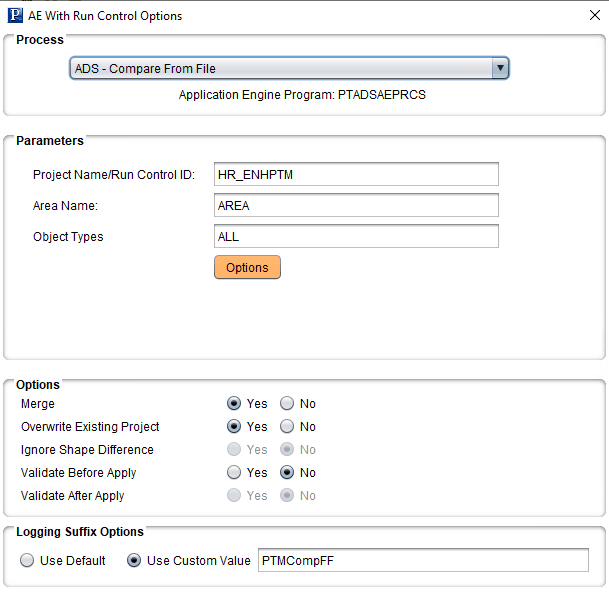
| Field or Control | Description |
|---|---|
|
Process |
Select the AE process, For ADS, the options are:
|
|
Project Name/Run Control |
Enter the ADS Project Name. The project name is also used as the run control and is automatically populated in the Run Control ID. |
|
Area Name |
Enter the name of the area (folder) for the file. When you select Copy to File, the file will be written to the Staging directory defined for the job in a folder PTADSAEPRCS\<area name>. For example: D:\Staging\PTADSAEPRCS\TOOLS |
|
Languages |
Select the languages |
|
Include Language Neutral Objects |
Select to include language neutral objects (COMMON). |
|
Object Types |
ALL will include all data sets in the project. To select only specific data sets, enter the data set name or names separated by comma. |
|
Merge |
Select Yes to merge target configurations on the Copy From File. |
|
Overwrite Existing |
Select Yes if you want to overwrite an existing file. |
|
Ignore Shape Difference |
This functionality is disabled. If there is a shape change in Application owned datasets between the source and target environments the copy/compare/validate process will fail. If the process fails, select the View Log option for the step, which will list the App owned dataset that needs to be synchronized. |
|
Validate Before Apply |
Select Yes to validate the data set before it is compared or copied from file. |
|
Validate After Apply |
Select Yes if you want to check integrity after the copy. |
|
Logging Suffix Options |
Select whether to use the default log name or enter a custom suffix value for the log file name. The suffix is used to create a unique output log file name for the step. |
Note:
Depending on the action selected, the available options are enabled.