Setting General Options
If Change Assistant was installed from the PeopleSoft Update Image DPK, this page will be populated with the folders created as part of the install.
See Creating and Applying Change Packages
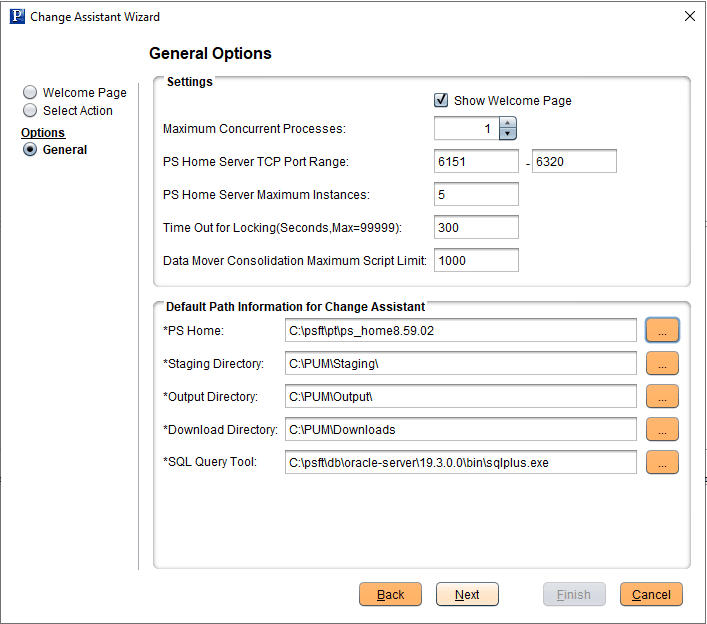
This example illustrates the fields and controls on the General Options page. You can find definitions for the fields and controls later on this page.
| Field or Control | Description |
|---|---|
|
Maximum Concurrent Processes |
Specifies the maximum number of processes that can be executed concurrently on the local machine. The default is 1. |
|
PS Home Server TCP Port Range |
Specify the port range for PS Home server. Change Assistant uses this port number to communicate with Change Assistant PS Home servers. The default starting port number is 6151. If you enter a port number that is already in use, you see an error message. You must change to a port number that is not in use, and then restart Change Assistant for the change to take effect. |
|
PS Home Server Maximum Instances |
Enter a number between 1 and 10 for the maximum number of PS Home servers. Use this value for environments with more than one PS_HOME. For each server instance, Change Assistant increments the PS Home Server Starting Port number by 1 up to the maximum number of instances. For example, with a PS Home Server Starting Port value of 6151 and a PS Home Server Maximum Instances value of five, the port numbers would be 6151, 6152, 6153, 6154, and 6155. The default is 5. If you change this value, you must restart Change Assistant for the change to take effect. |
|
Time Out for Locking(Seconds,Max=99999) |
Specify the time out for locking.
|
|
Data Mover Consolidation Maximum Script Limit |
The valid Limit range is [0, 15000]. 0 and 1 mean there is no consolidation for data mover steps. The default is 1000. |
|
PS Home |
Enter the full path in which you installed PeopleTools client on the Windows Client machine. Note: Specify the PS_HOME location you used to install Change Assistant. |
|
Staging Directory |
Enter the directory in which you would like to stage all the Change Assistant update files. This is the location that Change Assistant will store files to be used during the apply update process. |
|
Output Directory |
Enter the directory in which you want the log files generated by the update process to reside. |
|
Download Directory |
Enter the full path of the location to which you want to download your change packages. |
|
SQL Query Tool |
Select the correct executable for the database platform that matches the PS_HOME defined for CA. Note: The SQL Query tool must align with the installed Change Assistant version. This value is used as the default when creating databases. Each database contains separate settings and therefore, you can change this executable for a specific database. Valid SQL query executables for each platform are:
Note: Change Assistant uses the command line version of the .exe, not the GUI version. For example, sqlplus.exe is used for an Oracle database, rather than sqlplusw.exe. Important: Oracle Database Customers: For systems running on the Oracle database, by default, Change Assistant copies the generated SQL script files to the location specified as the TEMP User variable on the Environment Variables dialog box. So, on Oracle, the generated SQL script files will actually exist in two locations: the specified Change Assistant output directory, and the TEMP directory. This behavior is in place because some versions of Oracle SQL Plus do not support pathnames longer than 79 characters. It is recommended that you ensure that the value specified for the TEMP User variable is set to a path short enough so that the string comprising the path and generated SQL file will not exceed 79 characters. |