Step1: Creating and Consolidating Metadata for Setting Up LCM Insights
To set up the LCM Insights, first use Change Assistant to create and consolidate metadata and load the resulting metadata in a database defined as Insights database.
To create and consolidate metadata:
-
In Change Assistant, select
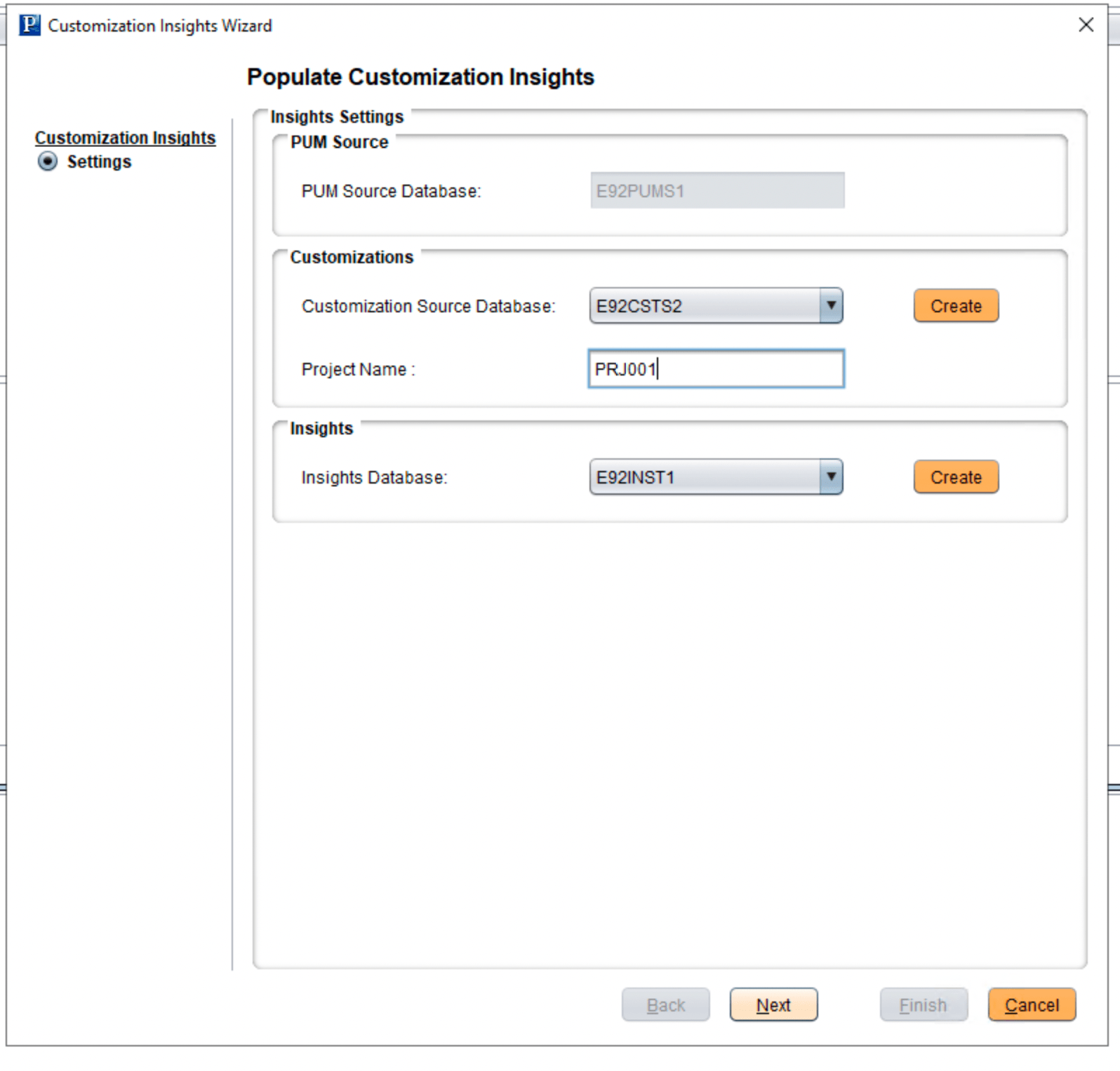
Tools, Populate Customization Insights.This example shows the fields to define the settings for populating the Insights.
Field Description PUM Source Database
This is auto-populated. Ensure to define PUM Source through Tools,Options, PUM Source tab so that the PUM Source database name is auto-populated on this page.
Customization Source Database
Select the Customization source database where the customizations reside.
Project Name
Enter a project name.
This project will be used to collect and compare customizations identified in the Customization source database.
Insights Database
Select the Insights database where you intend to view and manage the LCM Insights.
Note:As a best practice, it is recommended to use the Production database as the Insights database.
-
Click Next. The Validation page opens where validations are done. Validations include primary checks such as verifying connection to PUM Source, verifying connection to Insights database and so on.
-
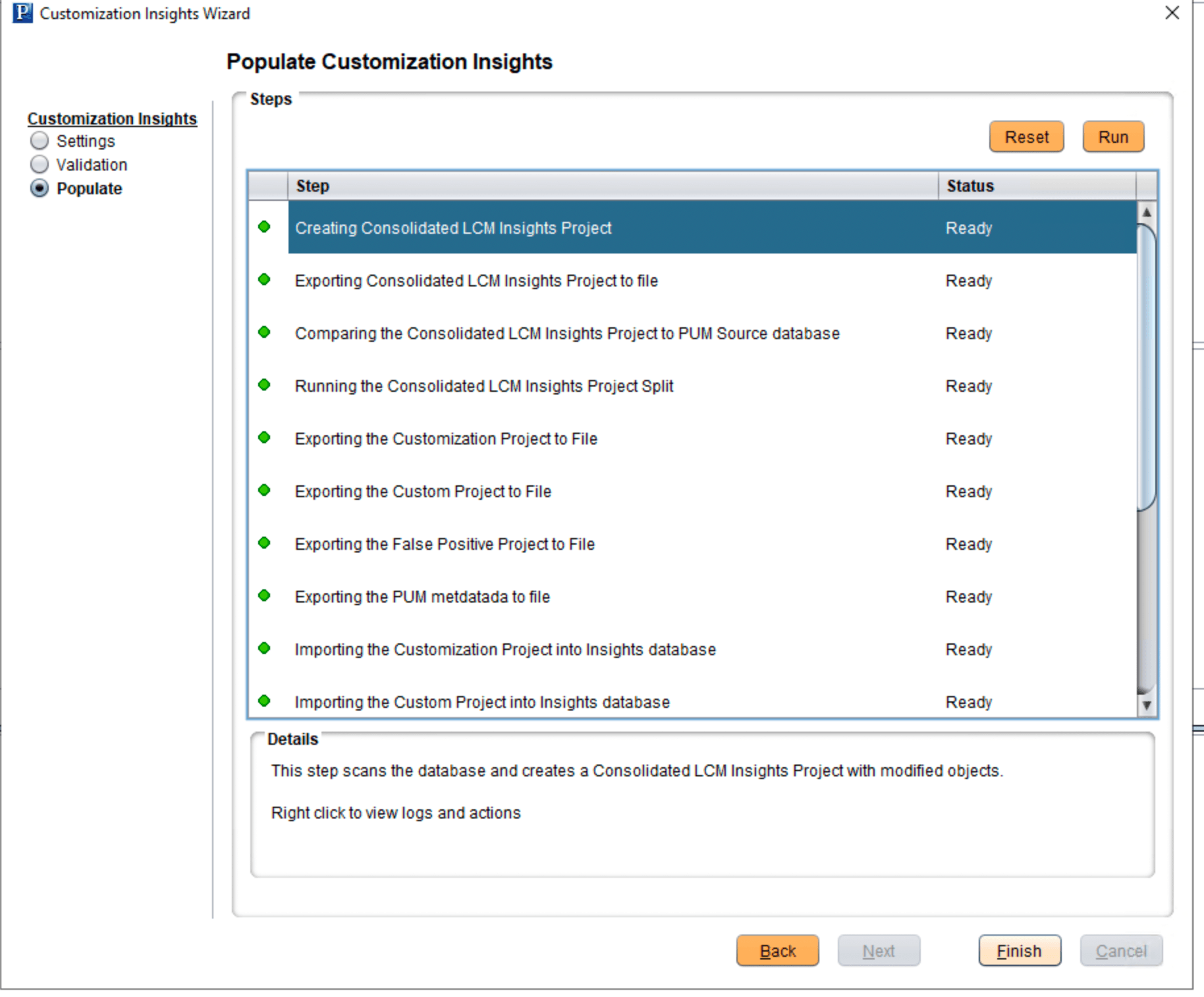
Click Next. The page will now run a sequence of steps to create and consolidate the customization and PUM metadata needed for the LCM Insights.
This example shows the steps to create and consolidate various metadata needed for the LCM Insights.
| Step | Description |
|---|---|
|
Creating Consolidated LCM Insights Project |
This step analyzes the Customization source database, and creates a consolidated LCM Insights project with customized objects. The project name is entered on the Settings- Populate Customization Insights page. The consolidation of the customized objects is needed in order to complete the subsequent compare step in the process. |
|
Exporting Consolidated LCM Insights Project to File |
This step copies the consolidated LCM Insights project to a file. |
|
Comparing the Consolidated LCM Insights Project to PUM Source database |
This step runs the Compare From File process. The compare is between the Consolidated LCM Insights project file, which contains the customized objects, and the PUM source database. It results in the project definition and compare result being stored in the PUM source database. The compare process is used to determine the true nature of the objects identified as customized in the user environment by comparing their status with PeopleSoft-delivered Managed Objects (MO). The result of this process is then used to categorize or split the customizations in the subsequent steps. |
|
Running the Customization Project Split |
This step splits the Consolidated LCM Insights project into three projects based on the different object statuses as identified in the previous compare step. Definition of each customization project:
|
|
Exporting the Customization Project |
This step exports only the Customization project definition to a file from the PUM source database. |
|
Exporting the Custom Customization Project |
This step exports only the Custom project definition to a file from the PUM source database. |
|
Exporting the False Positive Customization Project |
This step exports only the False Positive customization project definition to a file from the PUM source database. |
|
Uploading Customization metadata to Insights database |
This step uploads the Customization metadata to the Insights database from the file. |
|
Uploading Custom Customization metadata to Insights database |
This step uploads the Custom metadata to the Insights database from the file. |
|
Uploading False Positive Customization metadata to Insights database |
This step uploads the False Positive customization metadata to the Insights database from the file. |
|
Exporting PUM Metadata to File |
Exports the PUM metadata from the PUM source database to a file. This step exports only a subset of the PUM metadata that is required to set up LCM Insights. |
|
Importing PUM metadata from file into Insights database |
This step imports the PUM metadata from file to the Insights database. PUM metadata is used by the LCM Insights to provide details on how the PeopleSoft delivered maintenance (objects) impact your customizations. |
|
Run Customization Counts Process |
This step creates object count as part of the preprocessing activity to set up LCM Insights. |