Step2: Preprocessing Metadata for Setting Up LCM Insights
The setup is completed by using the PreProcessing Data for Maintenance Insights page in PIA on the Insights database. Use this page to process the incremental updates to customization, usage, PUM, and test metadata.
Navigation
Preprocessing Customization Metadata
The Customization page updates the status of previously identified objects (those identified during the comparison process in Change Assistant) based on their status in the Insights database. If a previously identified custom object is replaced with a PeopleSoft-delivered object, the Insights database reflects a decrease in the count of custom objects by one.
You can identifying net new custom objects during incremental customization synchronization with REST APIs. You don't have to rely on Change Assistant.
During incremental customization metadata synchronization, the system identifies new custom objects and updates the customization metadata without replacing the entire repository. Objects that exist in the customization definition but no longer exist in the managed object project are marked deleted. Objects that exist in the managed object project but not in the customization definition are marked added.
When newly identified objects can be validated against the PUM Source, they are classified as PeopleSoft-delivered customizations or customer-added custom objects.
If no PUM Source is defined and validation cannot be completed, the objects are assigned to the UNKNOWN customization grouping.
This example illustrates the fields and controls on the PreProcessing Data for Maintenance Insights- Customization page. You can find definitions for the fields and controls later on this page.
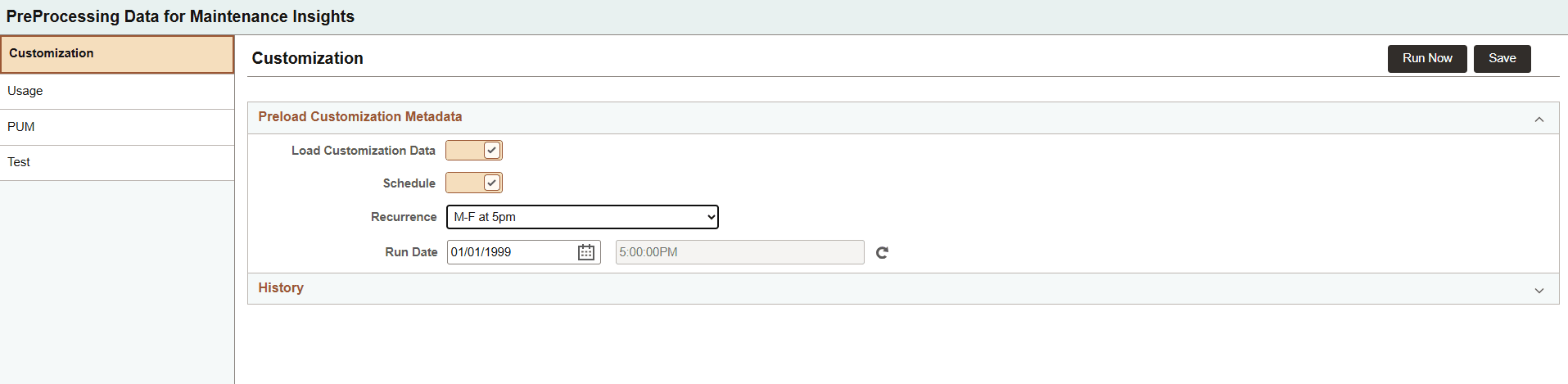
Select the Load Customization Data option to enable users to update customization metadata if there are incremental customizations after the initial load by Change Assistant. The Insights database will reflect the updated customizations.
You can set a schedule with a recurrence option.
Click Run Now to run this job. The status, such as, Success or Failed, will be displayed on the History grid.
Preprocessing Usage Metadata
Use the Usage page to process the usage metadata.
Usage metadata for use with the Insights is collected through Usage Monitor. For details, review Usage Monitor: Enabling Usage Monitor.
'Usage data' implies data collected by the Usage Monitor in a Production environment. If the Production environment is not available, data from an alternate source can be used.
However, this alternate environment cannot be the same as the Test data source defined in the subsequent Preprocessing Test Metadata section.
This example illustrates the fields and controls on the PreProcessing Data for Maintenance Insights- Usage page. You can find definitions for the fields and controls later on this page.
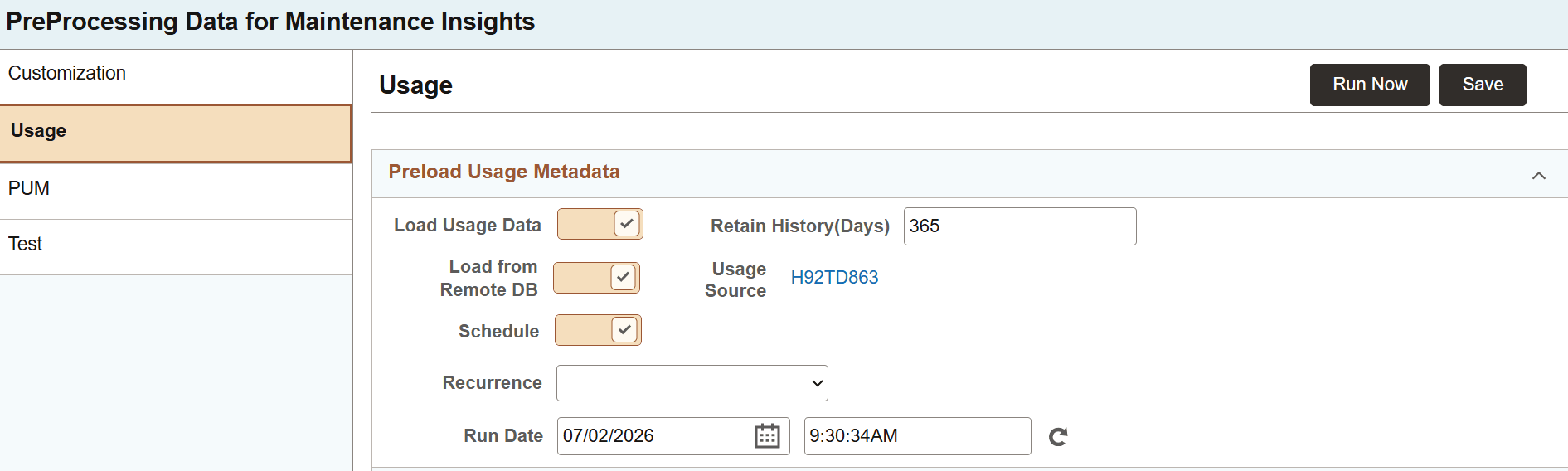
Table 17-1 Loading Usage Metadata for LCM Insights
| Field | Description |
|---|---|
|
Load Usage Data |
Select this option to enable usage data processing. |
|
Load from Remote DB |
Select this option to retrieve data from an alternate environment or remote database, |
|
Define Usage Source |
Before loading from remote database, configure the remote database using this link. On the Define Usage Source page you can enter the remote database details and the data gets retrieved with PeopleSoft Integration Broker. Refer the subsequent Define Usage Source section. |
|
Schedule |
Use this option to schedule the loading of usage metadata. |
|
Retain History (Days) |
Enter the number of days to retain historical usage metadata. After the Usage metadata synchronization completes, the system calculates the retention date by subtracting the specified number of days from the current date. The system then deletes Usage metadata rows with a Last Used date older than the calculated retention date. The default value is 365. |
Define Usage Source
On this page, enter the details of the remote database that holds the usage data.
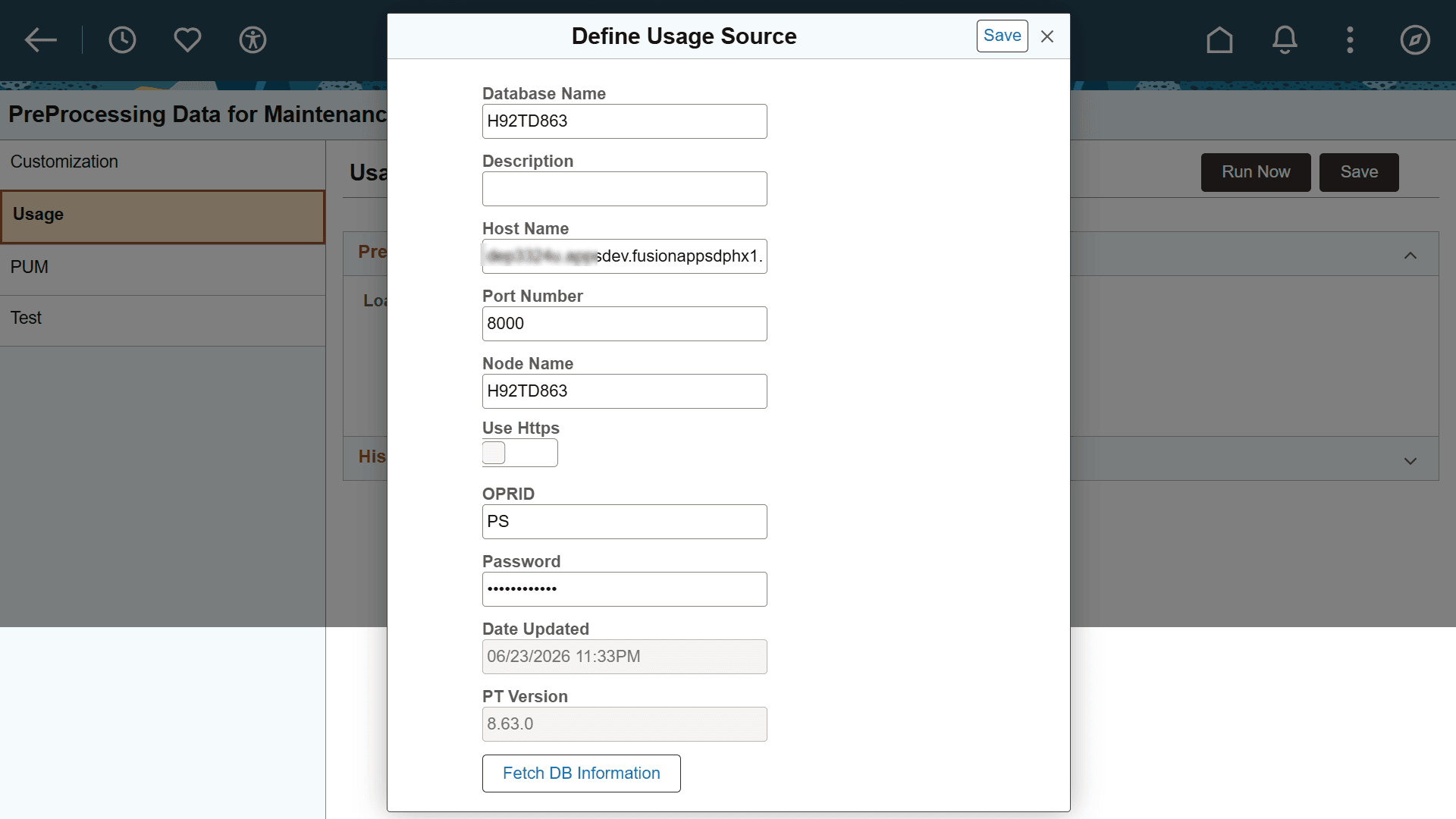
| Field or Control | Description |
|---|---|
|
Database Name |
Enter the database name. |
|
Description |
Use this field to provide a more detailed description of the new database. |
|
Host Name |
Enter the hostname of the webserver for the target database. |
|
Port Number |
Enter the port number of the webserver for the usage database. This is the port used to create the REST Base URL. |
|
Node Name |
Enter the default local node name of the usage database. This is the node used to create the REST Base URL. |
|
Use Https |
Select this option to build the REST Base URL with https://. If you do not select this option, the URL is built with http://. When selected, the usage metadata call uses TLS, which provides confidentiality, integrity protection, and server authentication. |
|
Fetch DB Information |
Click this button to invoke REST API for the environment specified as the hostname. If the connection is successful, the REST API returns basic database information, such as, PeopleTools version of the usage source database, languages installed, and base language. This information is stored in the PUM source database. |
Preprocessing PUM Metadata
To load PUM metadata, use the PUM page.
This example illustrates the fields and controls on the PreProcessing Data for Maintenance Insights- PUM page. You can find definitions for the fields and controls later on this page.
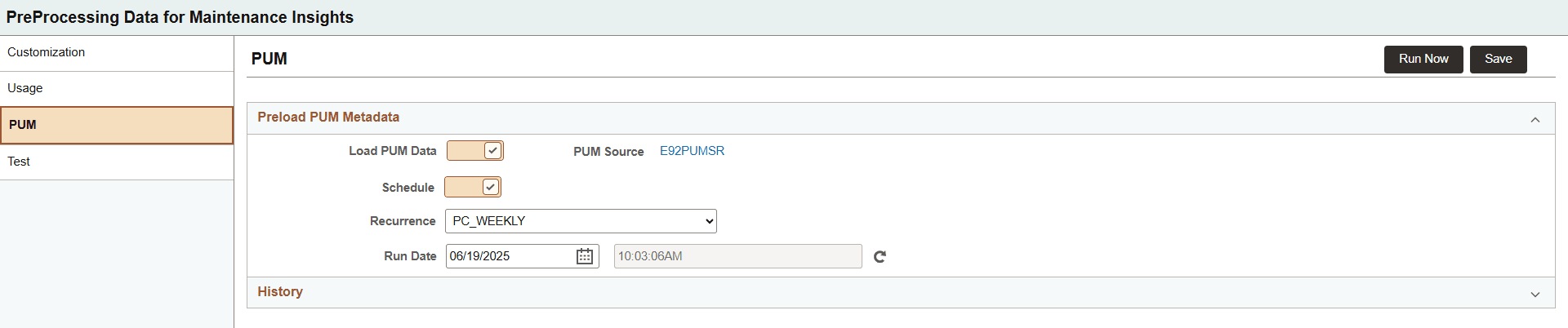
Select Load PUM Data option to enable PUM metadata processing.
This option updates the PUM metadata in the Insights database to reflect changes to the PUM source that happened after the initial load in Change Assistant. The changes to the PUM source can happen either through a PRP apply or replacement of the existing PUM source with a new one.
This option removes the need to complete all the processing steps in Change Assistant to update the PUM metadata in the Insights database.
Note:
This option also picks the PUM Image number of the PUM Image from which the PUM metadata was obtained, and then displays this Image number on the Insights dashboard.
Click Define PUM Source link to configure the PUM source database.
For details, refer the subsequent Define PUM Source section.
Define PUM Source
On the Define PUM Source page you can enter the details of the database that has PUM metadata. The data gets retrieved with PeopleSoft Integration Broker.
| Field or Control | Description |
|---|---|
|
Database Name |
Enter the database name. |
|
Description |
Use this field to provide a more detailed description of the new database. |
|
Host Name |
Enter the hostname of the webserver for the PUM metadata database. |
|
Port Number |
Enter the port number of the webserver for the PUM metadata database. This is the port used to create the REST Base URL. |
|
Node Name |
Enter the default local node name of the test source database. This is the node used to create the REST Base URL. |
|
Use Https |
Select this option to build the REST Base URL with https://. If you do not select this option, the URL is built with http://. When selected, the metadata call uses TLS, which provides confidentiality, integrity protection, and server authentication. |
|
Fetch DB Information |
Click this button to invoke REST API for the environment specified as the hostname. If the connection is successful, the REST API returns basic database information, such as, PeopleTools version of the PUM metadata database, languages installed, and base language. This information is stored in the PUM source database. |
Preprocessing Test Metadata
Use the Test page to process the test metadata.
Test metadata for use with the Insights is collected through Usage Monitor and does not require the use of PeopleSoft Test Framework (PTF). For details, review, Usage Monitor: Enabling Usage Monitor.
This data helps the customers to understand the maintenance cost of their customization.
'Test data' implies data collected by Usage Monitor in a Test environment. If this environment is not available, data from an alternate source can be used.
However, this alternate environment cannot be the same as the Usage data source defined in the preceding Preprocessing Usage Metadata section.
This example illustrates the fields and controls on the PreProcessing Data for Maintenance Insights- Test page. You can find definitions for the fields and controls later on this page.
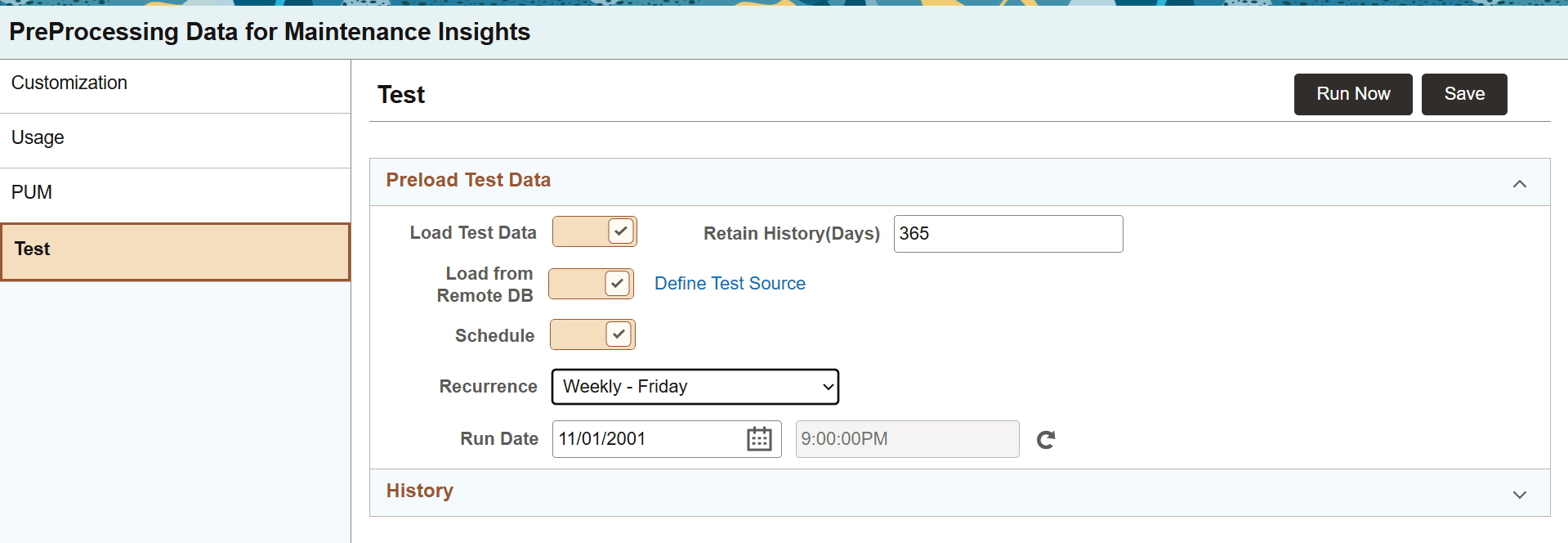
Table 17-2 Loading Test Metadata for LCM Insights
| Field | Description |
|---|---|
|
Load Test Data |
Select this option to enable test metadata processing. |
|
Load from Remote DB |
Select this option to retrieve data from an alternate environment or remote database. |
|
Define Test Source |
Before loading from remote database, configure the remote database using this link. For details, see the subsequent Define Test Source section. |
|
Schedule |
Use this option to schedule the loading of test metadata. |
|
Retain History (Days) |
Enter the number of days to retain historical test metadata. After the test metadata synchronization completes, the system calculates the retention date by subtracting the specified number of days from the current date. The system then deletes test metadata rows with a Last tested date older than the calculated retention date. The default value is 365. |
Define Test Source
On the Define Test Source page you can enter the details of the database that has test usage data. The data gets retrieved with PeopleSoft Integration Broker.
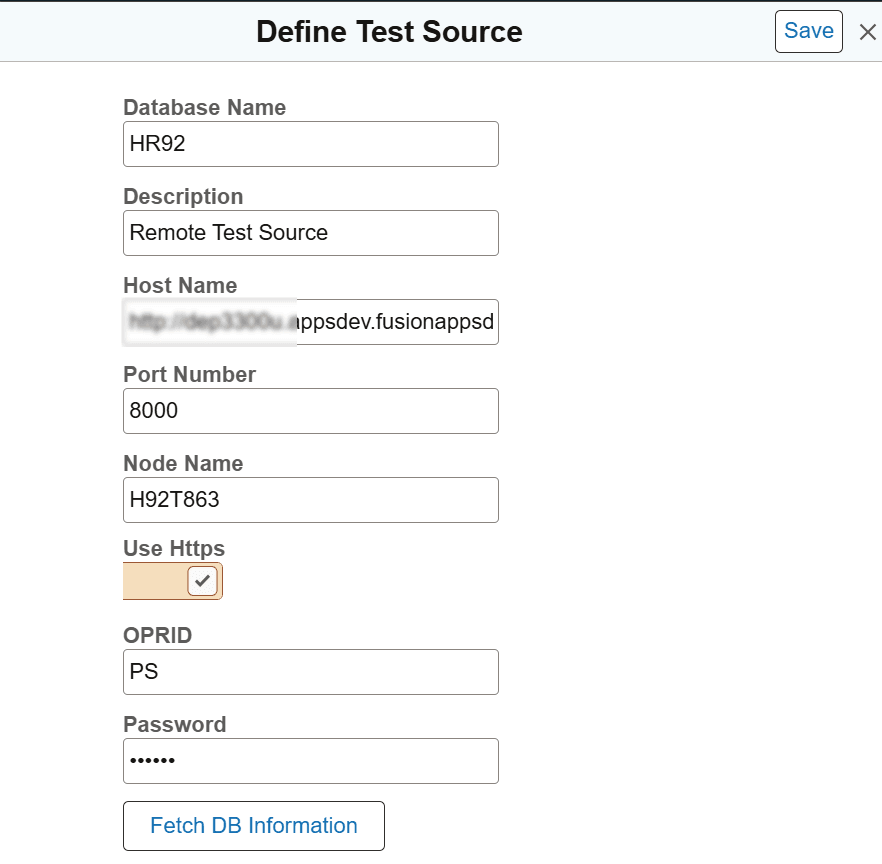
| Field or Control | Description |
|---|---|
|
Database Name |
Enter the database name. |
|
Description |
Use this field to provide a more detailed description of the new database. |
|
Host Name |
Enter the hostname of the webserver for the test source database. |
|
Port Number |
Enter the port number of the webserver for the test source database. This is the port used to create the REST Base URL. |
|
Node Name |
Enter the default local node name of the test source database. This is the node used to create the REST Base URL. |
|
Use Https |
Select this option to build the REST Base URL with https://. If you do not select this option, the URL is built with http://. When selected, the metadata call uses TLS, which provides confidentiality, integrity protection, and server authentication. |
|
Fetch DB Information |
Click this button to invoke REST API for the environment specified as the hostname. If the connection is successful, the REST API returns basic database information, such as, PeopleTools version of the test usage database, languages installed, and base language. This information is stored in the PUM source database. |