Using Manage Group Settings Page
Before you can create and maintain Customization Groups, use the Manage Group Settings page to define the group setting values, such as, customization categories, customization type, and role.
On this page, you can:
- find PeopleSoft-delivered customization categories, customization type, and role.
- add and manage your own customization types, categories, and roles to match how your organization assigns work.
The values defined on this page are used by Customization Groups for filtering, reporting, and dashboard analytics.
The Manage Group Settings page is intended for setup and administration.
Navigate to PeopleTools, Lifecycle Tools, Customization Groups, Manage Group Settings.
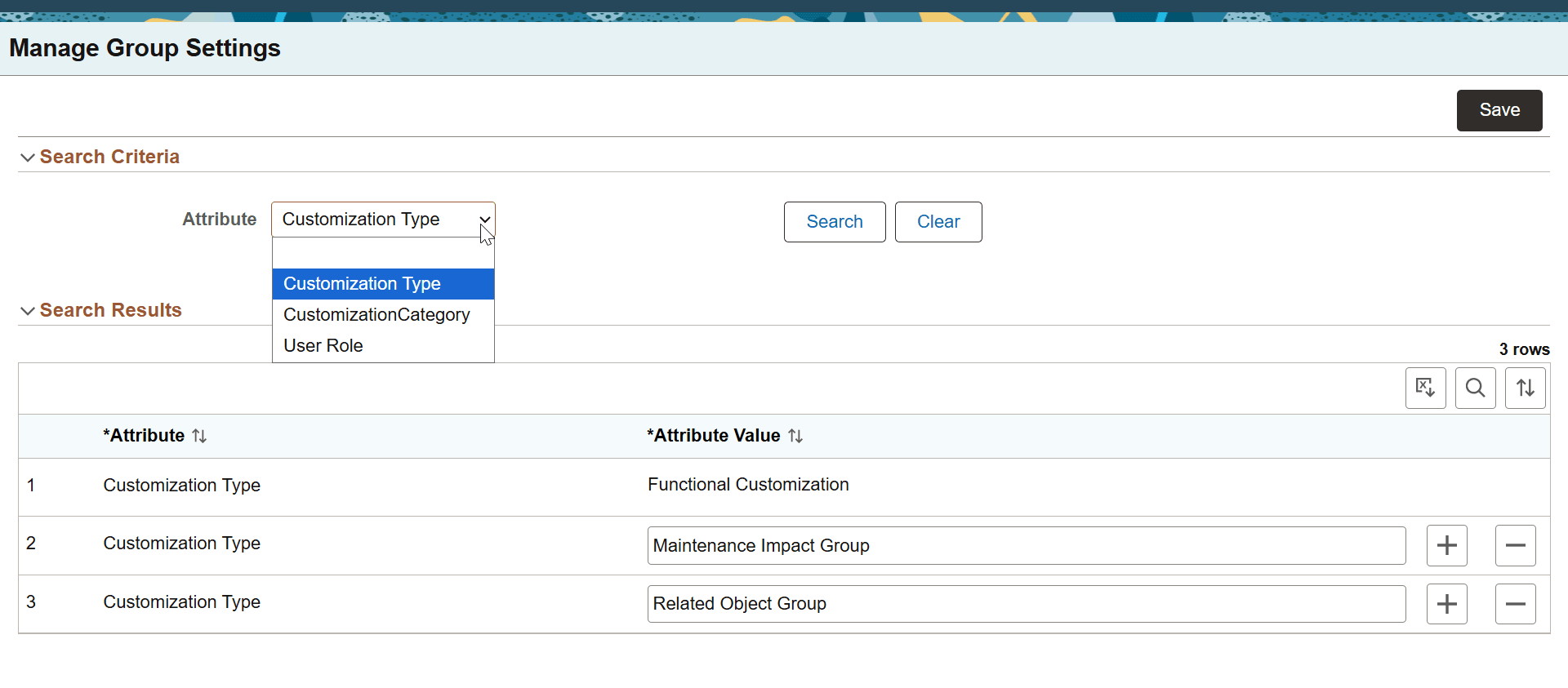
This example illustrates the fields and controls on the Manage Group Settings page.
Customization Type
The Customization Type attribute provides a high-level classification of the Customization Group. Use this attribute to filter and analyze data in Insights.
The PeopleSoft delivered customization types are:
- Functional Customization
- Related Object Group
- Maintenance Impact Group
These appear as Group Type values in the Manage Groups page where you create your new Customization group.
You can create your own group type.
Customization Category
Use the Customization Category attribute to classify Customization Group by functional area or business process, such as, Core HR or Tech/IT Requirements.
User Role
The User Role attribute specifies the user or role responsible for the Customization Group. Multiple owners can be associated with a group.
PeopleSoft-delivered roles are:
- Functional Analyst
- Line of Business Owner
- Development Lead
- Test Lead
You can create your own role. For example, if you define a user role UX developer, its appears as a responsibility on the Manage Groups page.