Using PUM Data Migration Page
In Change Assistant, select Tools, Options, PUM Source tab, then click Manage for Migrate Customer Data.
This example illustrates the fields and controls on the PUM Data Migration page. You can find definitions for the fields and controls later on this page.
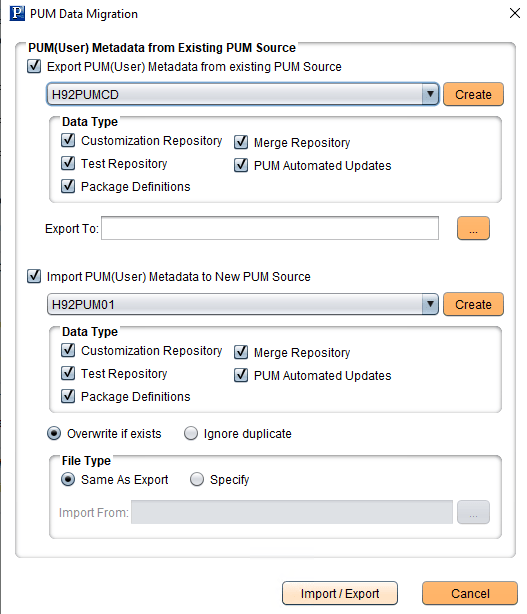
| Field or Control | Description |
|---|---|
|
Export PUM(User) Metadata From Existing PUM Source |
Select to enable the export. |
|
Database |
Select the old PUM source database. If the database has not been defined in this instance of Change Assistant, use the Create button to launch the Define Database wizard. |
|
Customization Repository |
Select to export the customization repository. |
|
Test Repository |
Select to export the test repository. |
|
Package Definitions |
Select to export change package definitions. |
|
Merge Repository |
Select to export Merge Repository. You can also export merge session history tables to maintain different versions of customization object in the merge repository. Refer to Retaining Object Merge Data and Session in Enabling PUM Automated Merge. |
|
PUM Automated Updates |
Select to export PUM Automated Update settings and jobs. Note: Only applies to PUM Images on PeopleTools 8.59 and above. |
|
Export To |
Enter the path and file name for the export. |
|
Import PUM(User) Metadata to New PUM Source |
Select to enable import. |
|
Database |
Select the new PUM source database. If the database has not been defined in this instance of Change Assistant, use the Create button to launch the Define Database wizard. |
|
Customization Repository |
Select to import customization repository. |
|
Test Repository |
Select to import test repository. |
|
Package Definition |
Select to import change package definitions. |
|
Merge Repository |
Select to import Merge Repository. You can also import merge session history table to maintain different versions of customization object in the merge repository. Refer to Retaining Object Merge Data and Session in Enabling PUM Automated Merge. |
|
PUM Automated Updates |
Select to import PUM automated update settings and jobs. |
|
Overwrite if exists |
Select to overwrite data if the data already exists. |
|
Ignore duplicate |
Select to ignore duplicate data. |
|
Same as Export |
The file specified in the Export To field is used. |
|
Specify |
Select if you have an existing file to import. |
|
Import From |
Enter the path and file name for the import. |