Viewing Notifications
Use the Notifications page to set up preferences for notifications.
This example illustrates the fields and controls on the Navigations page. You can find definitions for the fields and controls later on this page.
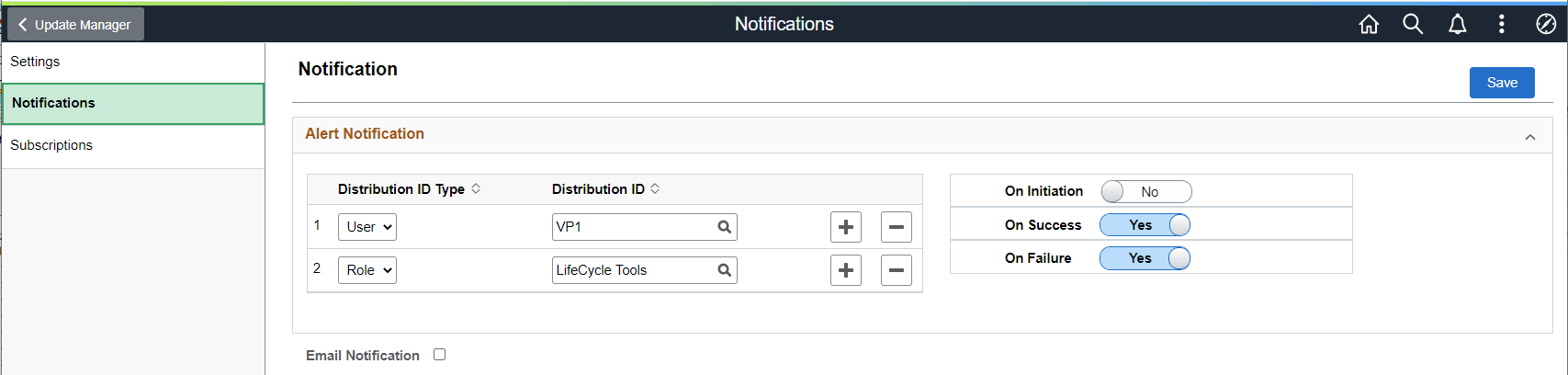
| Field or Control | Description |
|---|---|
|
Distribution ID Type |
Select User or Role. |
|
Distribution ID |
Enter the User ID or role name. |
|
On Initiation |
Select Yes to be notified when an automated update job is initiated. |
|
On Success |
Select Yes to be notified when an automated update job runs to success. |
|
On Failure |
Select Yes to be notified when an automated update job fails. |
|
Email Notification |
Select to send email notifications. Note: For details, see Email Details later in this section. |
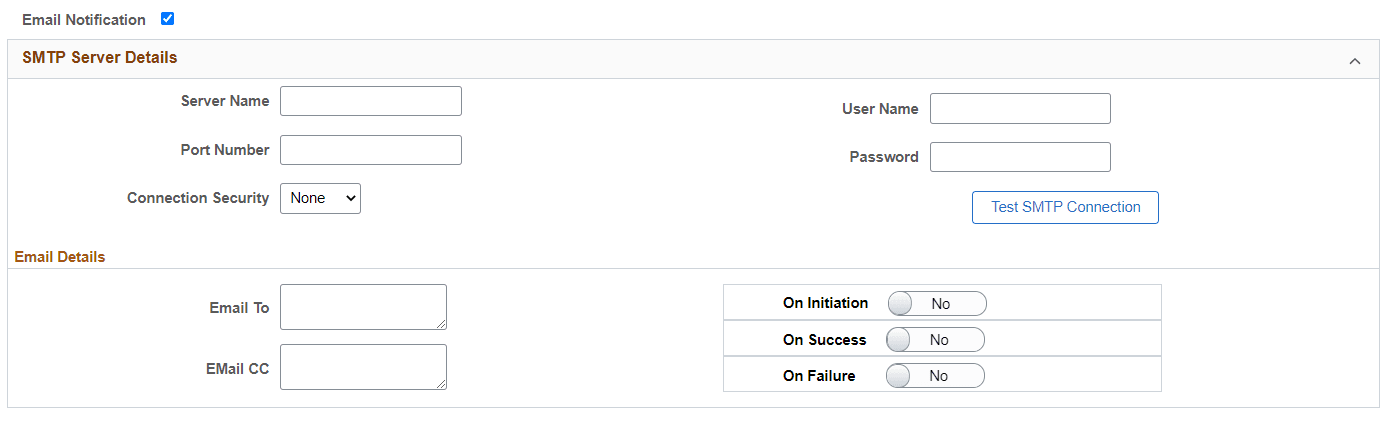
If Email Notification is selected, enter the SMTP details:
This example illustrates the fields and controls on the Email details section. You can find definitions for the fields and controls later on this page.
| Field or Control | Description |
|---|---|
|
Server Name |
Enter the SMTP mail server from which you receive the error or completion messages. |
|
Port Number |
Enter the port from which you want to access the email. |
|
Connection Security |
Select the connection security. SSL/TLS type connection |
|
User Name |
Enter the user name to log in to the SMTP server. |
|
Password |
Enter password for SMTP user name. |
|
Email To |
Enter the email address. |
|
Email CC |
Enter the email address. |
|
On Initiation |
Select Yes to send an email when an automated update job is initiated. |
|
On Success |
Select Yes to send an email when an automated update job runs to success. |
|
ON Failure |
Select Yes to send an email when an automated update job fails. |
Email Details
The email notification for tasks, such as, Download PRPs from MOS or Apply PRPs to PUM Source, contains all relevant details.
| Task | Details |
|---|---|
|
Download PRPs from MOS or Apply PRP to PUM Source |
Displays the:
When user runs Download and Apply PRP in one PAU job, it sends two emails with list of PRPs downloaded and PRPs applied. |
|
Define Change Package/ Create Package |
Displays the:
|
|
Apply Change Package |
Displays the success or failure status and link to the Job Monitor page. |
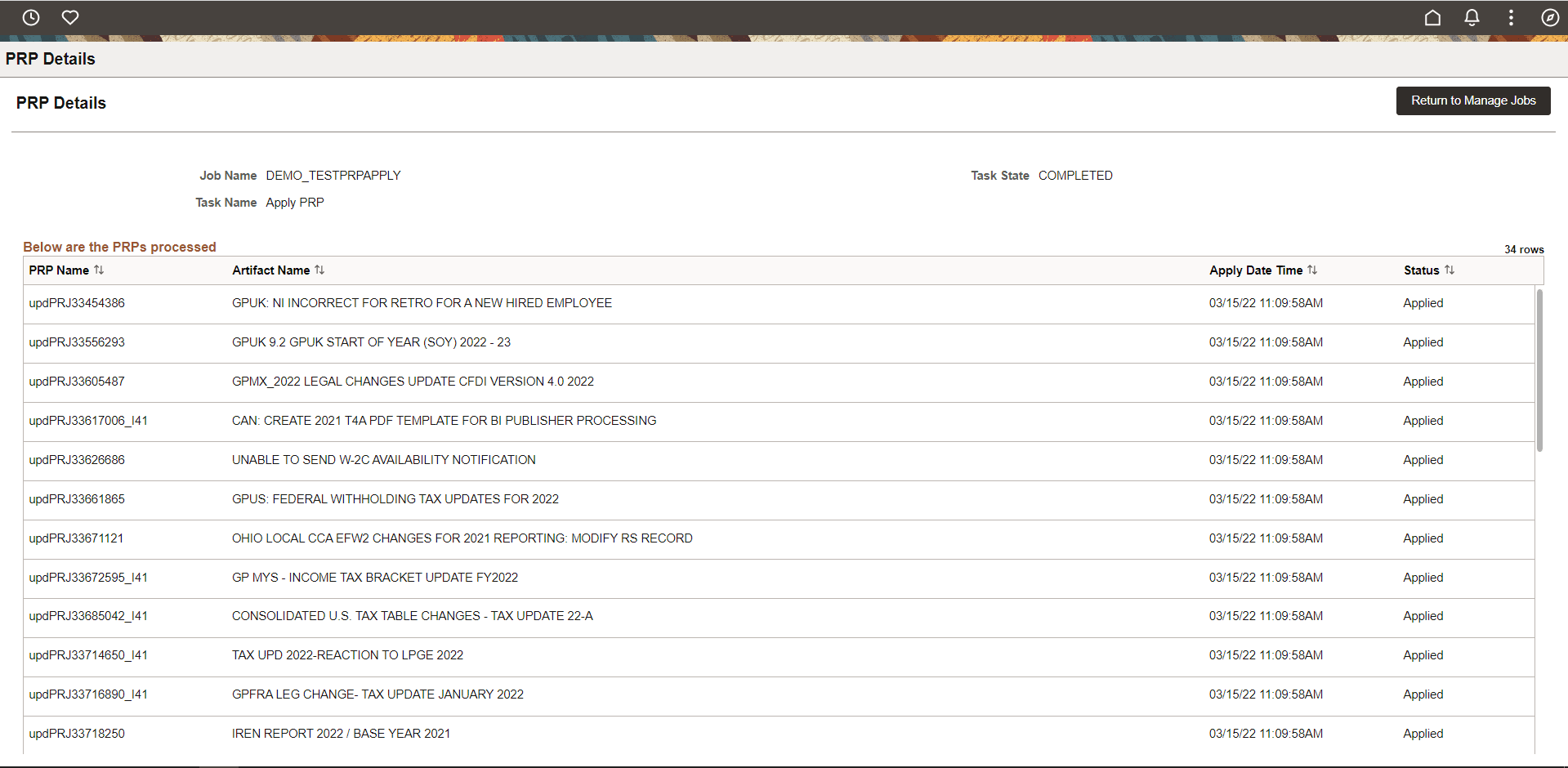
This example illustrates the fields and controls on the PRP Details page.